SkyView HDX Display Operation
3-24 SkyView HDX Pilot’s User Guide – Revision B
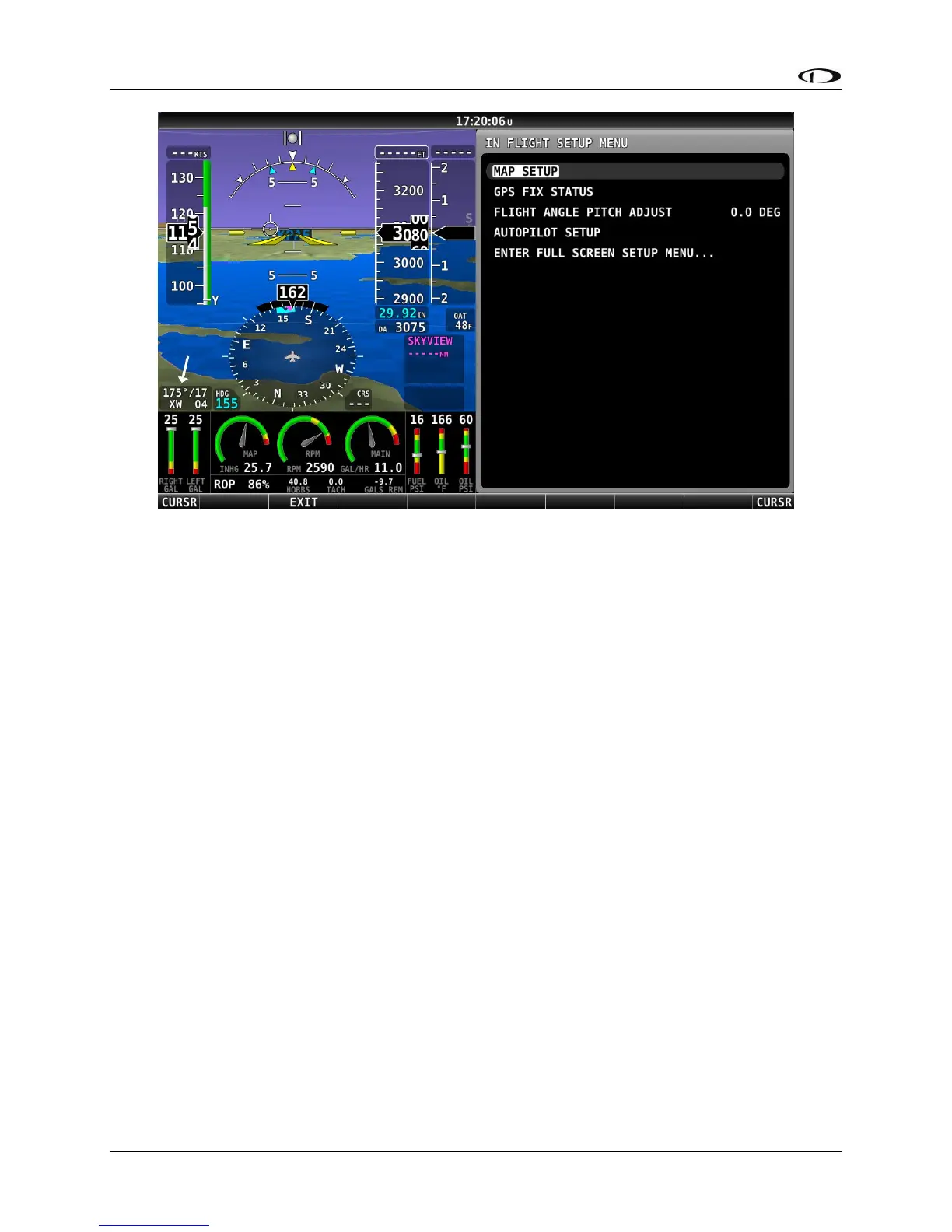
Figure 26 – IN FLIGHT SETUP MENU
Note that the bottom item in the IN FLIGHT SETUP MENU provides access to the full screen
SETUP MENU. When in flight pilots should only choose this item carefully and deliberately.
Navigation of both the In Flight and System setup menus is identical. As each menu page is
displayed, the top item in the list will be highlighted by a white cursor bar. Move the cursor up
or down to the desired item by rotating either knob (labeled “CURSR”). Select the desired item
by pushing the knob. The next menu – referred to as a sub-menu – will be displayed.
In the case of the IN FLIGHT SETUP MENU, each successive sub-menu will replace the previous
menu and will be presented only in the 50% wide non-primary side of the screen. In the full-
screen System SETUP MENUs, the current menu is presented in the left half of the screen, and
the prospective sub-menu in the right half. When a menu selection is made by pushing the
knob, the selected sub-menu will move to the left half of the screen, and a new menu will
appear on the right.
In both the IN FLIGHT and System setup menus, pushing-and-holding the knob for one second
will return to the previous menu. Both menu systems also make use of the bottom menu bar to
present some navigation selections, such as BACK and EXIT.
The following table summarizes menu navigation IN FLIGHT and System setup menu navigation.




 To Next Page