PFD Operation
4-16 SkyView HDX Pilot’s User Guide – Revision B
HSI
When a valid NAV or GPS source is connected to your SkyView HDX system, its data can be
displayed on and around the heading indicator in a standard HSI presentation. Refer to the
SkyView Classic / SE / HDX System Installation Guide for details on how to connect and
configure these data sources. The following sections describe the HSI display elements.
HSI Source
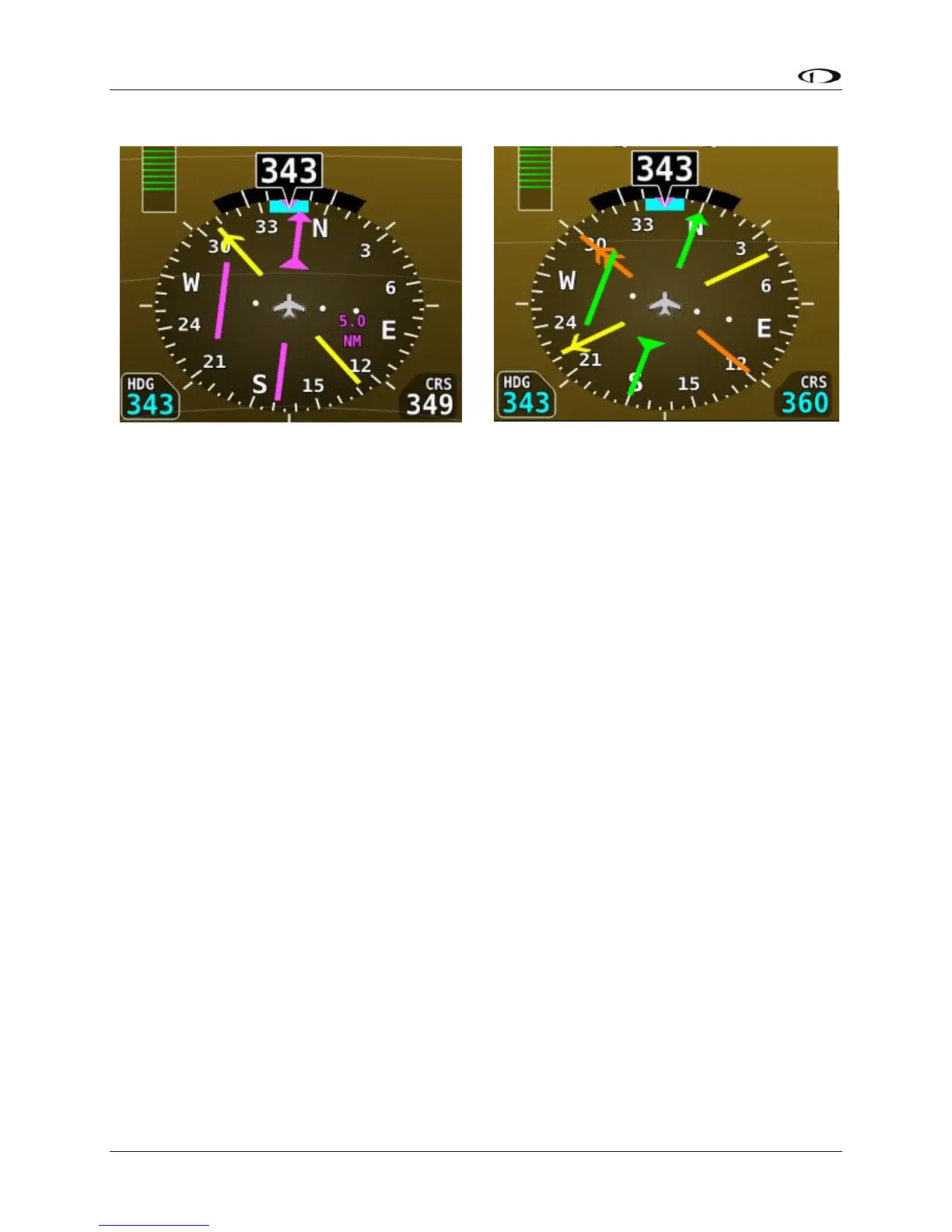
There are two primary types of sources: GPS and NAV radio. When a GPS is being used as an HSI
source, HSI data generated by that source is colored magenta. When a NAV radio is being used
as the source, its data is in green. To the right of the heading indicator, a textual info item
describes the data source of the HSI. It can be any of:
• GPS
• NAV (VOR)
• BC (back course)
• LOC (localizer)
• SKYVIEW
Additionally, each GPS or NAV radio source either has a custom name or is numbered
(depending on how those devices are configured within SkyView) to reduce confusion in
systems that have multiple navigational devices. SkyView HDX’s own navigation mapping
capability is always labeled “SKYVIEW”. The GPS waypoints are displayed in HSI info area for
SKYVIEW and external GPS navigation sources.
To cycle through the available sources of HSI data, you can either:
• Select MENU (Button 6) on the Main Menu, then select the PFD TOOLS icon, then select
the HSI SRC icon. Repeated touches of the HSI SRC icon will cycle through the available
HSI data sources. Or,




 To Next Page