v 2.0 — March 2023 Altanium Delta5
60 Graphical View Screen
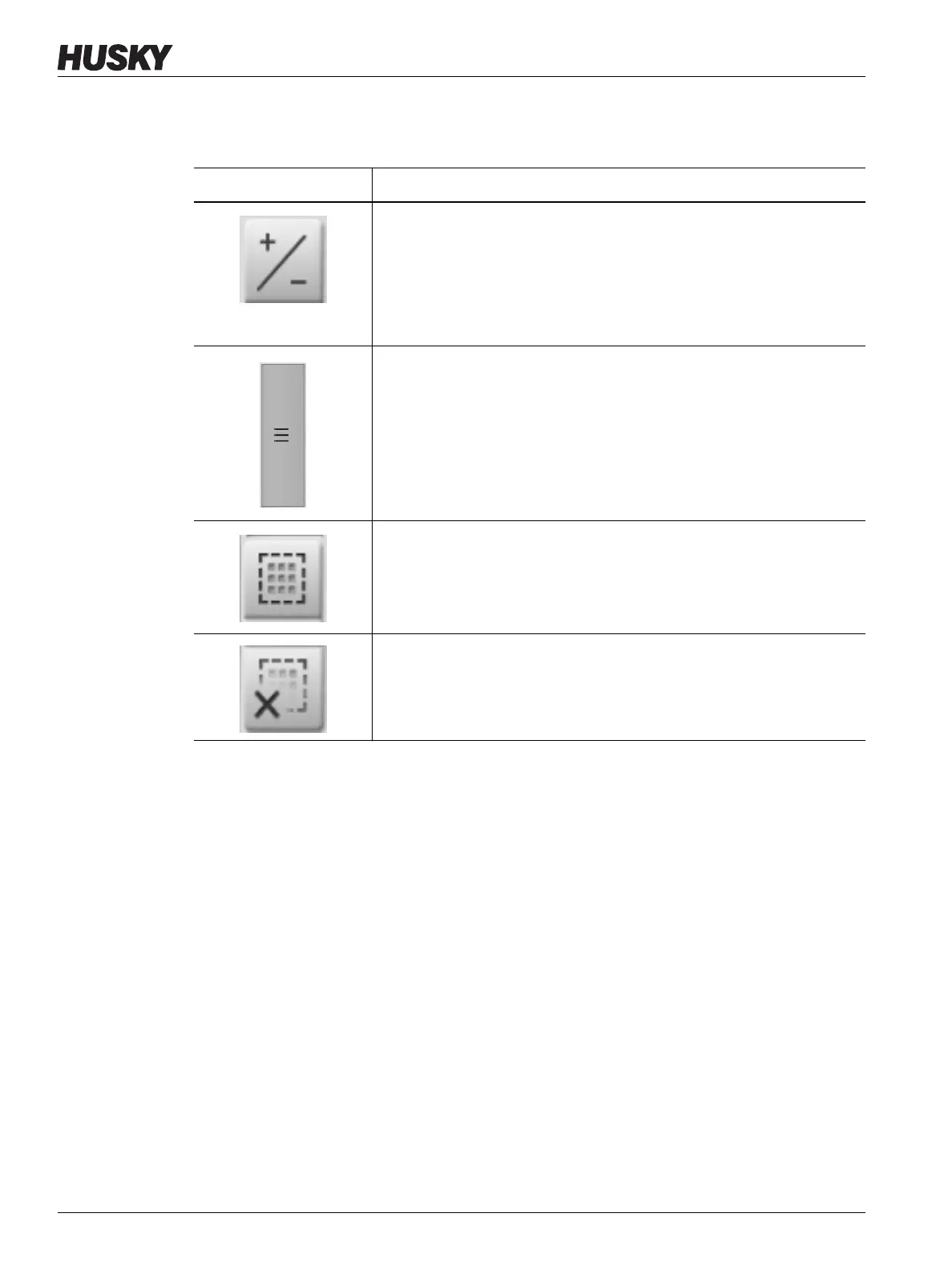
Table 7-3 gives the descriptions for the buttons on the screen.
Table 7-3 Graphical View Screen Button Descriptions
Button Description
Plus/Minus (Split/Full and Detailed Screens)
Toggles the zone view between split- or full-screen mode. In split-screen
mode (Figure 7-5), zone graphs are shown in two groups, one on the top
and one on the bottom. In full-screen mode (Figure 7-6), the zone graphs
fill the whole screen area. This also toggles the Neo View screen to show
more zone details.
Scroll Bar
Use the scroll bar at the right of the screen to scroll between the top and
bottom of a long screen page. If all of the available data fits in a single
page, then the scroll bar will not be shown.
Select All
Touch this button to select all zones in the system. This will navigate to
the Quick Set screen.
Clear All
Touch this button to deselect all zones.


 To Next Page