5 Managing Patients and Equipment
120
Adding Equipment (PIIC iX)
By selecting the Add Equipm. key you can display a list of all free equipment (not currently assigned to
a patient) and select a device for use with this patient. If you add another monitor, you need to confirm
this at the selected monitor.
Removing Equipment
The association between a monitor and the patient can be ended by selecting Remove Monitor. With
PIIC iX, the
Remove Monitor key is not available when the monitor is locked to a bed.
Other equipment such as telemetry devices or IntelliVue Cableless Measurements can be removed by
selecting the device then selecting
Remove in the menu displayed.
Equipment Status Disputes
Equipment can come into situations where its status does not match its location. There are three
typical situations where this may occur:
• PIIC iX only - equipment is locked to a bed, but has been removed and used at another bed.
• PIIC iX only - equipment has been configured for use in a specific unit, but is now being used in a
different unit.
• Equipment has an equipment label but has not been configured at the Information Center and
therefore cannot be managed.
If a monitor or a companion device is in one of these situations, a
Check Equipment INOP will
appear and the equipment status will be shown in the
Equipment window.
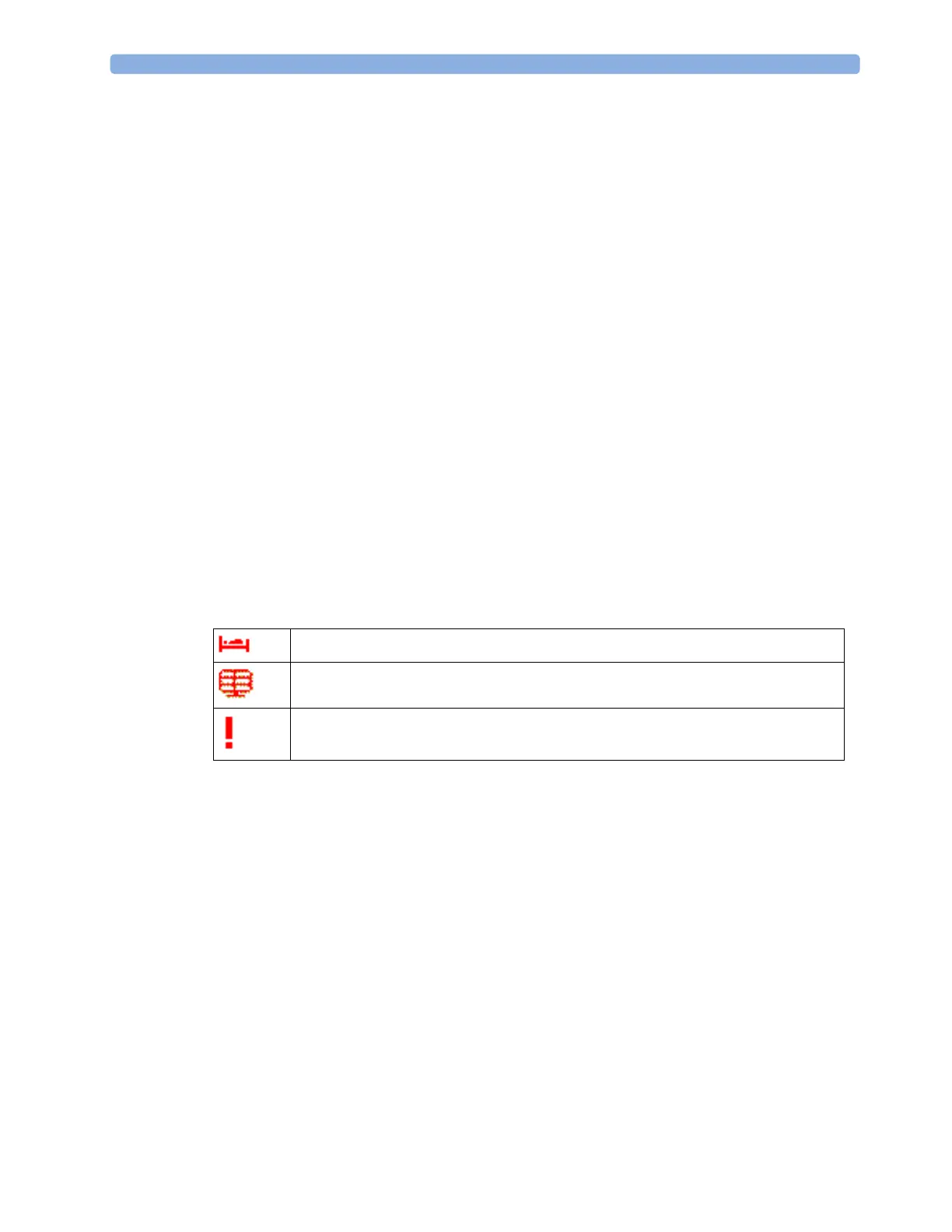
The following symbols (in red) are used to show the status in the
Equipment window:
Using the Equipment Window
In the Equipment window you have access to patient management, workflow functions (set location,
transfer), equipment management functions (add/remove equipment) and caregiver-related functions.
You can open the
Equipment window directly in Main Setup or by selecting the bed label in the
information line.
equipment is locked to another bed
equipment is not configured for use in this unit
equipment label is not in system configuration, or duplicate equipment labels



 To Next Page