32 IntelliBridge EC10
392
6
The connection status LED (4) will flash green until it has correctly identified the external device
and started communication. Check that the connection status LED then lights green continuously
indicating that communication has been established.
Changing Waves and Numerics Displayed
To change the waves and numerics from the IntelliBridge module or Interface board displayed on the
Screen,
1 Select Main Setup, Measurements, then <External Device> to enter the setup menu for the
connected device.
2 Select Setup Driver.
3 Select Setup Waves or Setup Numerics and make the changes required.
4 Close the setup menu. The monitor takes a few seconds to activate the change.
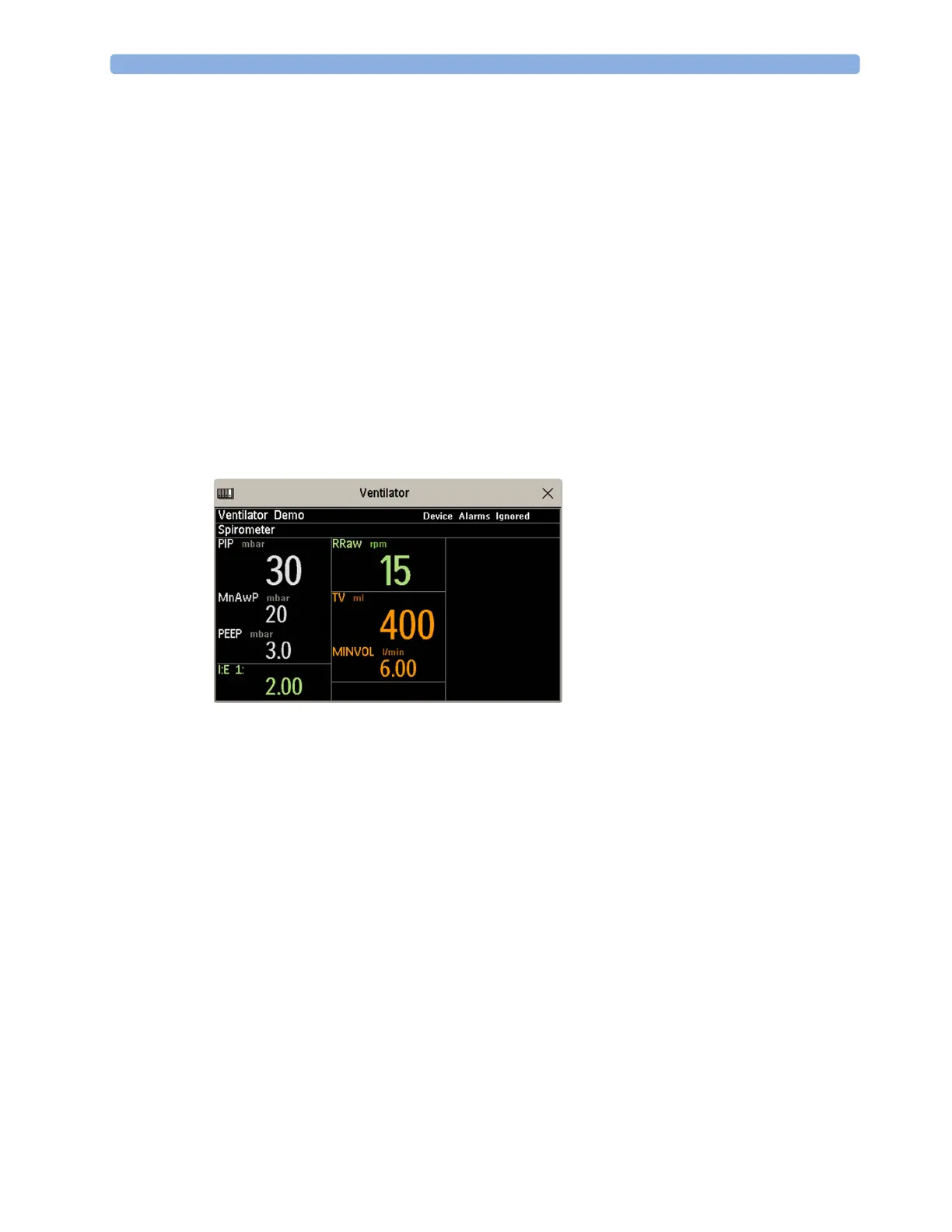
Viewing the IntelliBridge Device Data Window
To view the IntelliBridge device data window, either
• select the setup key on the IntelliBridge module, if available, or
• select the
External Devices SmartKey and then select the pop-up key with the device name on it,
or
•in the
Setup <External Device> menu, select Show Device Data.
Check that the correct external device ID is shown in the window title.
Select the device data window then
Setup Device to open the setup menu for the connected device.
With the
More Data key you can page through additional data which does not fit on the first screen.
When an infusion system is connected the data is presented differently. The data from each pump is
displayed in a horizontal frame in the window. Data from several infusion pumps can be displayed.
To see a detailed information window for one of the pumps, you can select data for that pump on the
Screen or select the
More Data pop-up key.



 To Next Page