31 VueLink Modules
389
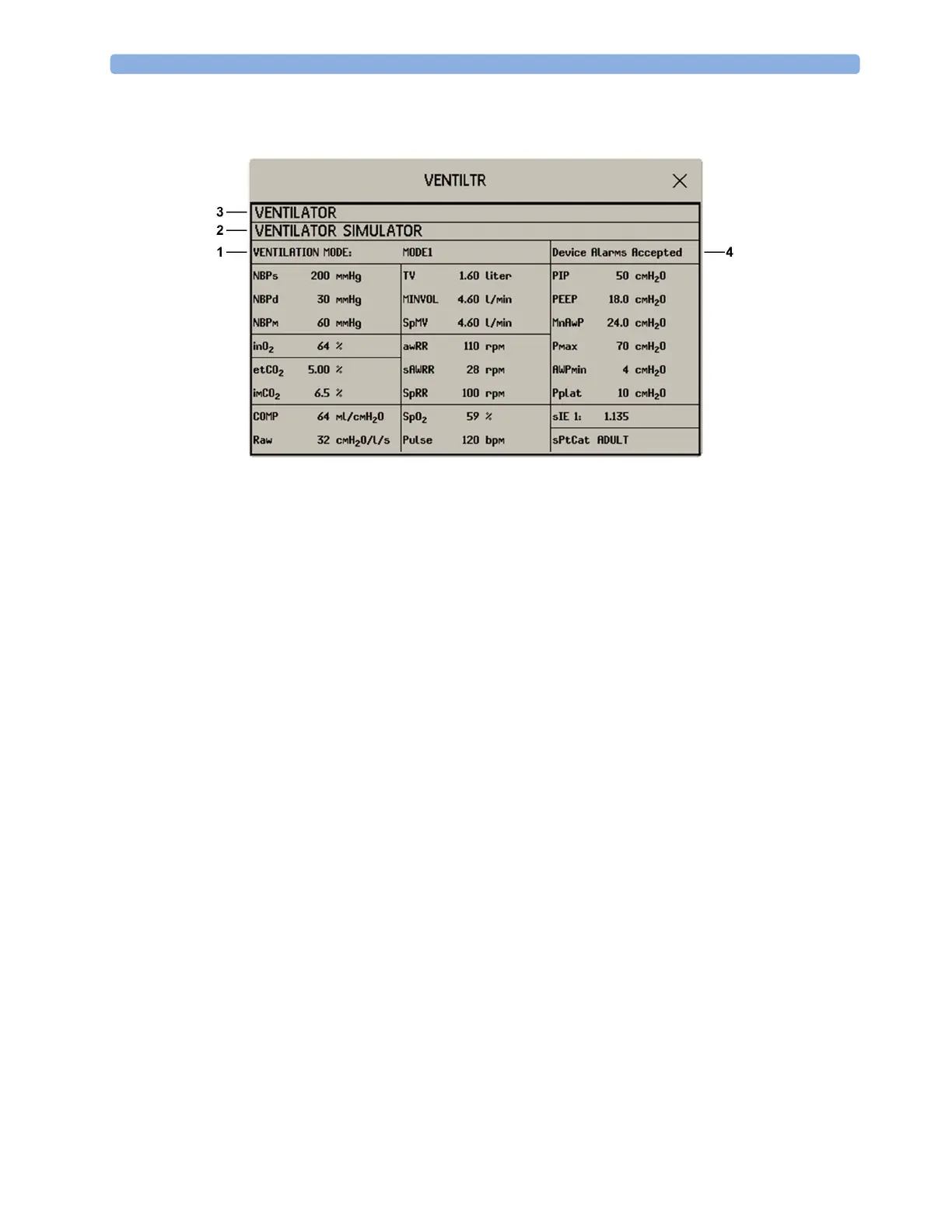
Viewing the VueLink Device Data Window
1 Mode information from external device
2 Name of external device
3 Type of external device
4 Device Alarms Accepted
To view the VueLink device data window, either
• select the setup hardkey on the VueLink module or the
External Devices SmartKey, and then
select the pop-up key for the device, or
•in the
Setup <External Device> menu, select Show Device Data.
Select the device data window then the
Setup Device key to open the setup menu for the connected
device.
Using VueLink Screens
Your monitor may be configured to show VueLink device data permanently on the Screens.
Select the device data window to display the external device pop-up keys that let you access the setup
menu and carry out external device tasks.
Switching VueLink On and Off
• To switch VueLink measurements on and off, in the setup menu for the external device, select
Device Interface to toggle between the settings On and Off.
Alarms/INOPs From External Devices
The VueLink module itself generates INOPs, but does not generate alarms. If the external device's
alarms are on, the module transmits these to the monitor. A message in the VueLink info window tells
you, depending on the configuration setting, either
Device Alarms Ignored or Device Alarms
Accepted
or, when the external device is not supplying alarm data, No Alarms Available.



 To Next Page