3 Alarms
70
If you set the yellow alarm limit outside the red alarm limit, the monitor will automatically adapt the
red alarm limit.
When an ST measurement is in the alarm limits window there are also two pop-up keys available
labeled
All ST Narrow/All ST Wide. With these keys you can set Auto Limits for all ST Leads.
Alarm Limits can also be changed at the IntelliVue Information Center iX.
About Automatic Alarm Limits
The monitor can automatically set alarm limits suited to your individual patient, using the Automatic
Alarm Limits function (AutoLimits). This tells the monitor to adapt the alarm limits of selected
measurements to the measured vital signs within a defined safe limit. The monitor calculates safe
AutoLimits for each patient based on the measured values from the last 12 seconds.
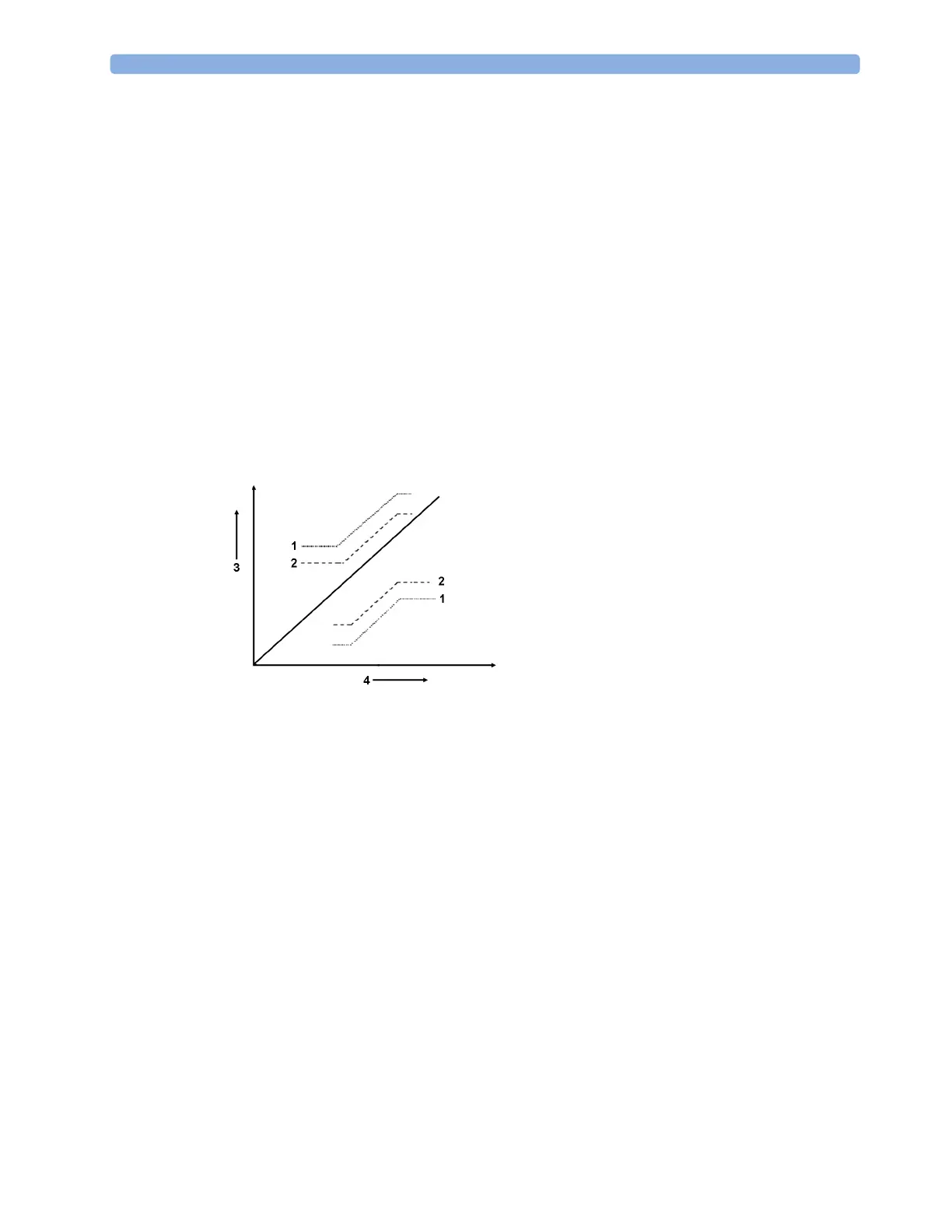
The wide and narrow limits have a fixed relationship to the measured value within the non-
pathological range. Outside of this range, no auto limits are calculated. To set values outside of the
non-pathological range, limits must be changed manually, based on the clinician's judgment about the
specific patient.
Limits Narrow sets limits close to the currently measured values for situations where it is critical for
you to be informed about small changes in your patient's vital signs.
Limits Wide sets limits further away from the currently measured values for situations where small
changes are not so critical.
Use the keys in the measurement alarm limits window to apply AutoLimits for individual
measurements. These keys are not available if AutoLimits have been disabled for the measurement in
the monitor's Configuration Mode.
AutoLimits are not available for all measurements. The list of measurements for which AutoLimits can
be used is defined in the monitor's Configuration mode.
Use the measurement alarm limits window to check AutoLimits before you apply them to ensure that
they are appropriate for your individual patient and their clinical condition. Once applied, AutoLimits
are shown on the monitor screen just like manually-set alarm limits. If the AutoLimits are not
appropriate for your patient, you must set alarm limits manually. The limits remain unchanged until
you set them again or change them manually.
Documenting Alarm Limits
The alarm limits pop-up keys appear with the Alarm Limits and measurement alarm limits windows.
1 Wide alarm limits
2 Narrow alarm limits
3 Alarm Limits
4 Measurement value



 To Next Page