3 Alarms
69
2
Select a value from the list to adjust the alarm limit.
Alternatively, you can use the keys in the measurement alarm limits window, which you access by
selecting the measurement label in the
Alarm Limits window.
To change alarm limits,
1 Enter the Alarm Limits window.
2 Using touch: to set the high alarm limit, select the high yellow alarm field to open a pop-up list of
high alarm limits. Select a limit from the list. Repeat to set the low yellow alarm field.
Using a SpeedPoint or Navigation Point: position the cursor in the high yellow alarm field,
then press the knob inwards. Rotate the knob to the left or right to adjust the limit. Press the knob
again to set the displayed limit. Repeat to set the low yellow alarm limit.
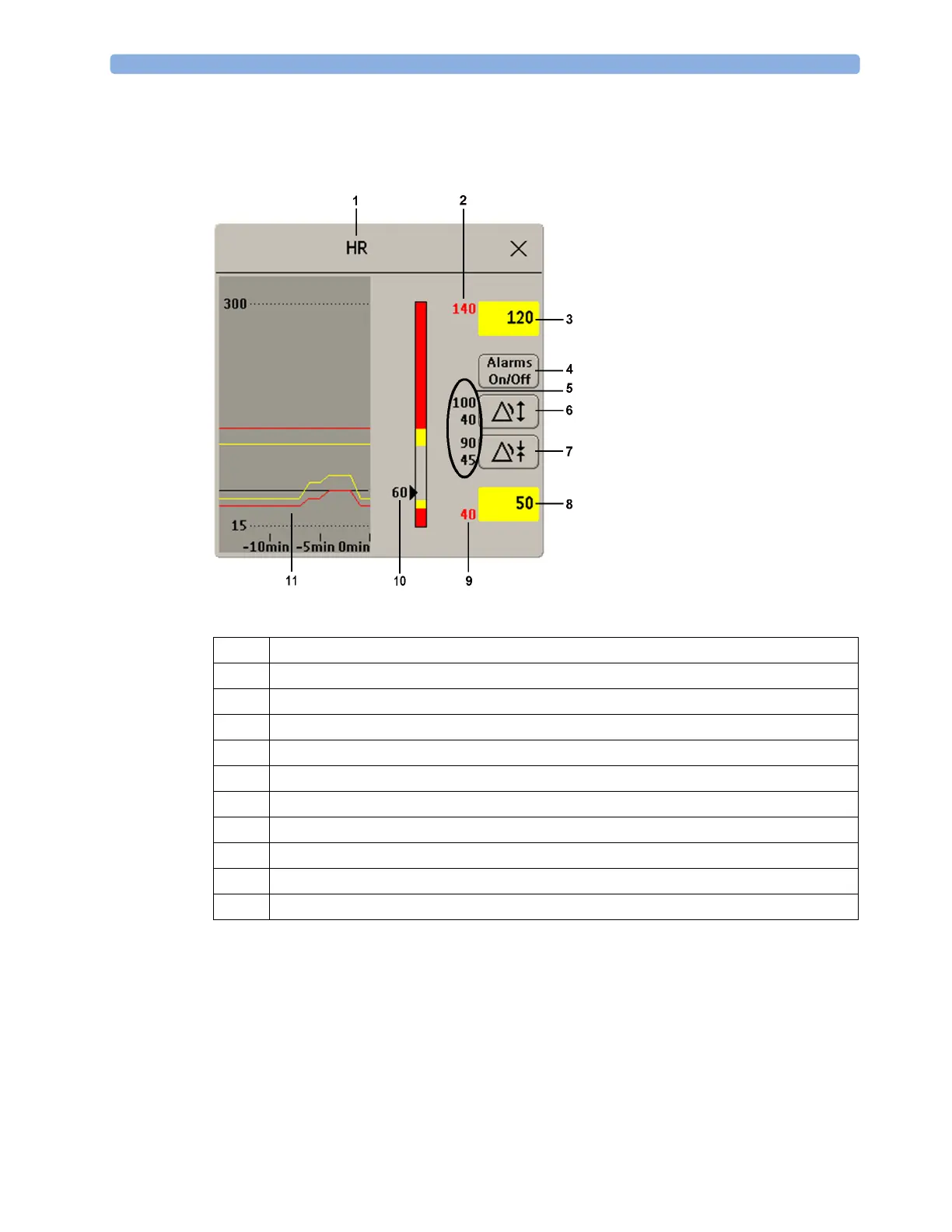
1
Parameter label
2
High red alarm limit (view only)
3
High yellow alarm limit field. Select to open a pop-up list of high alarm limits
4
Alarms On/Off key - select to switch between alarms on or off
5
Preview Alarm AutoLimits for a measurement before applying
6
Select to apply wide AutoLimits
7
Select to apply narrow AutoLimits
8
Low yellow alarm field. Select to open a pop-up list of low alarm limits
9
Low red alarm (view only)
10
Graphic view of alarm limits with currently measured value
11
15-min trend, showing alarm limits and monitored measurement values



 To Next Page