6 ECG, Arrhythmia, ST and QT Monitoring
167
ST View Window
The
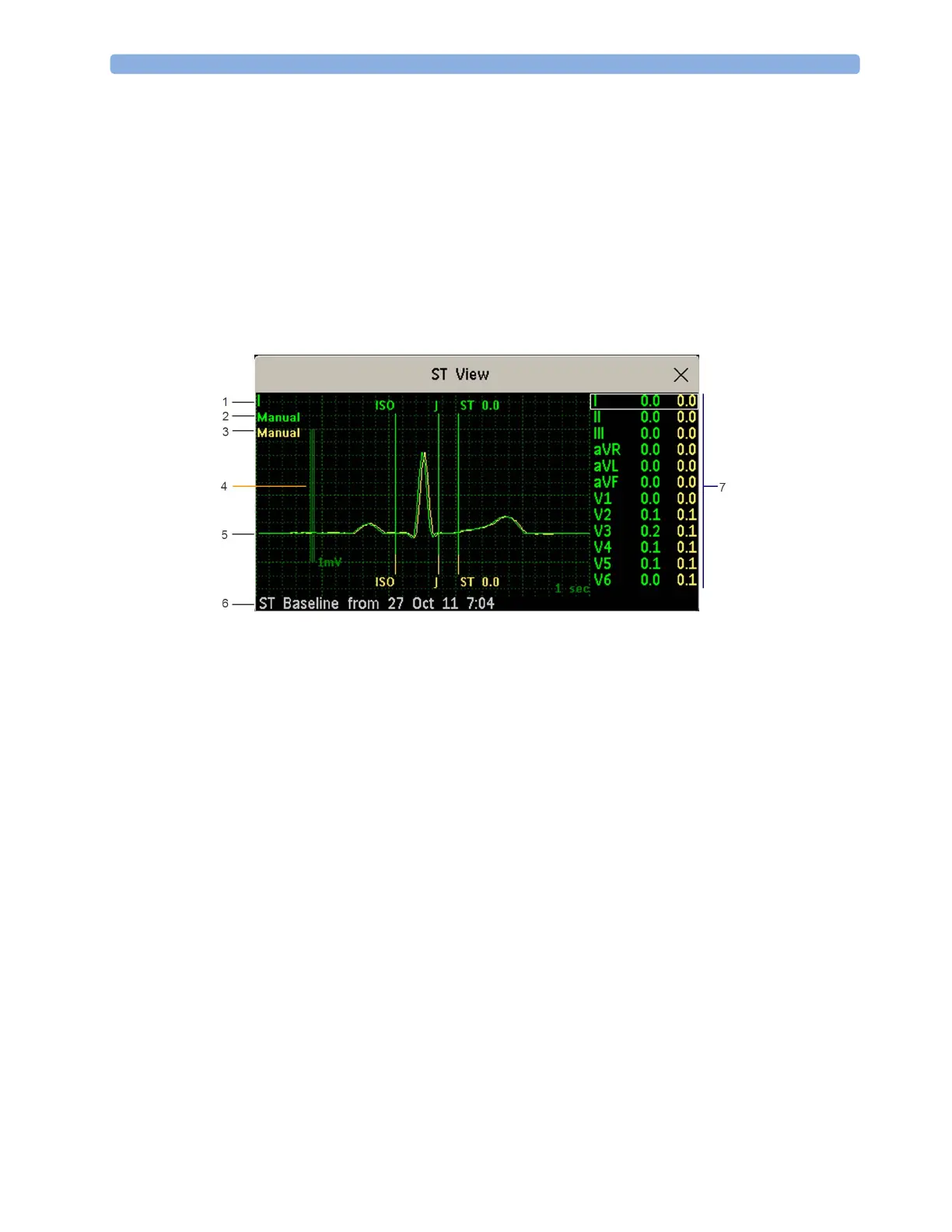
ST View Window shows a current ST snippet and numeric with a baseline snippet and numeric.
The two snippets are in different colors, so that you can differentiate between them easily and see at a
glance which numerics belong to which snippet. In the upper left corner the current lead and the ISO/
J-Point mode for the current snippet and the baseline snippet is shown. On the right side all available
ST numerics are shown. The date and time of the baseline snippet is shown at the bottom of the
window.
The
ST View Window opens with the ST pop-up keys Current / Baseline / Overlap (to select viewing
mode),
Show Points /Hide Points, Update Baseline, Record ST, STE View, Adjust ST Points, ST
Map
, Setup ST and arrow keys for scrolling through the available leads.
To view the
ST View window, select any snippet on the Screen.
1 Current Lead
2 ISO/J-point mode for current snippet
3 ISO/J-point mode for baseline snippet
4 1 mV calibration bar
5 Current ST snippet and ST baseline snippet overlapped
6 Timestamp of most recently stored baseline snippet
7 All available ST numerics for current snippet and baseline snippet
The ST point, J-point and ISO point can be hidden using the
Hide Points pop-up key.
STE View Window
The
STE View window shows a current ST snippet and STE numeric with an ST baseline snippet. The
two snippets are in different colors, so that you can differentiate between them easily. In the upper left
corner the current lead is shown. On the right side all available STE numerics are shown. The date and
time of the ST baseline snippet is shown at the bottom of the window.



 To Next Page