DMG 3200/3100/3000 – User Manual
Page 292 (306)
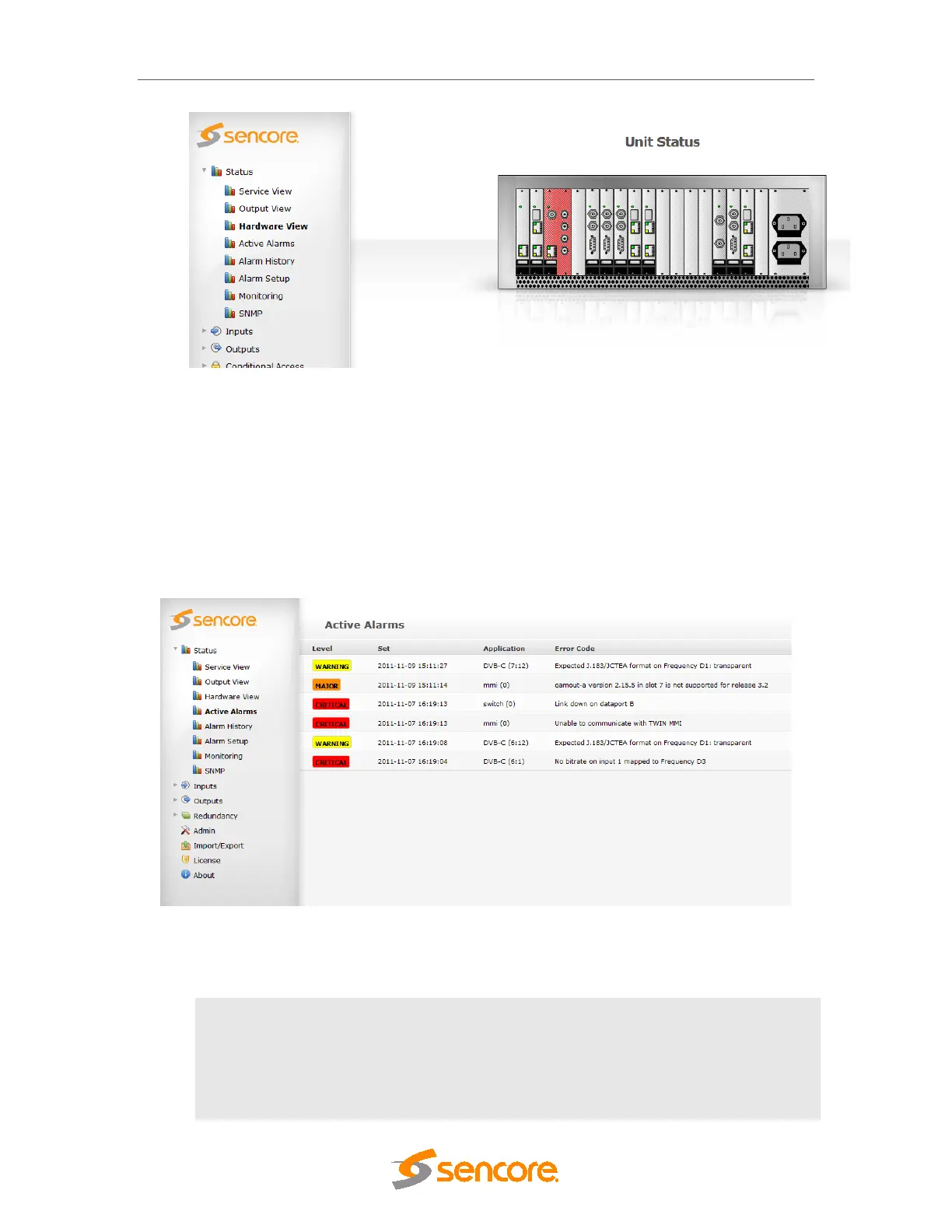
Figure 11.5 - Hardware View
11.1.4 Active Alarms
Expand the Status view in the Navigation Pane and click the Active Alarms icon. All active
alarms will be displayed as shown below. The active alarms are first filtered by the active alarms
filter, then by the root cause filter, if enabled. Note that all active alarms will also be displayed in
the bottom pane. Refer to the table below for information on the color coding and what it
represents.
Figure 11.6 - Active alarms
Level
All alarm levels are color coded as follows:
• CRITICAL – Red
• MAJOR – Orange
• WARNING – Yellow
• NOTE – White


 To Next Page