ECDIS-E User Guide Appendix A - Chart Installation
65934012 A-5
To install ARCS charts do the following:
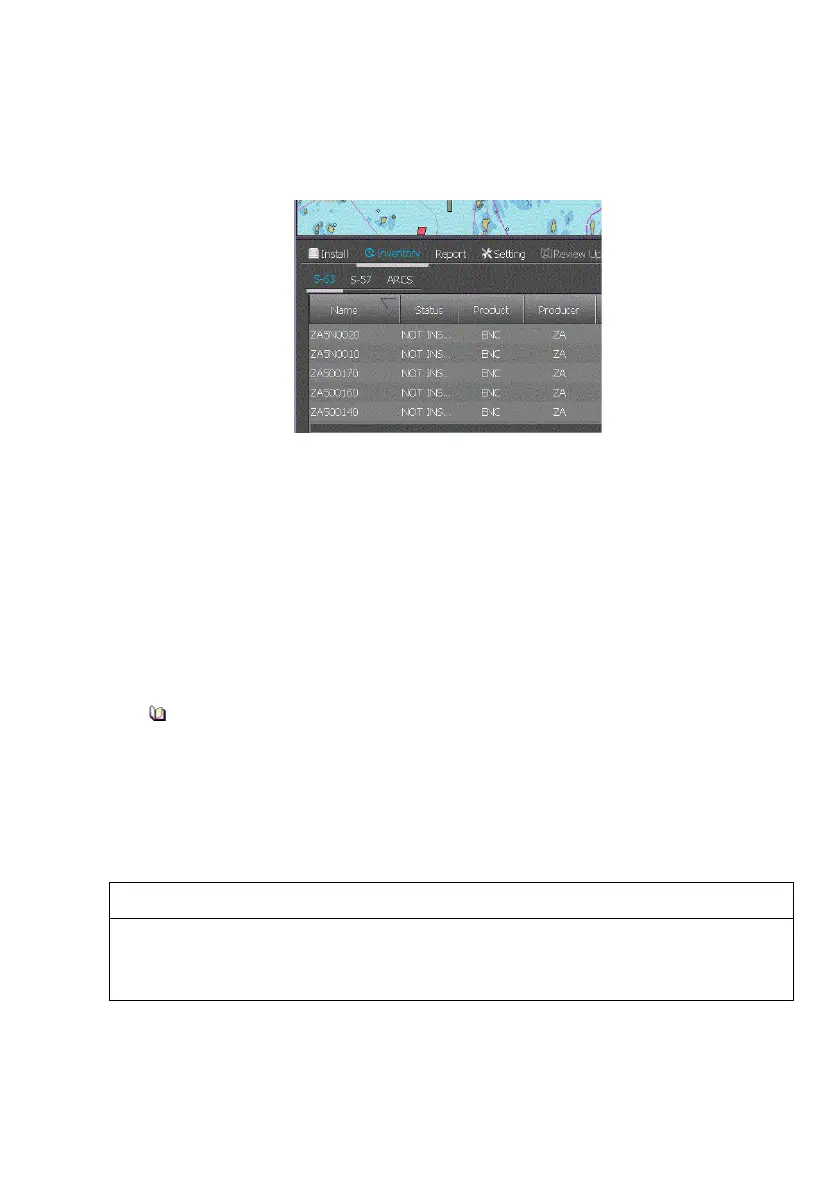
When ARCS has been selected in the Chart Installation window the
ChartHandler screen will show any existing ARCS charts in the Inventory
tab folder.
Whenever new ARCS charts are being installed or existing ARCS charts
are being updated, the latest permit file should always be supplied to the
ChartHandler prior to installation. If the chart provider is UKHO, an email
containing the latest permit file is distributed on a periodic basis. Other
chart providers may have a different method of permit file distribution.
1. To install the ARCS permit file browse to the file from the Settings tab
folder by selecting Scan local path in the Drives tab and click the
Browse button to navigate to the file.
2. With the permit file selected install the file by clicking the Scan Drives
button in the Install tab folder.
When installing ARCS Charts using the ChartHandler, it is
important to remember the following. Click once on Scan Drives,
this will install the necessary chart permits. This happens in the
background and there will be no acknowledgement or screen
indication of this. Click Scan Drives for a second time, this will then
install the relevant charts. Wait for the process to finish and then
click Apply to complete the process.
CAUTION:
VisionMaster currently only supports the installation of ARCS user
permits (also known as Navigator permits). Other permit types, such
as Skipper permits, should NOT be installed
1. With the ARCS permit file installed ARCS charts can be installed in the
same way by clicking the Scan Drives button.



 To Next Page