ECDIS-E User Guide Routes
65934012 8-11
Print - if a printer is connected to the system (either local or network) a
print of the currently loaded route can be made.
Reverse - generate a new route that is a mirror image of the original
route.
A route may be selected with a double mouse click on the Edit Route
menu.
To manage a route do the following:
To save a route:
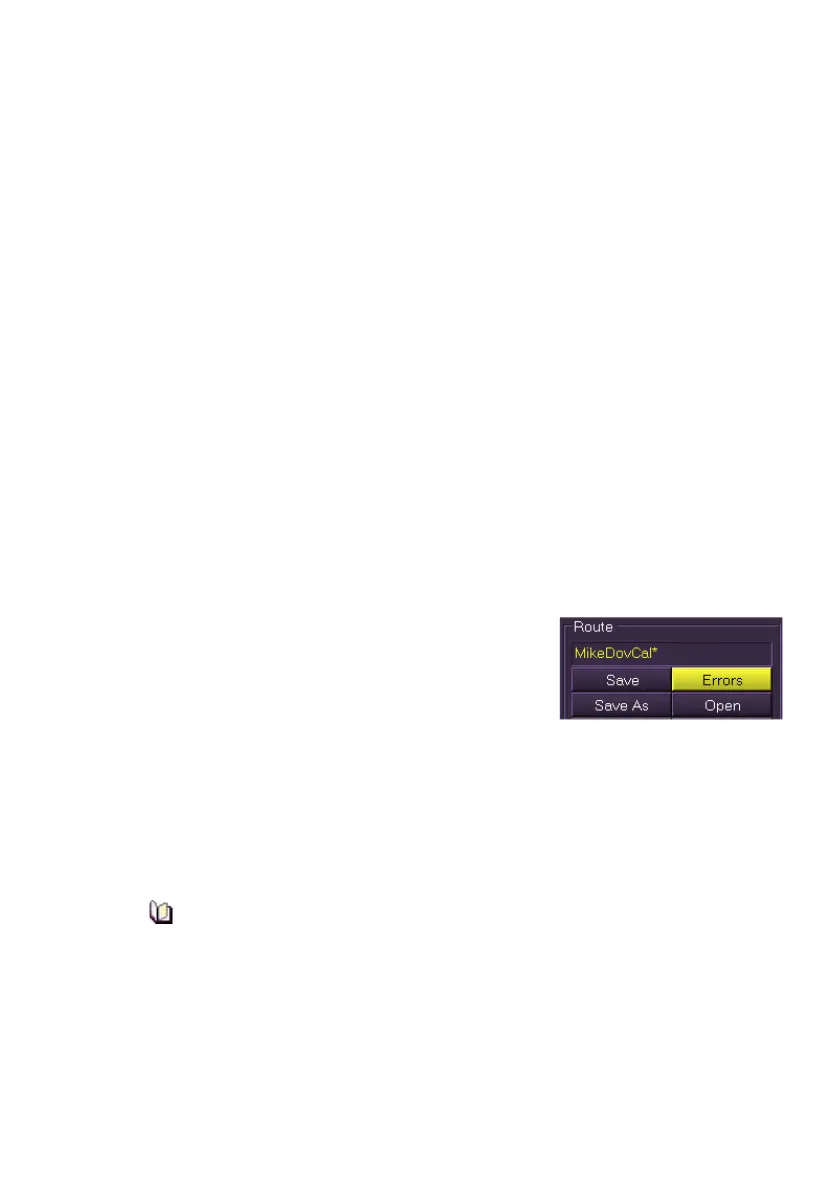
1. If changes to a route have been made the route name shows an
asterisk after the name (e.g. Route 2*).To save a route click on the
Save button, or if the changes made to a route are to be saved
under a new name, click on the Save As button. A window appears
prompting to enter a name for the route.
2. Enter a name using the screen keypad and click on the keypad OK
button.
3. The route name is entered, the current time/date is listed in the
Open Route window and a temporary prompt appears confirming
that the route plan has been saved.
To check for errors on a route:
1. If changes to the route's attributes are not
validated by the system the No Errors
button changes to Errors with the
button's background colour and route's
name in yellow.
2. To check the error messages click on the Errors button. A Route
Validation Messages window is displayed. Any errors on the route
appear in the messages field. Click the OK button to confirm.
If the route has no errors the message {No validation messages}
appears. The route is correctly validated and can be loaded for monitoring
when required.
The validation process only checks the geometry of a route. To
check the route against dangers, refer to Edit Route - Dangers.



 To Next Page