Routes ECDIS-E User Guide
8-12 65934012
To open a previously saved route:
1. Click on the Open button. The Open Route window appears
prompting to select a route to open and displaying a list of existing
routes on the workstation with the last modified date of each route.
Below the list the Description field contains a description (if any) of
the selected route.
2. Select the route to be opened from the list, scroll down the list if
necessary, and with the route selected click on the OK button. The
route data appears in the Route folder and a graphic
representation of the route appears on screen, assuming the
displayed location contains the route.
To clear a route from the chart display:
1. With the selected route displayed click on the Clear/New button.
2. If unsaved changes have been made to the route, a Close
Confirmation window appears prompting to Save, Don't Save or
Cancel the closure.
3. Select the required option, the route is cleared from the screen.
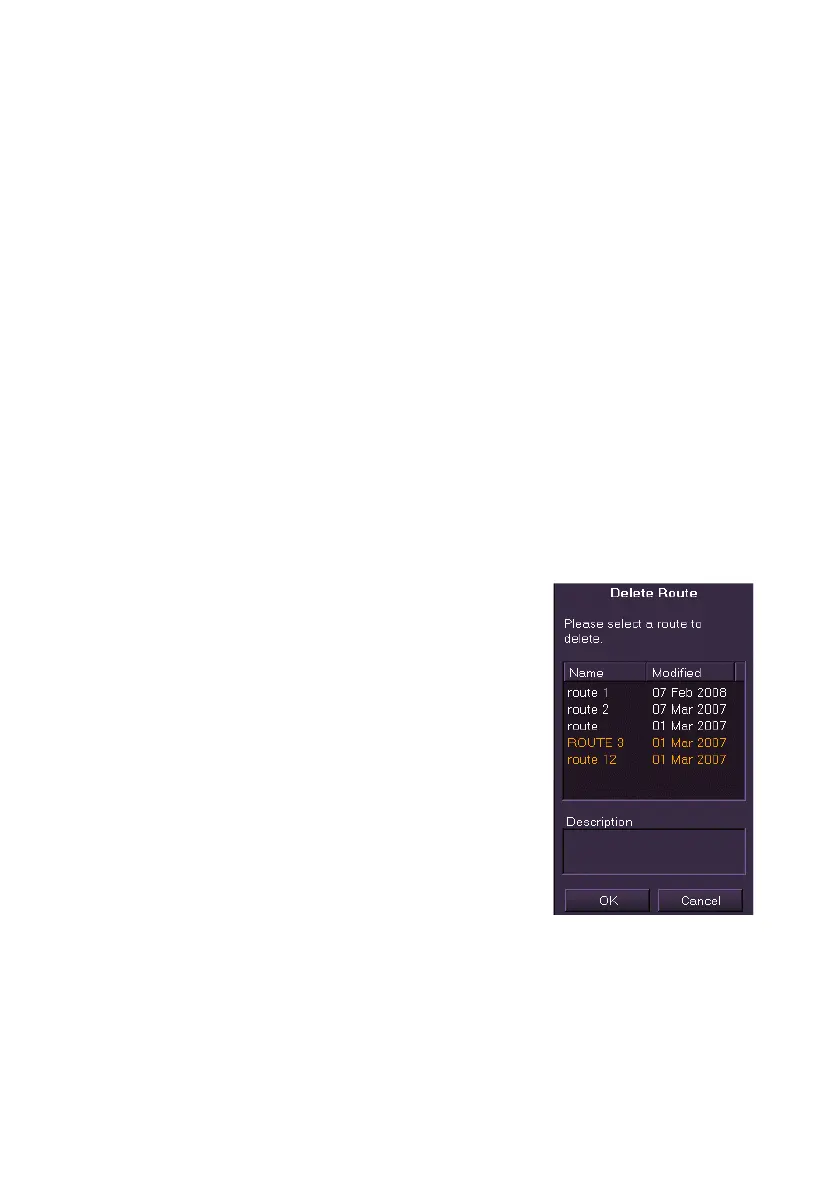
To delete a route from the route list:
1. Click on the Delete button. The Delete
Route window appears prompting to select
a route to delete and displaying a list of
existing routes on the workstation with the
last modified date of each route. Below the
list, the Description field contains a
description (if any) of the selected route.
2. Select the route to be deleted from the list,
scroll down the list if necessary, and with the
route selected click on the OK button. The
screen prompts to confirm deletion of the
selected route.
3. Click the Yes button to confirm deletion. The
route is deleted and the file name removed
from the list.


 To Next Page
 Loading...

