Basic Operation of ECDIS-E ECDIS-E User Guide
3-32 65934012
When a Goto location is applied TM limits are switched off and the motion
mode button displays TM Limits Off. TM limits are re-enabled when the
following are selected:
Off Centre, Centre or MAX View
TM or Reset TM Limits from the Motion Mode button.
To create a new location do the following:
1. Right click at the required position within the chart display and
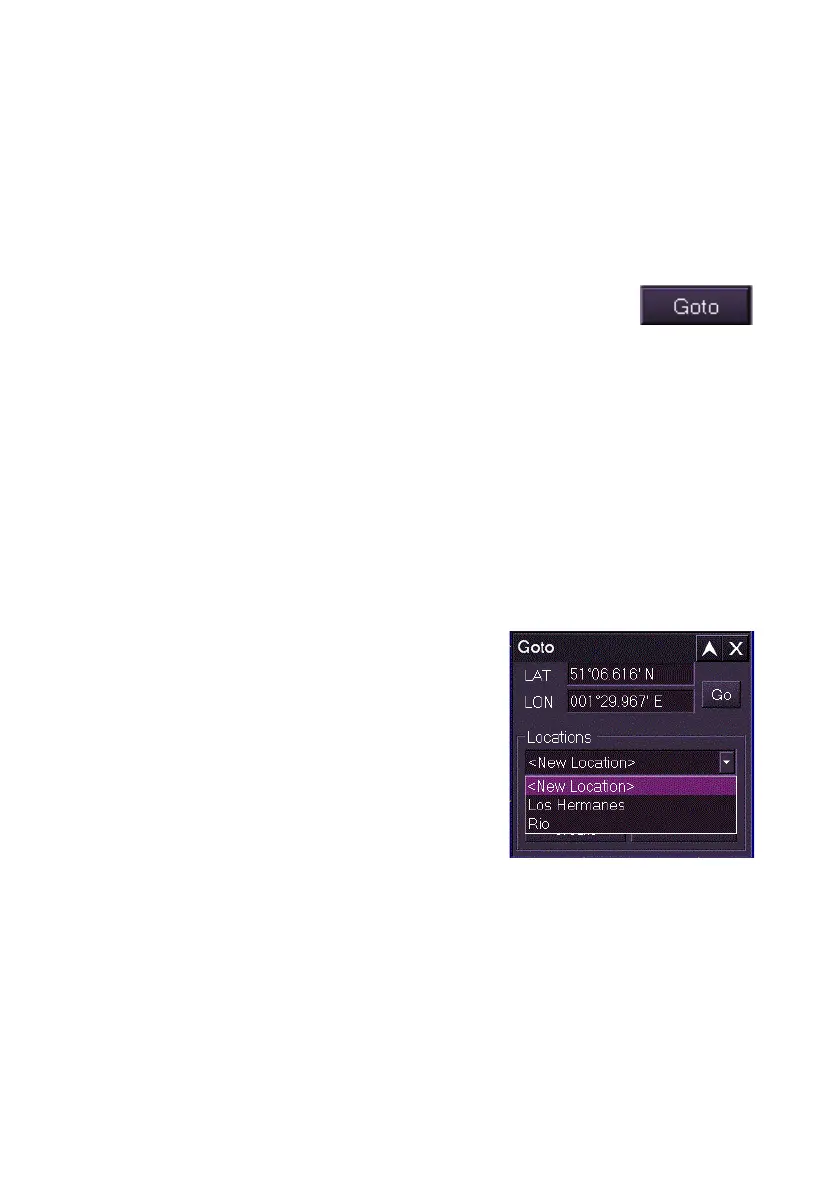
select Goto.. from the popup window. Or, click on the
Goto button in the lower popup toolbar. The Goto..
popup window appears directly above the button.
2. The Goto control window displays the L/L position selected. To
display the list of previously saved locations click on the drop down
arrow to the right of the Locations field.
3. To create a new location based on the L/L position click on the
Create.. button, the new location name field shows { Auto-
Generate Name }. To generate a location name based on the
current date and time click the OK button.
4. To generate the location under another name click in the new
location name field, a keypad appears below the location field.
Enter a location name using the keypad, and when complete click
the OK button.
5. The Goto.. control window reappears
with the saved location name in the
Location drop down list.
6. To enter revised coordinates for the
new location click in the LAT and LON
fields, a numerical keypad appears on
the menu area from where you can
enter the new L/L coordinates.
7. To assign the coordinates to the
location click the Update button.
8. To move L/L position to the centre of the chart display click the Go
button. Own ship, along with all other chart and target positions,
are moved in accordance.



 To Next Page