108 VS1 Editor Configuration Application
Specify by Number: plays a pre-selected voice message number
2. If Specify by Number is selected, click in the Specify by Number text box that appears and
type in a voice file number. Note that voice file numbers 11-13 and 900-999 are already
reserved with existing voice files. See “Pre-recorded Message List” in Reference section for a
list of reserved messages.
3. Click the Message button.
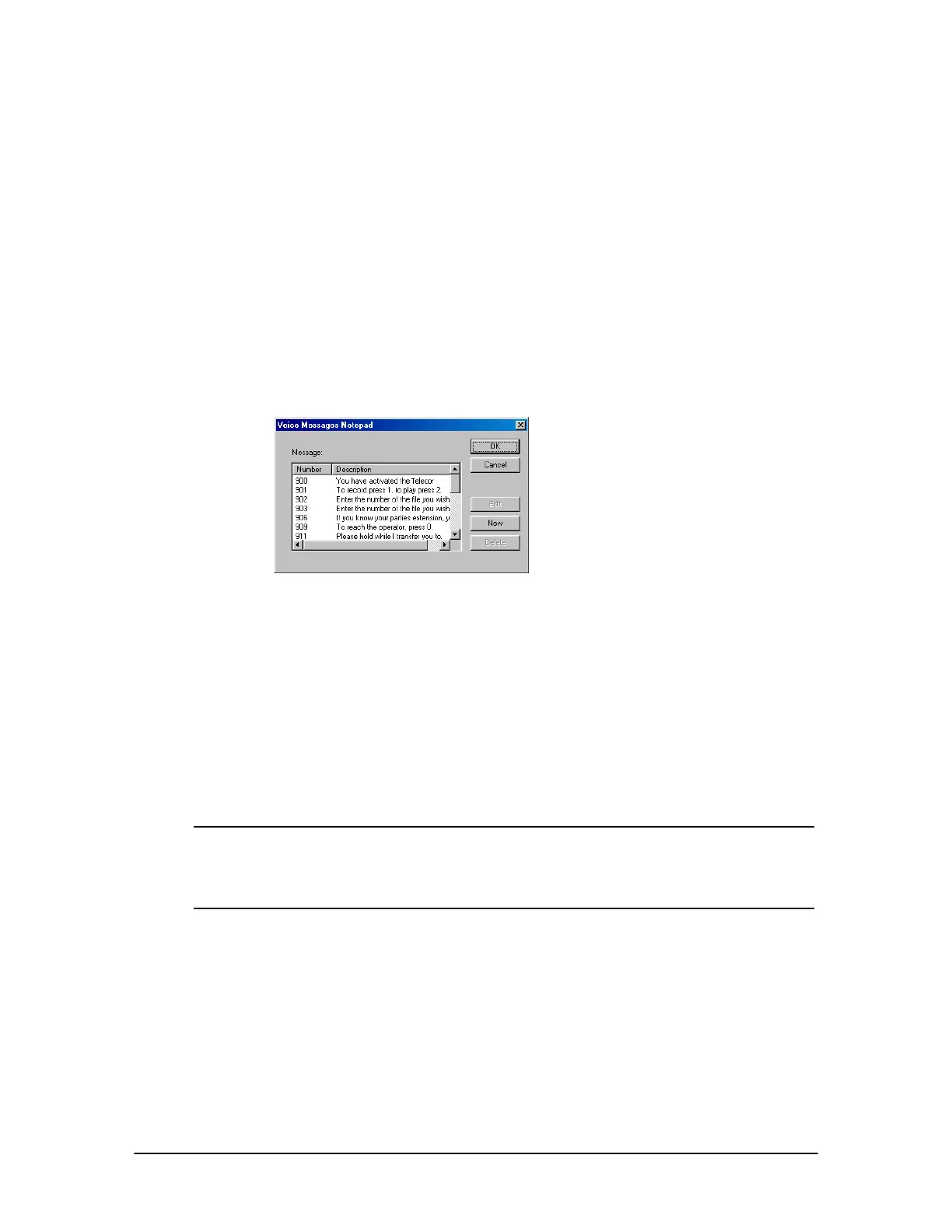
• The Voice Message Notepad window is displayed. Use this window to describe the voice
file you typed in the Specify by number text box. A message is assigned a number and
brief description. The actual message is stored by the Voice Message Recorder Auto
Attendant. Message files for all Auto Attendants appear in this window. Use care when
deleting or editing one of these messages because all Auto Attendants using that message
are affected. See “Recording a Voice File” in Reference section to record a voice file.
Voice Messages
notepad dialog box
4. Select a Completion Option.
• Caller Must Hear the Entire Message: This option is used when a Voice Message is
being played and the caller is not allowed to interrupt the message with DTMF tones. If the
caller does enter a tone, it is ignored by the system and the Voice Message continues
playing until it is complete.
• Allow Touch Tone to Cancel Message: Allow Touch Tone to Cancel Message is the most
common option selected. With this option, the caller may interrupt the playing of the Voice
Message with a DTMF tone. The Auto Attendant then skips the Voice Message and moves
onto the next System Action or the Goto Procedure.
Note If you are playing a series of consecutive voice files (Messages, Phrases, Date & Time)
within one System Action, do not choose this option for any of the voice files except the
last one in the series. If you set up all the files in the series to use this option, the Auto
Attendant recognizes the DTMF tone(s) only for the purpose of skipping to the next voice
file in the series, not for the purpose of taking action on the caller’s response.
• Chain another Message, Phrase or Date & Time: This option is used, typically, for only
one purpose—stacking a series of voice files (Message, Phrase, Date & Time) in a System
Action. The Auto Attendant begins to play the file and immediately moves on to the next
voice file. An example of proper usage: Four voice files are stacked for consecutive play.
5. Click OK to return to the Specify System Actions for Caller Responses dialog box.
6. A Goto Procedure value is required, even though it may not be used. Click Goto Procedure.
The Procedure to Goto dialog box appears. Double-click a procedure to select it (the Main
Procedure is the most commonly used choice).


 To Next Page