VS1 Installation, Configuration & Operating Guide 77
Downloading Files from a Site
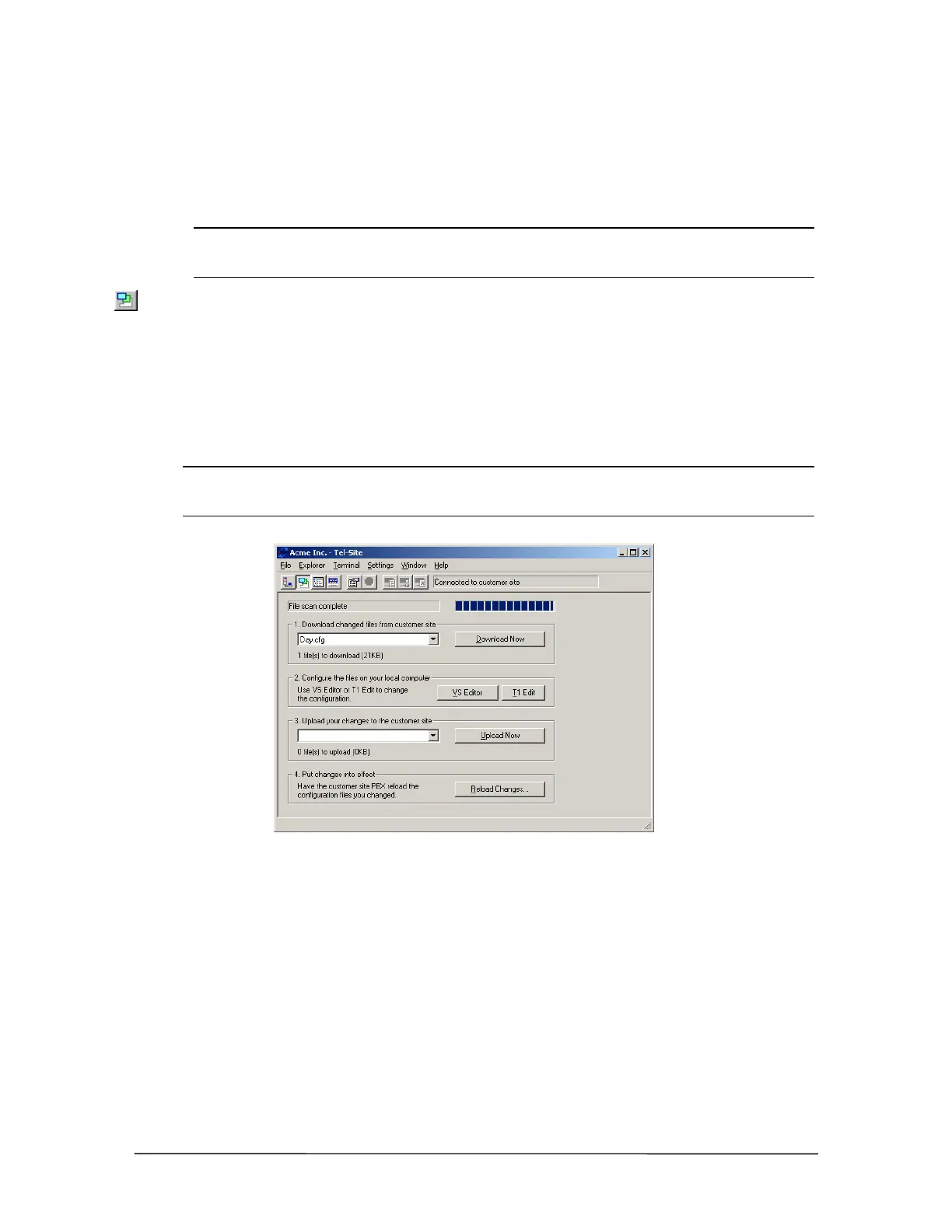
When connected to a customer site and the Configuration window is opened, Tel-Site scans and
displays any TVS files that have changed since the last remote activity. It can then download any
updated files so that your local computer matches the latest customer site configuration.
Note The first time you open the Configuration window after upgrading the TVS software, a
dialog box opens indicating an upgrade has occurred. You must download all of the
Configuration files so they correspond with the latest VS1 software version.
1. On the toolbar, click the Configuration window button.
2. Wait for Tel-Site to scan the files on the TVS. After scanning, files that need to be downloaded
appear in the Download changed files from customer site drop-down list box. If no files have
changed, the drop-down list box is empty.
3. Click Download Now to download the files to your local computer. For example, the screen
below shows file Day.cfg has changed since the last remote activity.
Warning! Clicking the Download Now button when there are no files present causes Tel-Site to
download all the configuration files from the site. This should be done only if you believe
the Tel-Site application failed to detect changed files.
Download remote
files
Changing Site Configurations
Configuration changes are performed on copies of site files on the Tel-Site computer. After any
changed customer site files are downloaded to the Tel-Site computer to match the latest customer
site configuration, the VS1 Editor program is used to configure the files.
1. In the Configuration window, click the VS1 Editor to open the VS1 Editor configuration
program.
2. Change the system configuration files as needed. See the VS1 Editor section for information .


 To Next Page