138 VS1 Editor Configuration Application
LOOP TAPES
A Loop Tape consists of a voice or sound file that an outside caller hears while waiting in an ACD
queue or while on hold at an extension. From one to 12 Loop Tape messages can be created for use
at any given time. Each Loop Tape, whether in use or not, permanently plays during system
operation and uses the resources of one voice channel. Because there can be a maximum of 12 voice
channels there can only be a maximum of 12 Loop Tapes.
Warning! Voice channels are used to read and write voice files and are used every time an Auto
Attendant or Voice Mail is accessed. The VS1 System comes with a System Activaiton
Key for four voice channels. Additional voice channels are available in increments of
four, up to a maximum of 12. Ensure that there are always less Loop Tapes than Voice
Channels on the System.
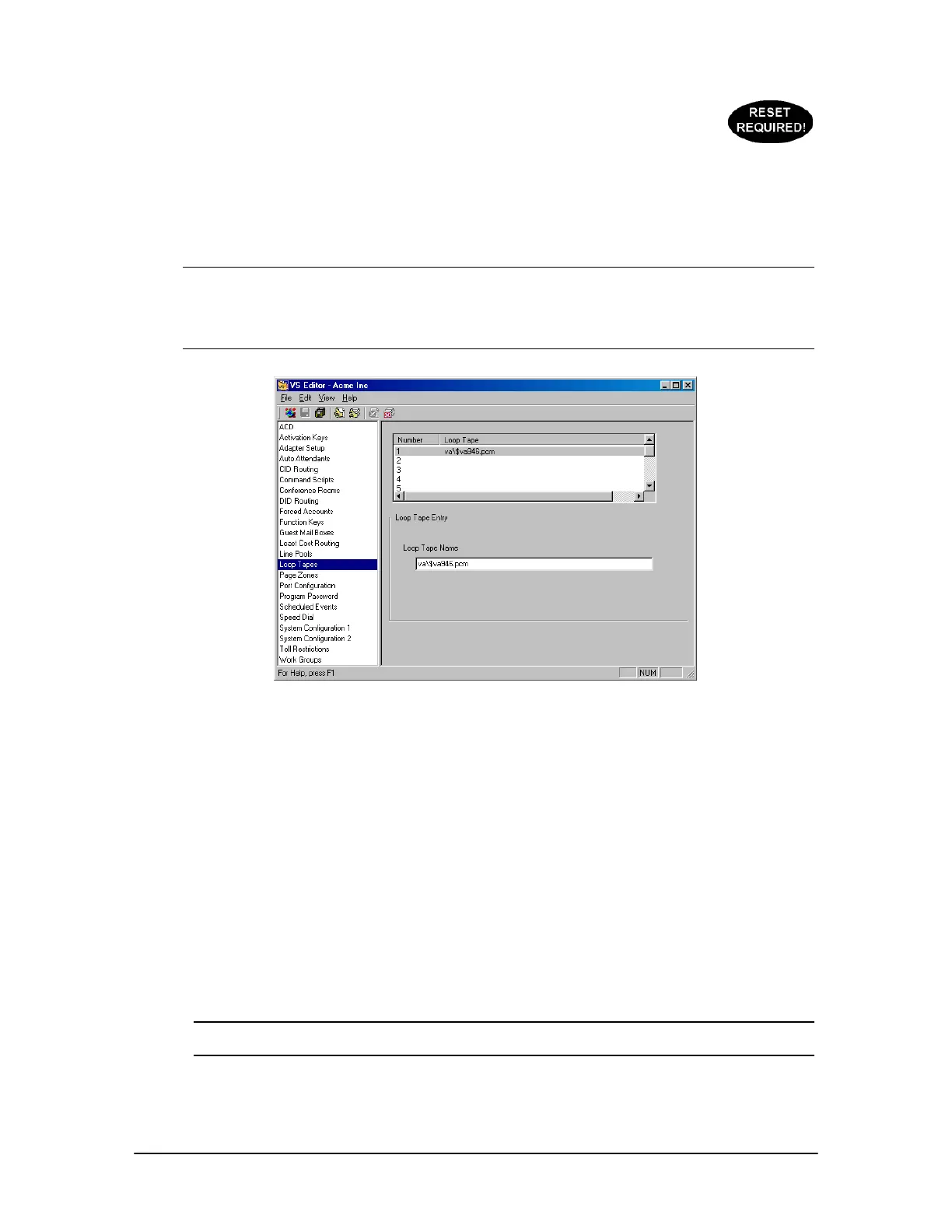
Loop Tapes pane
To create a Loop Tape, complete the following steps:
1. Select Loop Tapes in the Tree Control Display.
• The Loop Tape pane appears.
2. Select a Loop Tape Number in the Loop Tape list box. By default, Loop Tape 1 is set to play
file $va946.pcm. This file was created for systems without a music source input. It plays a
generic on-hold music file and an on-hold courtesy message.
3. A voice file needs to be assigned to the Loop Tape number. As an example, assume the voice
file is 500. In the Loop Tape Name text box, enter the voice file in the following way:
va\$va500.pcm
4. Click the Save button in the toolbar.
Note Any files entered in the Loop Tape pane permanently use the resources of one voice
channel on the system.
To record a voice file, see “Recording Voice Files” in the Reference section.


 To Next Page