VS1 Installation, Configuration & Operating Guide 143
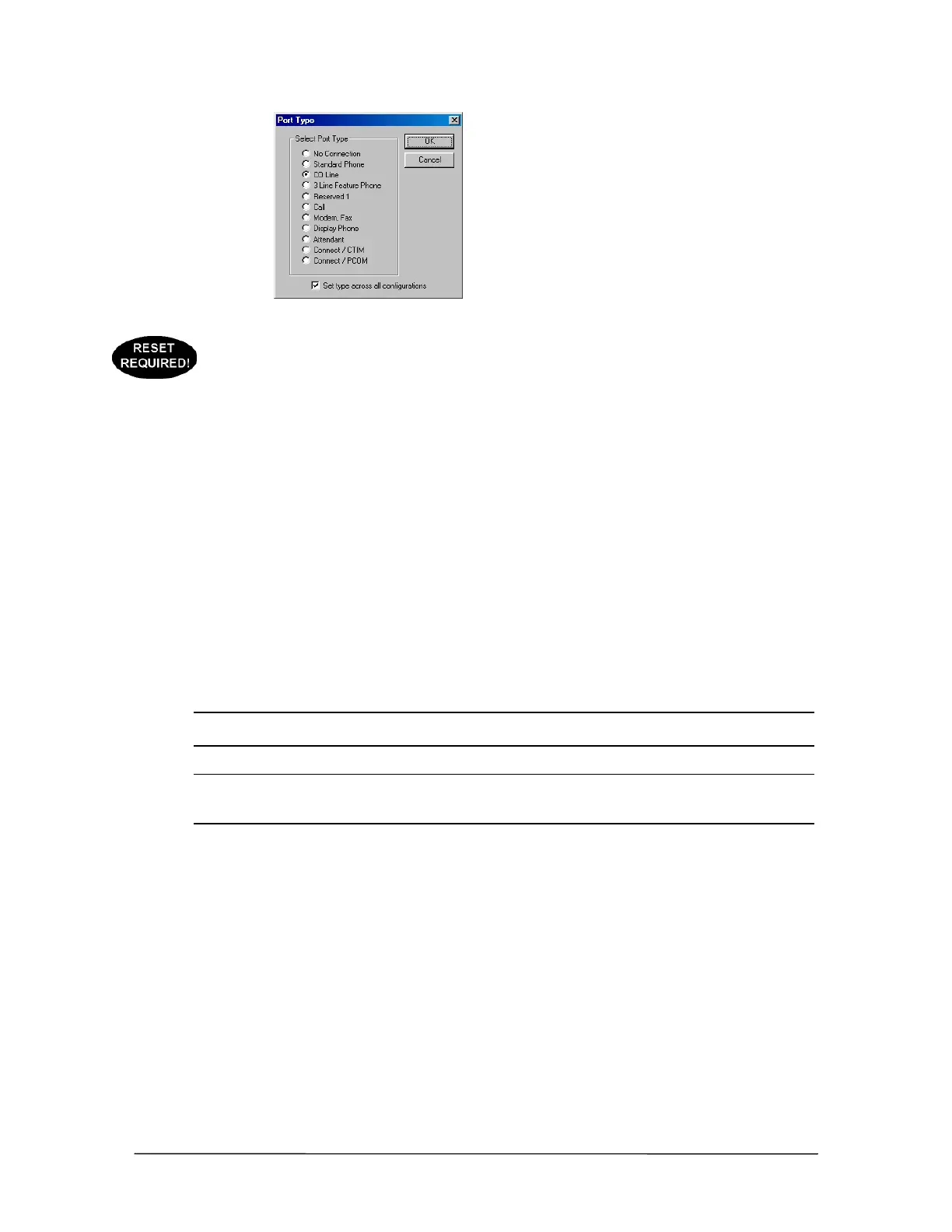
Port Type dialog box
• The Port Type window has the following options.
No Connection
Standard Phone
CO Line
3 Line Feature Phone
Reserved 1
Call
Modem/Fax
Display Phone
Attendant
Connect/CTIM
Connect/PCOM
For example, assume there is a 16-port system with one Port Expansion Unit (PEU) installed. If the
jumpers on the PEU are set so the first 4 ports are COs and the last 12 ports are Extensions, set your
port types accordingly.
When assigning a type to a port, the type can be set across all configurations by checking the Set
type across all configurations.
Note In the Port Type window, Call and 3 Line Feature Phone are reserved for backwards
compatibility.
Note To save time, multiple ports can be selected at once and assigned the same type. Holding
down the SHIFT key allows consecutive ports to be selected. Holding down the CTRL key
allows non-consecutive ports to be selected.
Copying a Complete Configuration
To save time when configuring a system installation, you can copy a current working configuration
into a new configuration, and then make your changes accordingly. To copy a current configuration
into a new configuration perform the following steps:
1. In the Port Configurations pane, click New.
• The Configuration Name dialog box appears.
2. In the Enter Configuration Name text box, enter a name or description for the configuration
and click OK.


 To Next Page