VS1 Installation, Configuration & Operating Guide 107
3. The TransferBusy procedure is pre-selected for Busy Goto. This procedure handles callers
when a busy signal is received at the called party. The TransferError procedure is pre-selected
for Error Goto. This procedure routes callers back to the Caller Greeting in the event of system
errors. These procedures are preconfigured and are included in every Auto Attendant.
4. Click OK to return to the Specify System Actions for Caller Responses dialog box.
5. A Goto Procedure value is required, even though it may not be used. Click Goto Procedure.
The Procedure to Goto window appears. Double-click a procedure to select it (the Main
Procedure is the most commonly used choice).
System Action – Dial a Number
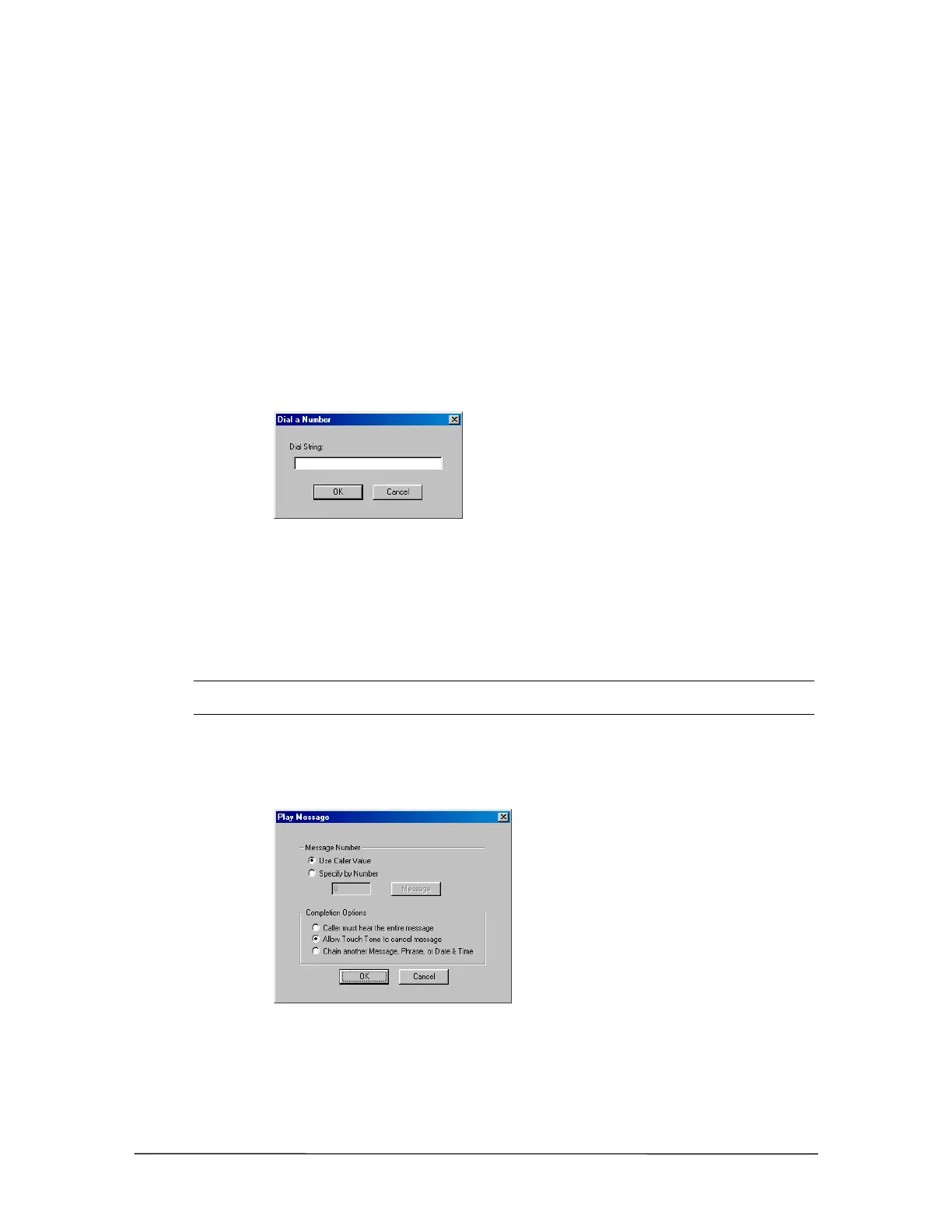
Clicking Dial a Number in the New System dialog box brings up the Dial a Number dialog box.
Dial a Number dialog
box
1. In the Dial String text box, enter a string of digits to be dialed. Valid characters include a
comma (,) for a pause and F for external flash.
2. A Goto Procedure value is required, even though it may not be used. Click Goto Procedure.
The Procedure to Goto dialog box appears. Double-click a procedure to select it (the Main
Procedure is the most commonly used choice).
Note The Dial a Number System Action is mainly used to perform Centrex Transfers. View
Sample Auto Attendant 2 for an example.
System Action – Play Message
Clicking Play Message in the New System dialog box brings up the Play Message dialog box.
Play Message dialog
box
1. In the Message Number option box, select one of the following two options:
Use Caller Value: plays the voice message number that was previously dialed by caller in
Caller Response.


 To Next Page