VS1 Installation, Configuration & Operating Guide 127
the T1 interface. Select the unassigned port that you want to assign as a CO port, and then click
Type.
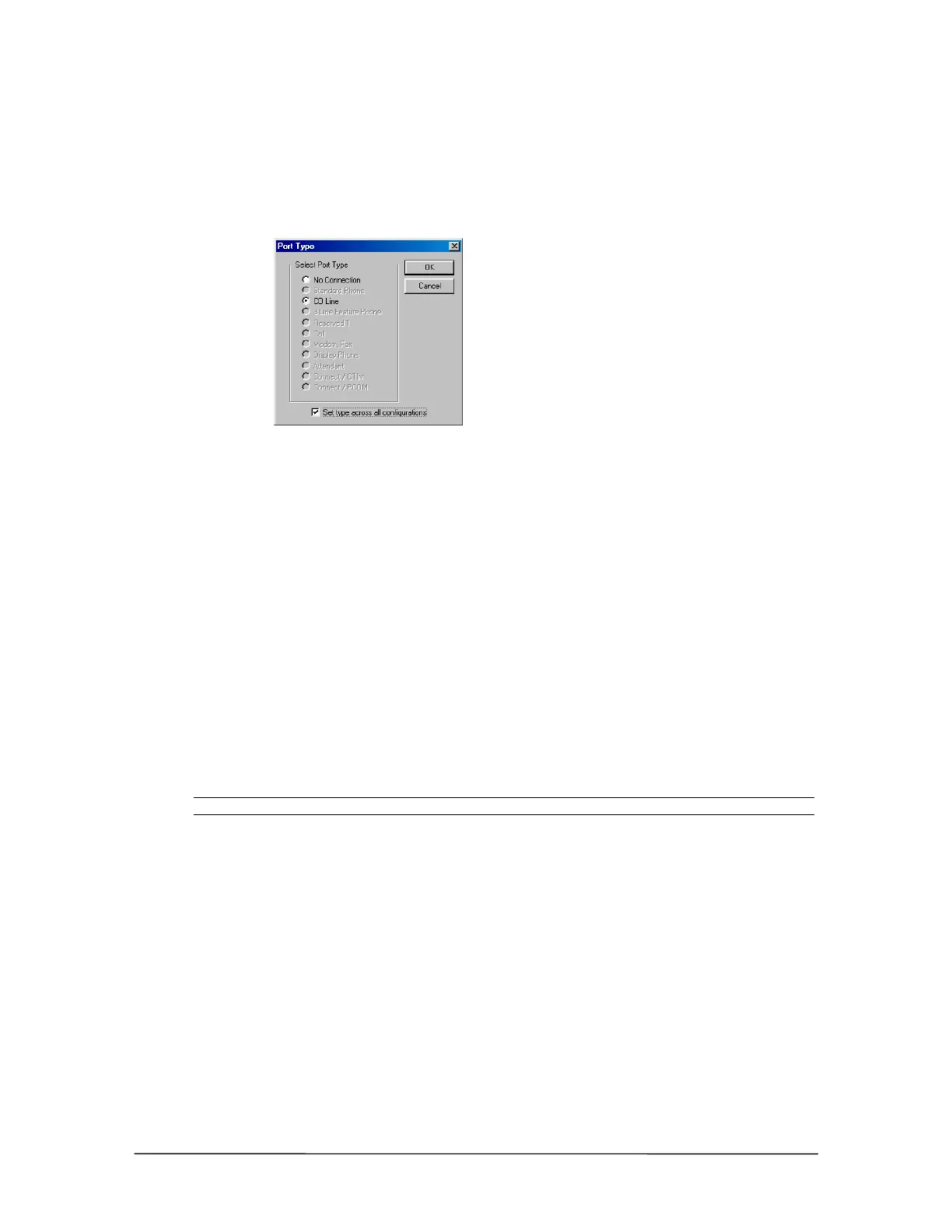
• The Port Type window appears.
4. Select CO Line, and then click OK.
Port Type window
5. Repeat steps 3 and 4 for each T1 port you want to assign as a CO Line.
6. To set up other configurations, repeat steps 2 through 7.
7. After all T1 ports are assigned as CO Lines, click the Save button in the toolbar to save your
changes.
Configuring the Port for DID or DNIS
1. With a configuration selected in the Port Configurations pane, select a T1 port that you have
assigned as a CO Line.
2. Enter the following information in the corresponding text boxes:
Description: Enter a description for the T1 line.
Extension: Enter an extension. (Enter –1 if no extension is assigned)
Number: Enter the digit 1 ten times, which function as placeholders.
Note A CO port configured for T1 service cannot be set up for both DNIS and DID.
3. Set up a default first ring target. This is important because if a call cannot be routed using the
DID Routing table, it is routed based on the target rings and target port.
4. Under Rings, set the CO port to ring the first target for 10 rings.
• Under Target Ports, set the CO port to ring the first Auto Attendant (AA1).
• Check the DID Routing box.
5. To set up additional ports with DID or DNIS routing, repeat the above steps or use the
Replicate button and follow the on-screen instructions.
6. Set up additional configurations by following steps 1 through 5.
7. After all CO ports are configured, click the Save button in the toolbar to save your changes.


 To Next Page