VS1 Installation, Configuration & Operating Guide 109
System Action – Record Message
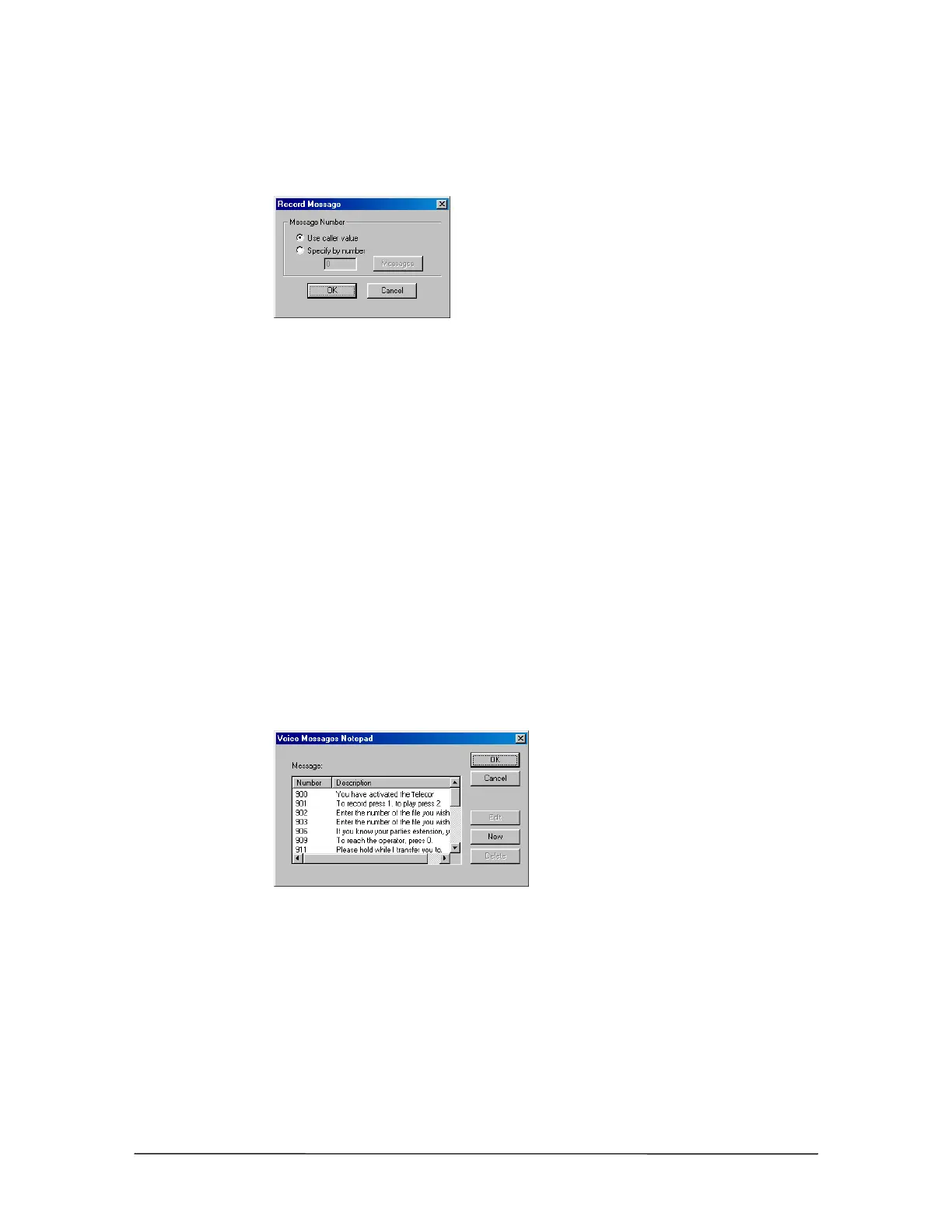
Clicking Record Message in the New System dialog box brings up the Record Message dialog
box.
Record Message
dialog box
1. Select one of two options:
Use Caller Value: will record a caller voice file and save voice file into number specified by
caller in Caller Response.
Specify by Number: will record a caller voice file and save voice file into number specified in
accompanying text box.
2. If Specify by Number is selected, click in the Specify by Number text box that appears and
type in a voice file number. Note that voice file numbers 11-13 and 900-999 are already
reserved with existing voice files. See “Pre-recorded Message List” in Reference section for a
list of reserved messages.
3. Click the Message button.
• The Voice Message Notepad window is displayed. Use this window to describe the voice
file you typed in the Specify by number text box. A message is assigned a number and
brief description. The actual message is stored by the Voice Message Recorder Auto
Attendant. Message files for all Auto Attendants appear in this window. Use care when
deleting or editing one of these messages because all Auto Attendants using that message
are affected.
Voice Messages
notepad dialog box
4. Click OK to return to the Specify System Actions for Caller Responses dialog box.
5. A Goto Procedure value is required, even though it may not be used. Click Goto Procedure.
The Procedure to Goto dialog box appears. Double-click a procedure to select it (the Main
Procedure is the most commonly used choice).


 To Next Page