Using Müse
74
CAEAthena
PN: 905K520652 v2.8
Adding Scenario States
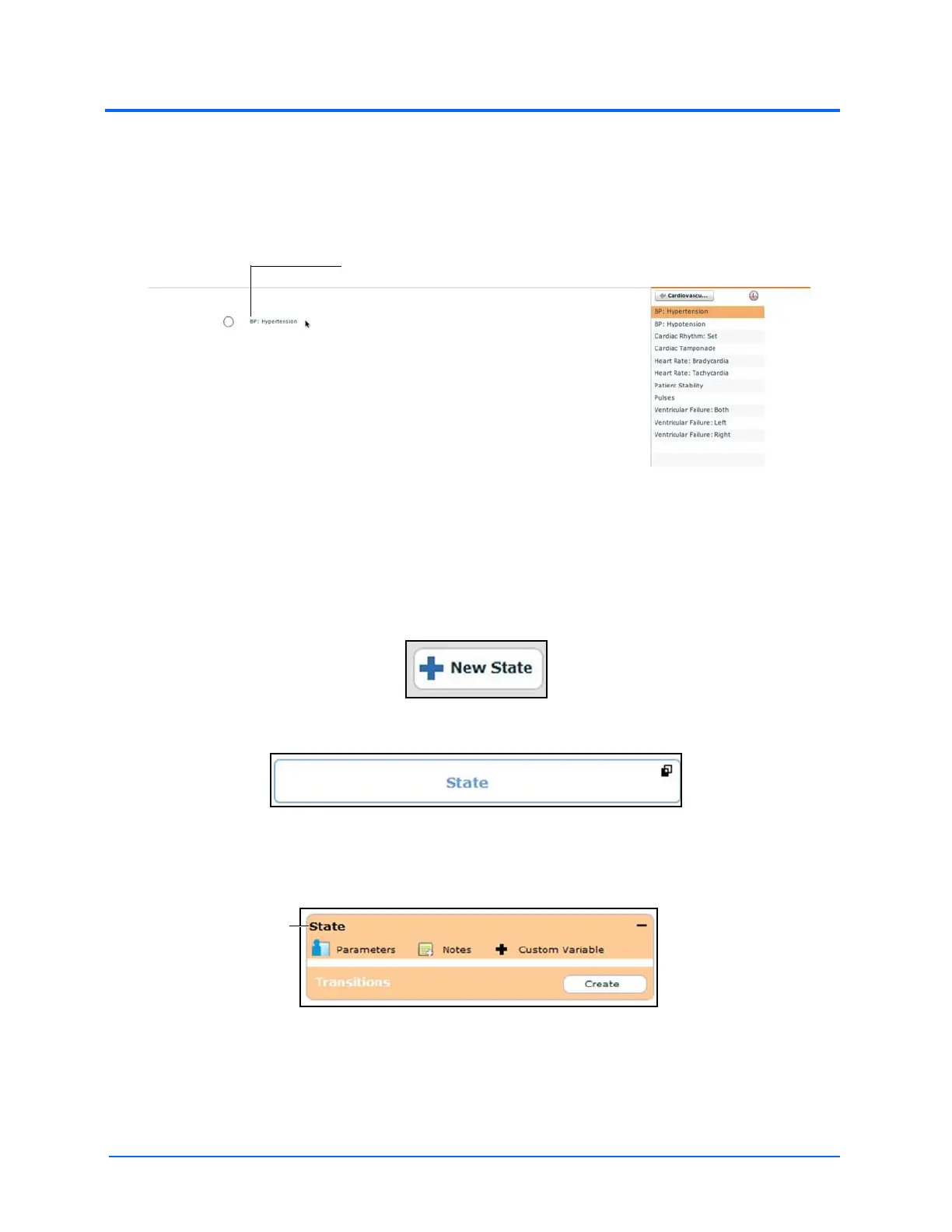
When beginning to create a new scenario, the canvas is blank. Scenario states can be created by
dragging and dropping conditions from their respective menus on the right side of the Scenario
Designer to the canvas.
The Scenario Designer Canvas
Or, a new, empty state can be added using the New State button.
To add a new state using the New State button:
1. Click the New State button on the upper left side of the Scenario Designer
The New State Button
A New State
2. From the Graphical View, double-click the new state, or from the Line Item View, click the
Expand/Collapse arrow to the left of the state to expand it
The Expanded State
3. Double-click the state name
By default, new states are named “State.”
Drag and drop a condition onto the canvas to create a state



 To Next Page