Chapter Heading
234
CAEProduct
PN: 905K520652 v2.8
Voice Communications Controls in Müse
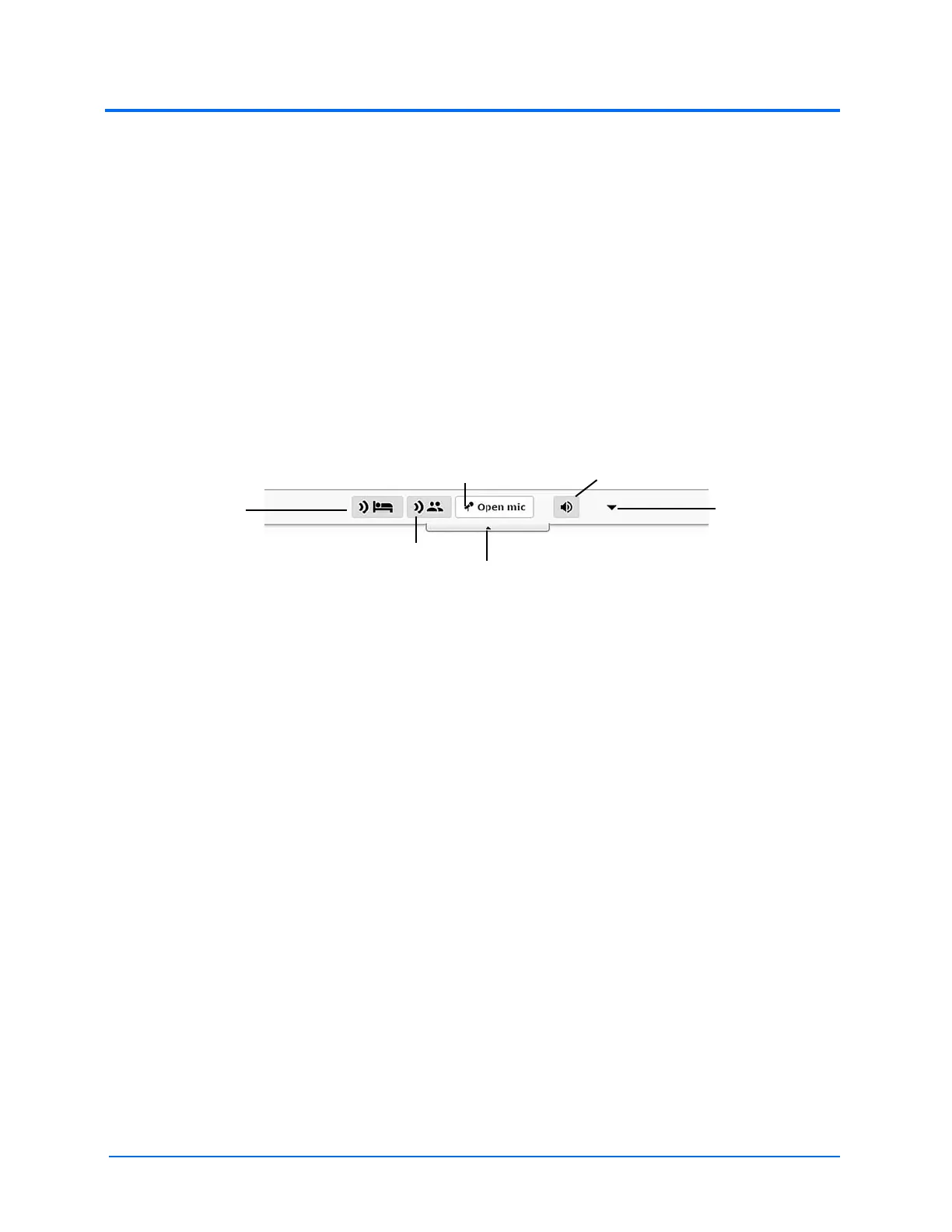
The voice communications controls are located in a supplemental toolbar at the top of the Müse
software.
To speak as the manikin, click and hold down the Speak as Manikin button. This can also be
achieved by holding down the spacebar on the computer keyboard.
Note: When speaking as the manikin. all incoming communications will be locked. It is
recommended that you hold down the Speak as Manikin button only as long as necessary.
To speak to participants, click and hold down the Speak to Participants button. To keep the
communication channel with participants open without holding down the button, use Open Mic.
The Mute Everyone button mutes all incoming communications.
Supplemental Toolbar
Clicking the Advanced Controls button opens the Advanced Controls tool.
Voice Communication Controls in Standalone
Software
Additional participants can be added to the voice communications network. Each additional
participant will need a dedicated computer as well ads their own headset. Additional participants can
access the voice communication controls by the following steps:
1. Connect their dedicated computer to the simulator’s WiFI network. See “Connect to the
Wireless Network” section of the user guide for additional details.
2. Launch a supported web browser and navigate to the Müse splash page (i.e. http://
1932.198.XX.5 where “XX” is the simulator’s IP address
3. Click the “Voice Communications” link in the top right corner of the Müse splash page
The controls in the standalone voice communication software are identical to those in the Müse
toolbar except that the toolbar is always expanded and the Advanced Controls are always visible.
The Advanced
Controls button
The Mute Everyone button
The Open Mic button
The Speak as
Manikin button
The Speak to All
Participants button
The Collapse Tool button



 To Next Page