Using Vivo
131
PN: 905K520652 v2.8
USING VÏVO
Vïvo is the facilitator-driven software that puts you in full control of your simulations. This
information will help you get started using the Vïvo tablet with the simulator.
IMPORTANT: Before running Vïvo, make sure that no application of Müse is open for the simulator using
Vïvo.
Only one application of either Vïvo or Müse can be open at any given time across all platforms, laptop
or tablet. For example: If Vïvo is open, then Müse needs to be closed.
Be sure to close and exit Vïvo when not in use.
Note: A mouse-click on a laptop replaces the “tap” or “swipe” used on tablets.
Remember to make sure the tablet is fully charged prior to each use.
Laptop Setup
Vïvo can be run from a laptop using the Google
©
Chrome browser (Chrome). Chrome is the only
supported browser to run Vïvo.
To configure Chrome for Vïvo:
1. Ensure Chrome is installed on your laptop
Note: It may be necessary to download the Chrome browser from the Google website.
2. Ensure the simulator is powered on and your laptop WiFi is connected to the simulator
3. Open Chrome
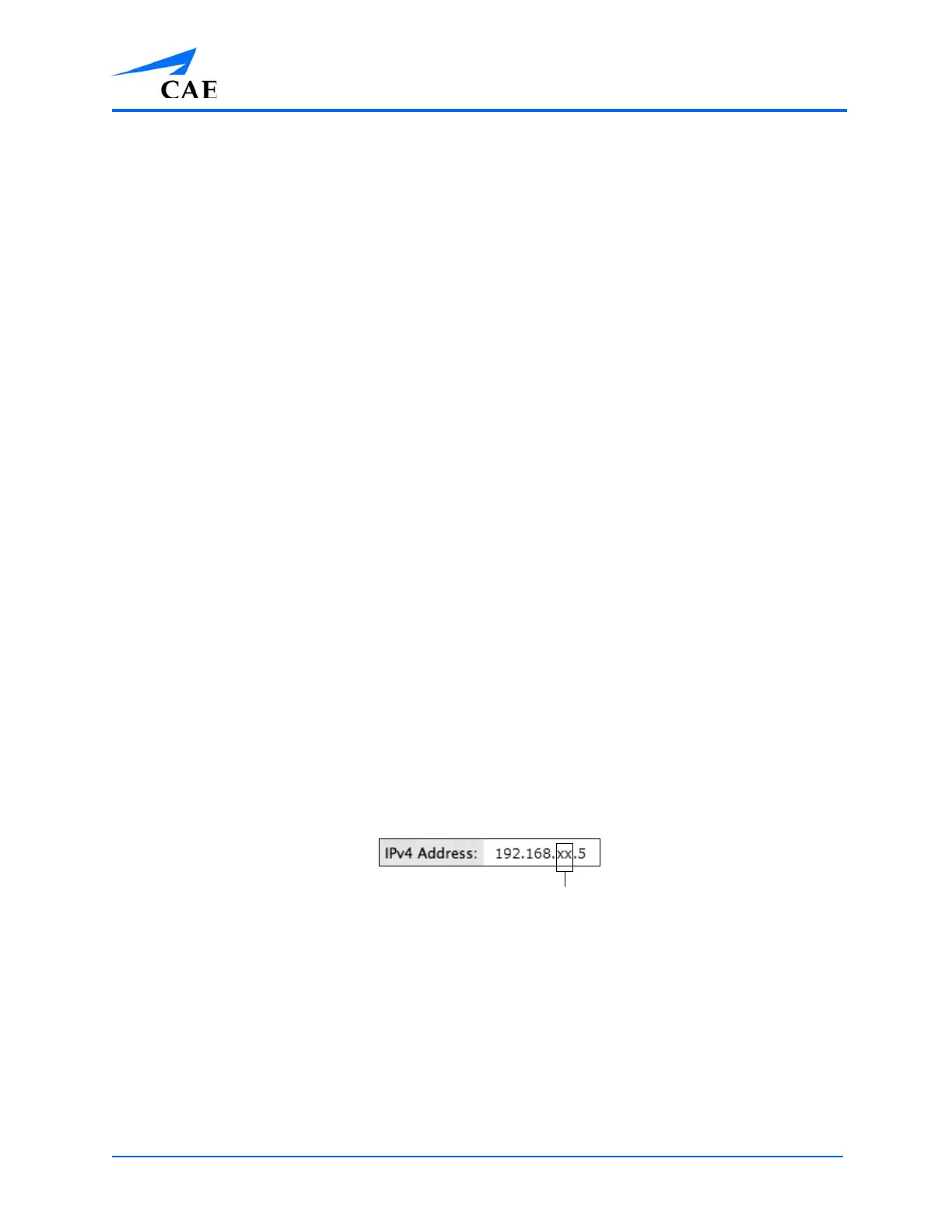
Note: To access Vïvo through Chrome, you need the 2 or 3-digit IP number from your
simulator network.
You can find the IP number on the Simulator Data Sheet listing:
SBC Network Setup - IP Address or by going to the Network/WiFi settings on the laptop
and viewing the IPv4 address.
4. After obtaining the IP number, enter the web address http://192.168.XX.5/vivo into
Chrome’s address bar, replacing the XX with your IP number
For example, if your IP number is 19, type http://192.168.19.5/vivo.
After you enter the correct address, Vïvo will launch.
5. Select the simulator
6. Select Run an SCE, then run on the fly SCE and Begin Simulation
If Vïvo is installed correctly, the simulator will start breathing and the manikin will
respond to the Vïvo tablet.
© 2015 Google Inc. All rights reserved. Google and the Google Logo are registered trademarks of Google Inc.
The 2 or 3-digit IP number



 To Next Page