Using Müse
99
PN: 905K520652 v2.8
Deleting a User
To permanently delete a user, from the User Accounts panel, select a user and click Delete. When the
User Deletion Warning box appears, click Yes.
The user account and the data associated with it are deleted. However, the administrative user
deleting the account becomes the owner of any SCEs, scenarios or patients created by the user being
deleted (i.e., the SCEs, scenarios and patients created by the deleted user are moved to the deleting
user’s account).
Groups
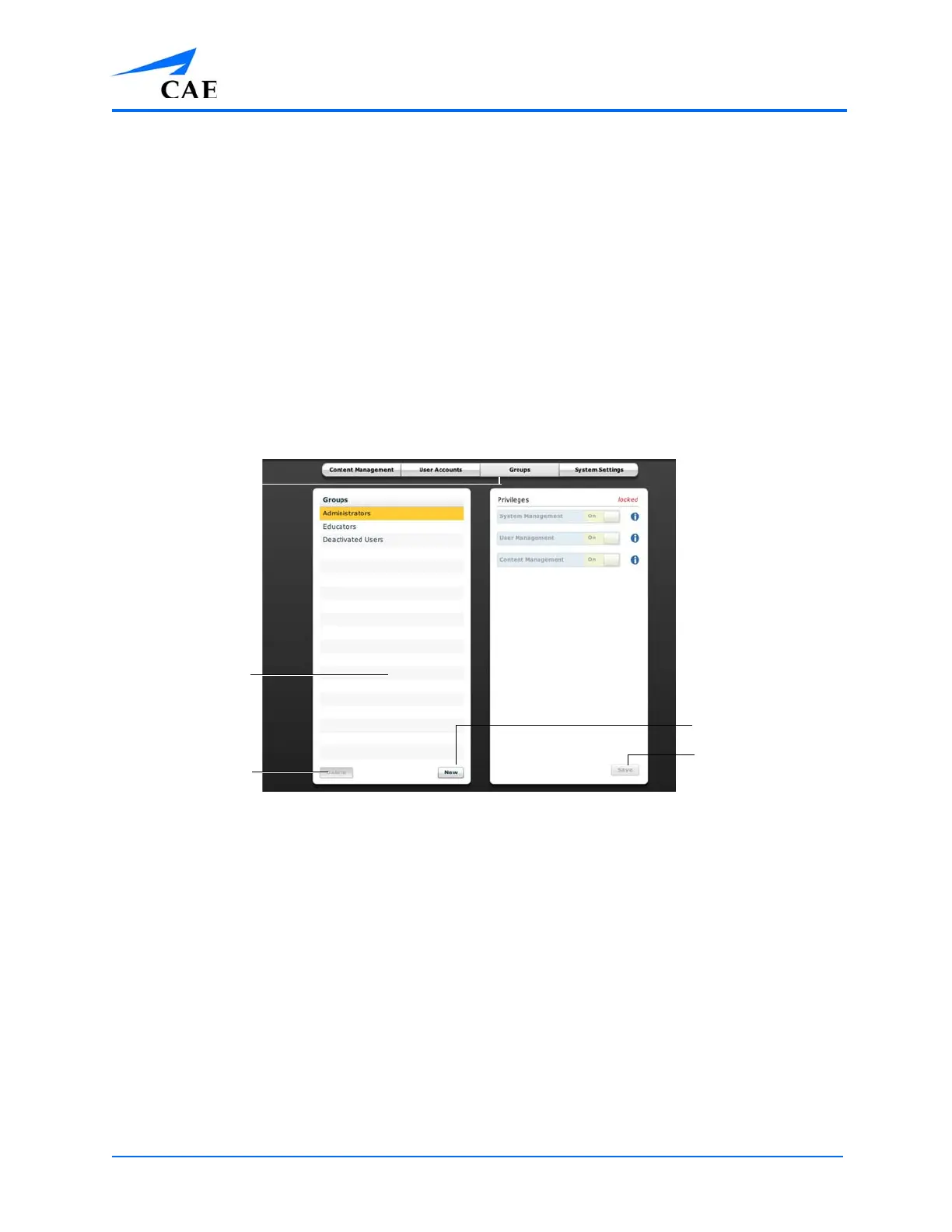
Users are assigned to groups to define access privileges. To access the Groups panel, from the
System Administration screen, click Groups.
The Groups panel appears.
The Groups Panel
Note: Groups functions are available only to users with the User Management or System
Management privilege.
From the Groups panel, users can create new groups, delete groups and assign privileges to groups.
In the Groups panel, three groups appear by default:
• Administrators
• Educators
• Deactivated Users
Each default group has privileges assigned.
The Groups
tab
The Groups
panel
The Delete
button
The Save
button
The New
button



 To Next Page