Setup
12
CAEAthena
PN: 905K520652 v2.8
B) Windows Laptop or Tablet Instructor Workstation
Option
Once the manikin and Instructor Workstation are both powered on, they automatically establish a
wireless connection and, when the browser is opened, the Müse software launches.
If the auto-connect does not occur, perform the following steps:
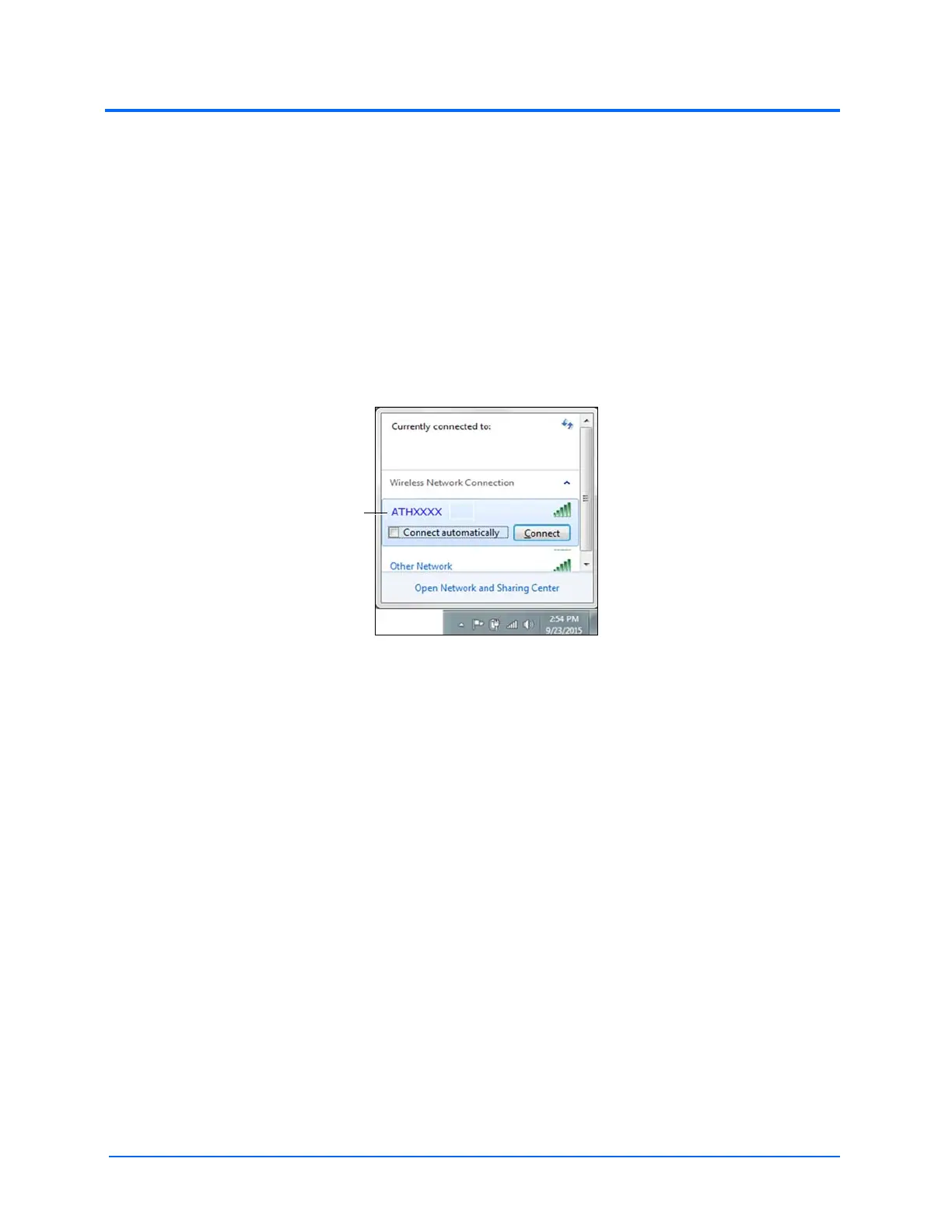
1. Click the Wireless Network icon in the bottom Windows toolbar
2. Click to select your simulator’s wireless network (for example, ATHXXXX, where XXXX is
the serial number for the unit)
3. Click Connect and enter password
The Simulator WiFi Connection
The case-sensitive network password is caeadmin.
The wireless connection is established.
The Müse software can now be launched.
For more information on starting the application, see the Using Müse section
of the User Guide.



 To Next Page