Using Müse
88
CAEAthena
PN: 905K520652 v2.8
ADMINISTRATIVE TOOLS
The Müse software has administrative tools that allow users to manage logs, stored content, users
and system settings. The administrative tools are accessed via the Administrative Tools buttons,
located on the Home page.
The Administrative Tools Buttons
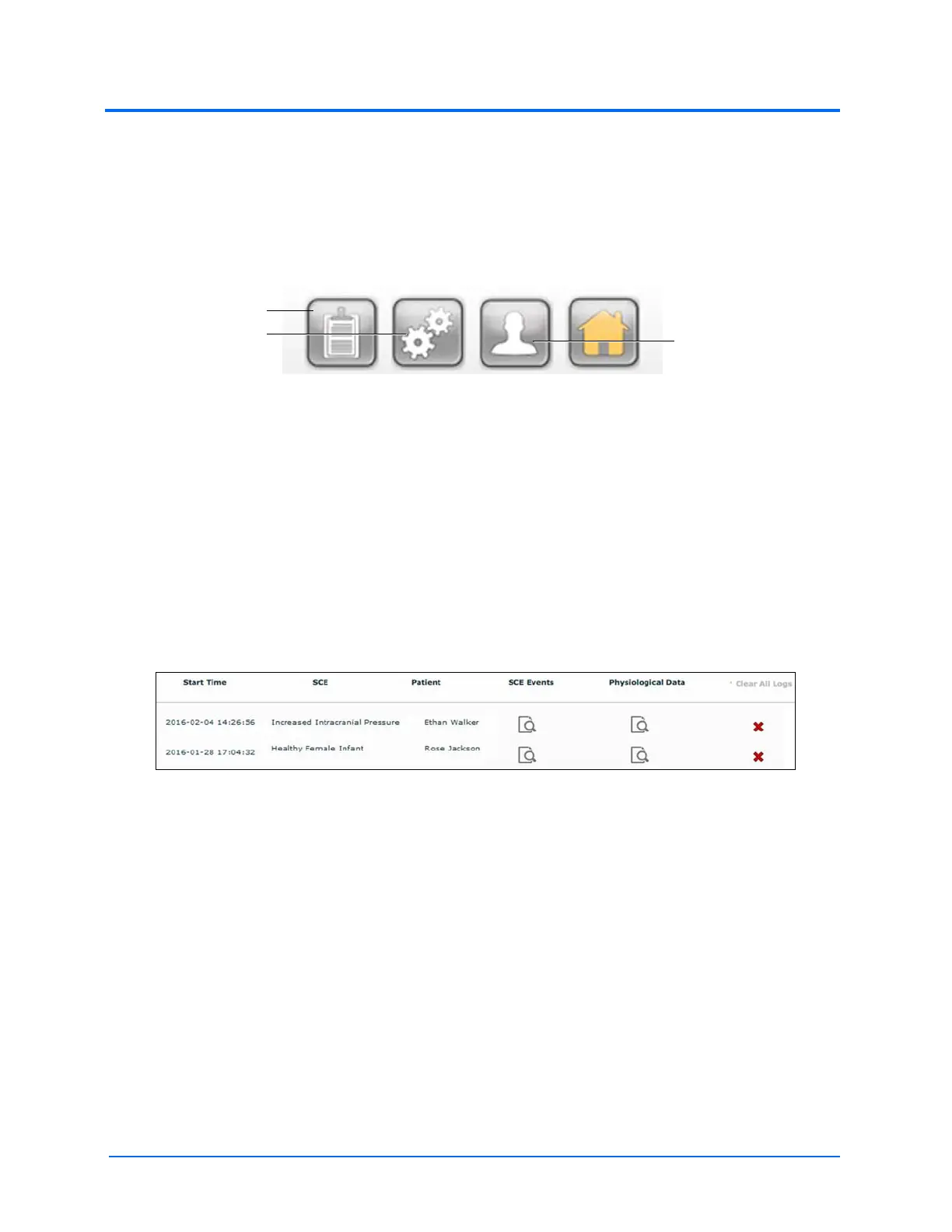
• Click the History button to view and manage simulation session logs
• Click the System Administration button to manage stored content, user accounts,
groups and system settings
• Click the Account Profile button to manage and determine preferences for the active
account
History
From the History screen, users can view and export simulation session logs. Each simulation session
is listed with the Start Time, the title of the SCE and the Patient’s name. In addition, the SCE Events,
Physiological Data, CTG data, Traction data, and CPR data are available for review or export.
The History Screen
By clicking the Simulation SCE Events link of a Simulation Session, users can view the entire log of
the simulation and all the events that occurred during the SCE.
When the Physiological Data link of a Simulation Session is clicked, users can view all the
physiological data that occurred during the SCE.
On the SCE Events, Physiological Data and CPR Data screens, there is an Export button that, when
clicked, exports the data to a CSV file that can be stored on an external device.
The Clear All Logs option will delete all logs associated with the SCE.
On the Simulation Events and Physiological Data screens, there is an Export button that, when
clicked, exports the data to a CSV file that can be stored on an external device.
The History button
The Account Profile
button
The System
Administration
button



 To Next Page