Using Müse
95
PN: 905K520652 v2.8
Conditions
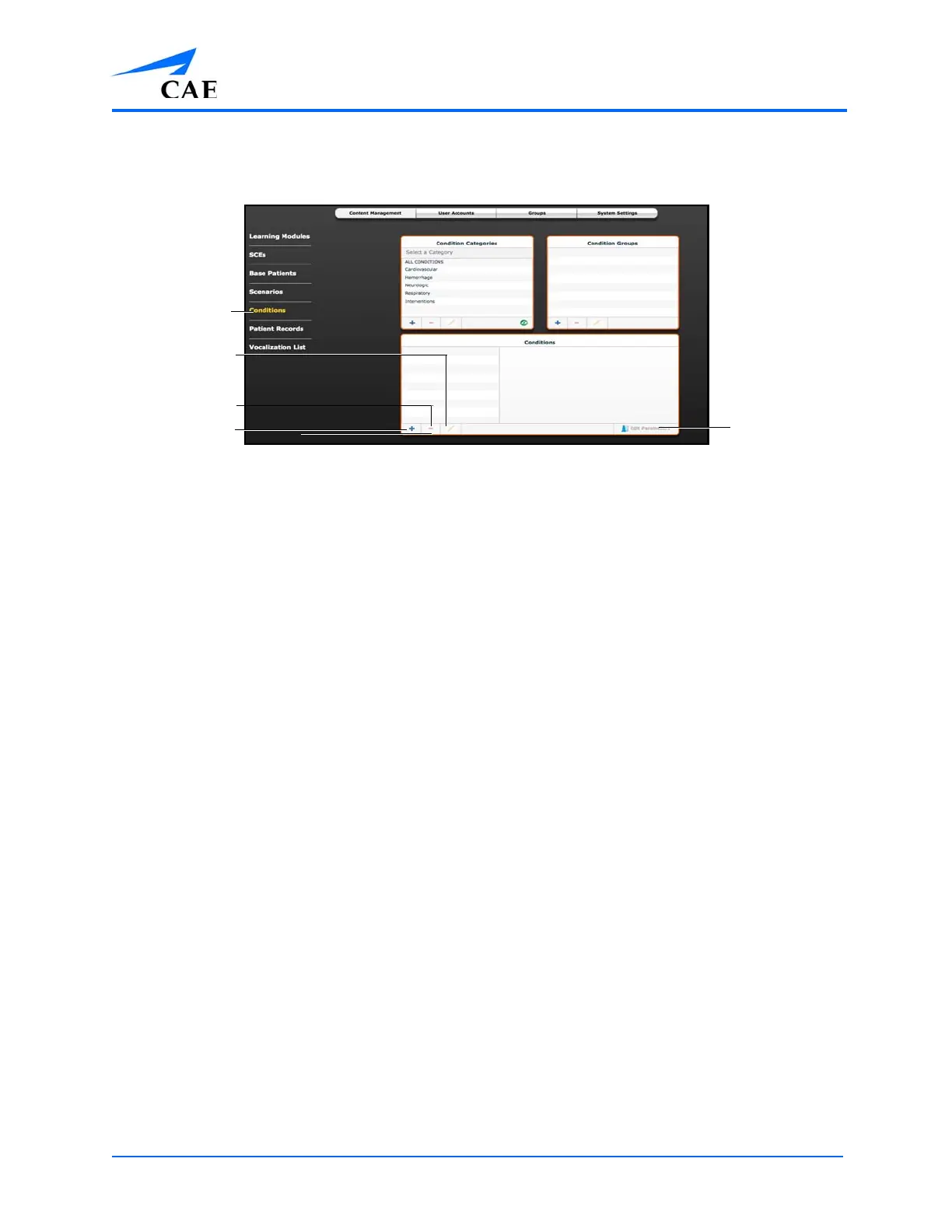
From the Content Management options, click Conditions to access the Conditions Editor.
The Conditions Editor
All conditions can be viewed in the Conditions panel by selecting their associated categories and
groups from the Condition Categories and Condition groups panels.
From the Conditions Editor, users can create new Conditions to be used in SCEs. To create a new
condition:
1. From the Condition Categories panel, select a category
Note: Conditions CANNOT be added to the Interventions category.
2. From the Condition Group panel, select a group
3. In the Conditions panel, click the Add button
4. Enter a name for the condition in the New Condition Name dialog box
5. Click Save
6. From the Conditions panel, select the new Condition
7. Click the Edit Parameters button
8. From the Parameters screen, select the desired Condition parameters
9. Click Complete
New condition categories and groups can also be added by clicking the Add button in the Condition
Categories and Condition Groups panels.
Use the Delete and Rename buttons in each panel to delete or rename a Condition, group or
category.
Note: CAE conditions, groups and categories cannot be deleted or renamed.
The Edit
Parameters
button
The
Conditions
link
The Add button
The Delete button
The Rename
button



 To Next Page