Using the TouchPro Patient Monitor
123
PN: 905K520652 v2.8
5. From the Print window, click the PDF drop-down menu in the lower left corner
6. From the drop-down menu, select the Save as PDF option
7. In the Title field, enter the 12-lead report title
8. Click Save
The report saves as a PDF on the Macintosh Instructor Workstation.
To save the report to a PDF file on a Windows Instructor Workstation:
1. From the 12-lead ECG report screen, click the Print button located in the bottom right
corner of the 12-lead ECG report
2. From the drop-down menu, select Microsoft XPS Document Writer
To print a report:
1. From the 12-lead ECG report screen, click the Print button located in the bottom right
corner of the 12-lead ECG report
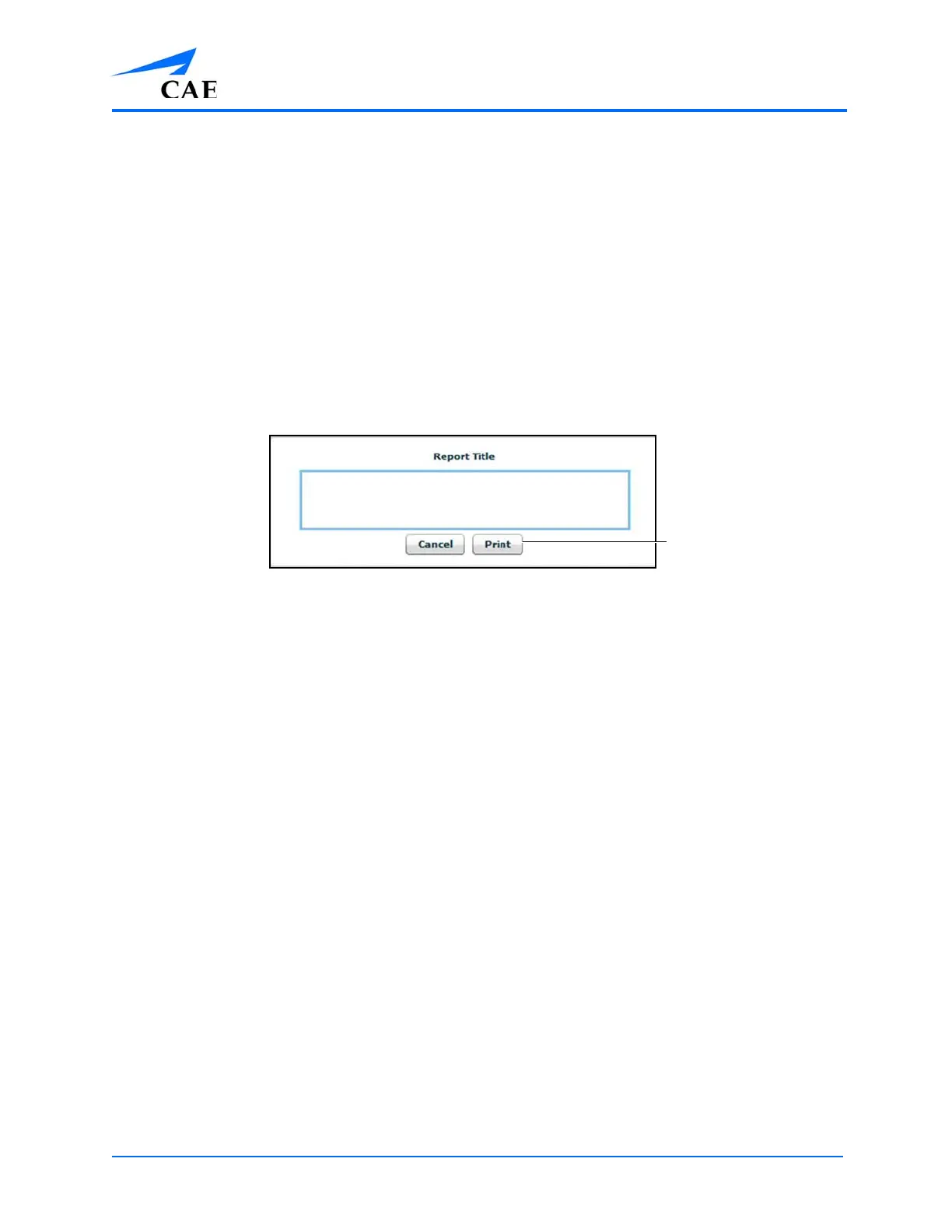
The 12-Lead Report Title Window
2. Enter a title for the 12-lead report
3. From the Printer drop-down menu, select the appropriate network printer
Note: A network printer must be configured in order to appear as an option.
4. From the Print window, click the Print button



 To Next Page