9. 1. 11. Network Setting > Network Setting >
Specifying Printer-Related Information
Specify device information, security, and email notification settings as follows.
1. Start the web browser and enter the following URL in the Location (or Address ) box to
display the RemoteUI page.
http://printer IP address or name/
Example: http://xxx.xxx.xxx.xxx/
2. Select Administrator Mode and click Logon.
3. If a password has been set on the printer, enter the password.
4. Click Information in the Device Manager menu at left to display the Information page.
5. To display the relevant settings page, click Edit in the upper-right corner of Device
Information or Security, depending on what information you want to specify.
To change the administrator password, click the Change Password button in the
Security group.
6. Refer to the table of settings for device information, security, and email notification as you
complete these settings.
Security setting items are displayed when you click the Change Password button in the
Security group.
Device Information Settings
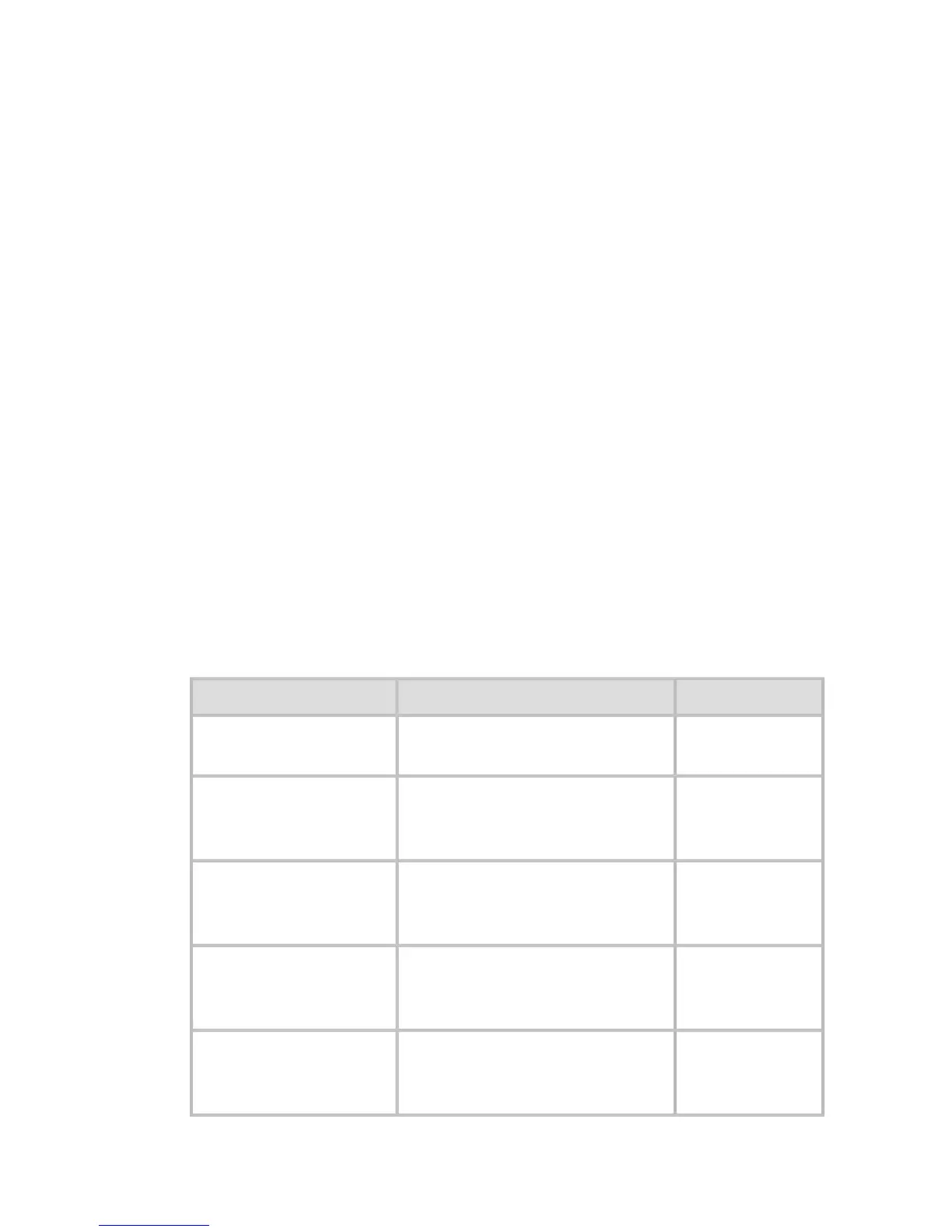
Item Details Default Setting
Device Name
Enter a device name.
(0–32 characters)
blank
Location
Enter the location where the
device is installed.
(0–32 characters)
blank
Administrator
Enter the administrator's
name.
(0–32 characters)
blank
Phone
Enter the administrator's
contact information.
(0–32 characters)
blank
Comments(E-mail)
Enter any comments
regarding the administrator.
(0–32 characters)
blank
Security Settings











 To Next Page