ECDIS-E User Guide Charts
65934012 4-55
7. Click in the LAT/LON fields, enter a position using the screen
keypad, and click the OK button. The symbol is created in the
position specified.
8. The line segment type defaults to Rhumb Line. To change the line
type to Great Circle click on the drop down arrow and select from
the list.
9. To create a date dependency for the object see `Creating Date
Dependent Objects'.
10. To exit the Create Chart Objects mode click the Done button, the
symbols created are fixed in position and the view returns to the
Edit folder.
Creating Other Points
The creation of `Other Points' requires a slightly different procedure to other
types of chart symbols.
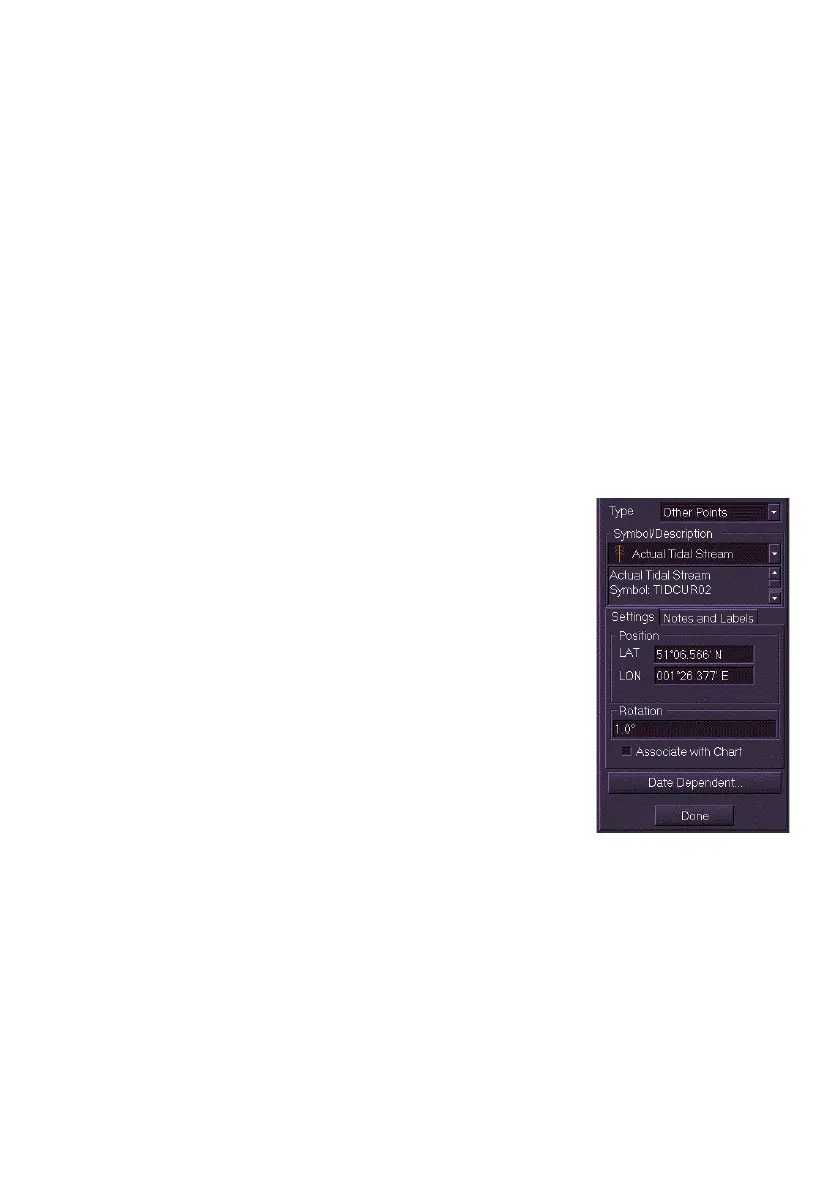
To create the Other Points symbols do the following:
1. Select Other Points from the Type drop down
list.
2. Click on the Symbol/Description drop down
list and select the required object symbol. The
field directly underneath the
Symbol/Description list includes a brief
description of the selected symbol.
3. Move the cursor into the display, the screen
cursor displays
MO EDIT.
4. Click in the area of the display where you
want the symbol positioned. The symbol
appears with a bold white box around it and a
time label, shown as a four digit number.
5. The Tidal Stream symbols may be rotated. To
rotate the symbol click in the Rotation field and move the trackball
left or right to the required angle is shown. Only the symbol rotates;
the time label and any display label remain horizontal.



 To Next Page