APPEAR AS Confidential 111/352
6.1 DESCRAMBLING – COMMON INTERFACE MODULE
The unit is capable of descrambling a number of incoming services with the installation of a descrambler module.
The descrambler module comes with two Common Interface slots and can therefore host two Conditional
Access Modules (CAM’s). Each Common Interface slot supports the descrambling of one or more services
depending on the CAM module used.
Refer to the decoder and radio module description section for details on how services can be descrambled for
these units.
6.1.1 DESCRAMBLING A SERVICE
To descramble a service first insert the CAM into an available Common Interface slot, then insert your Smart
Card into the CAM.
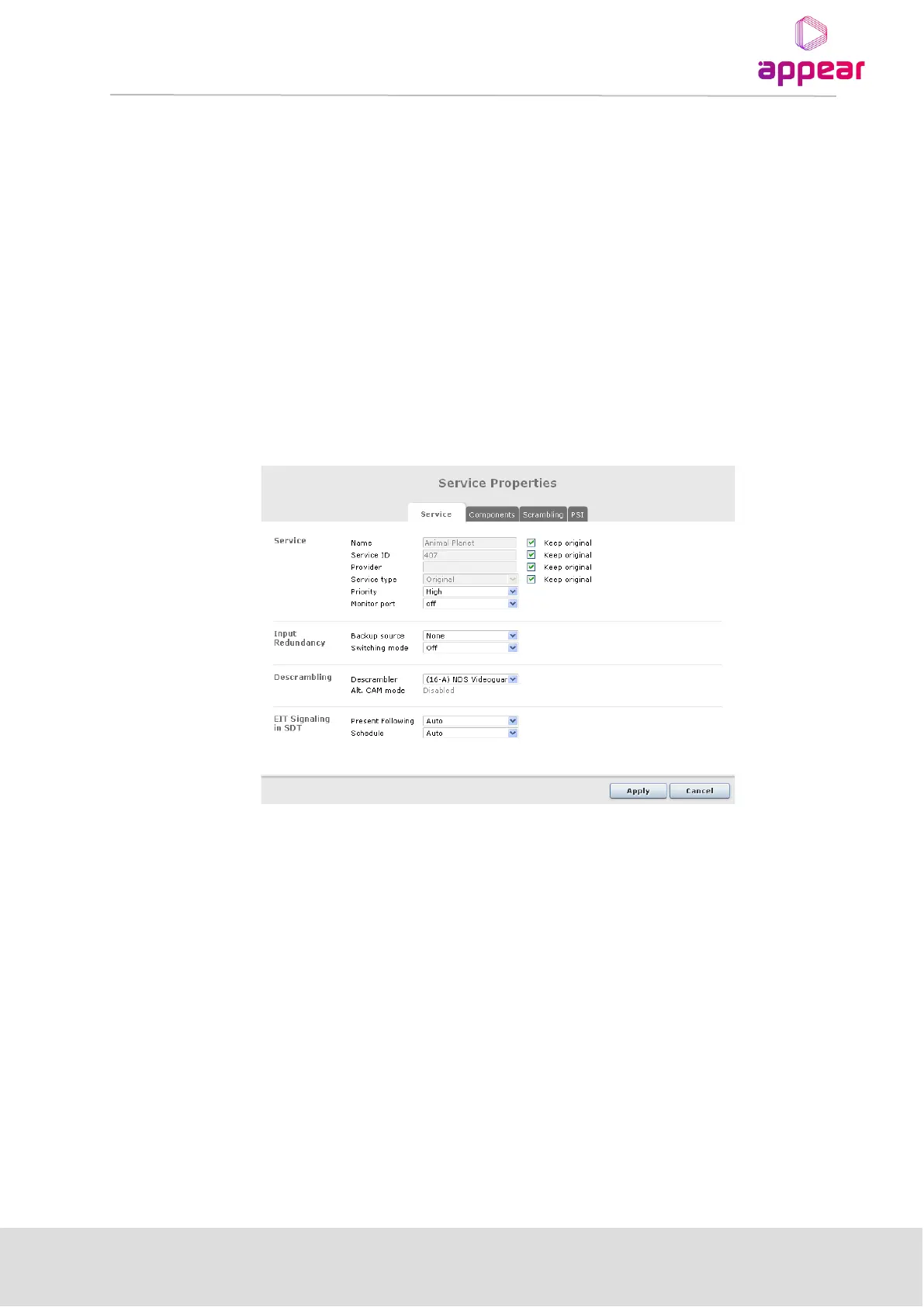
To assign the Common Interface slot to a service to be descrambled, double click on that service and within the
Outputs page to display the Service Properties dialog
6.1.2 TRANSPORTING A DESCRAMBLED SERVICE TO MULTIPLE OUTPUT MODULES/PORTS
A descrambled service may be sent to up to four individual outputs. In other words, if the unit is configured with
an IP output module and a QAM output module, then the descrambler module will be able to copy the
descrambled service and send it to both the IP output and QAM output destinations. Alternatively, the same
service can be sent to different ports on the same output module.
When an input service is configured to be sent to different outputs, the configuration is automatically
performed by the system – as long as the same descrambler is selected. This copy function is based on per
service, i.e. if a Smart Card is able to descramble up to 10 services, then the maximum number of output
streams from the descrambler will be 40 (10 x 4).
6.1.3 CAM CONFIGURATION
The CAM configuration page below (accessible by selecting Conditional Access → CAM in the Navigation
Pane) displays the following:



 To Next Page