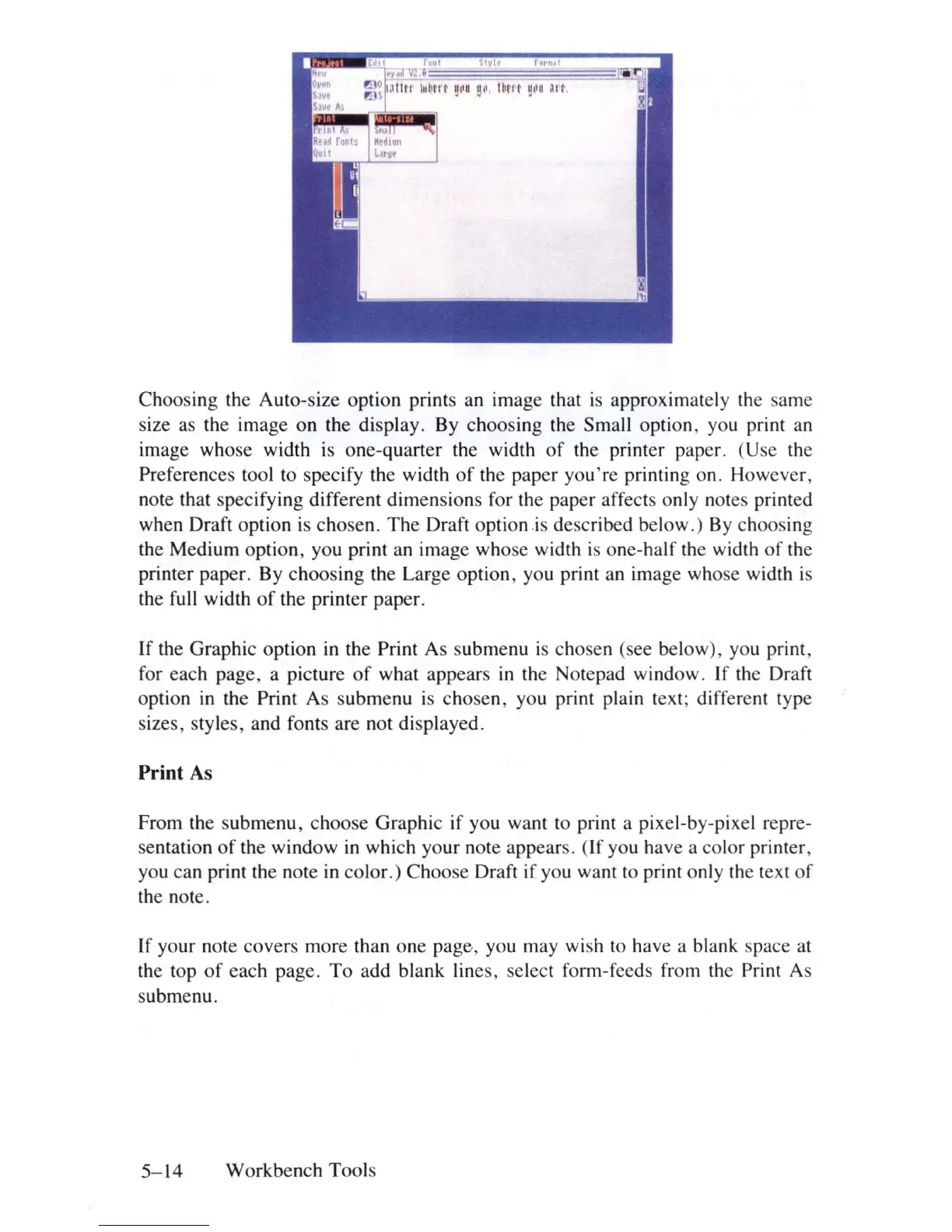
Choosing the Auto-size option prints an image that
is
approximately the same
size
as
the image
on
the display. By choosing the Small option, you print an
image whose width
is
one-quarter the width
of
the printer paper. (Use the
Preferences tool to specify the width
of
the paper you're printing on. However,
note that specifying different dimensions for the paper affects only notes printed
when Draft option
is
chosen.
The
Draft option .
is
described below.) By choosing
the Medium option, you print an image whose width
is
one-half the width
of
the
printer paper. By choosing the Large option, you print an image whose width
is
the full width
of
the printer paper.
If
the Graphic option in the Print As submenu
is
chosen (see below), you print,
for each page, a picture
of
what appears
in
the Notepad window. If the Draft
option
in
the Print As submenu
is
chosen, you print plain text; different type
sizes, styles, and fonts are not displayed.
Print As
From the submenu, choose Graphic if you want to print a pixel-by-pixel repre-
sentation
of
the window in which your note appears.
(If
you have a color printer,
you can print the note in color.) Choose Draft if you want to print only the text
of
the note.
If your note covers more than one page, you may wish to have a blank space at
the top
of
each page.
To
add blank lines, select form-feeds from the Print As
submenu.
5-14
Workbench Tools













 To Next Page