Pen Color
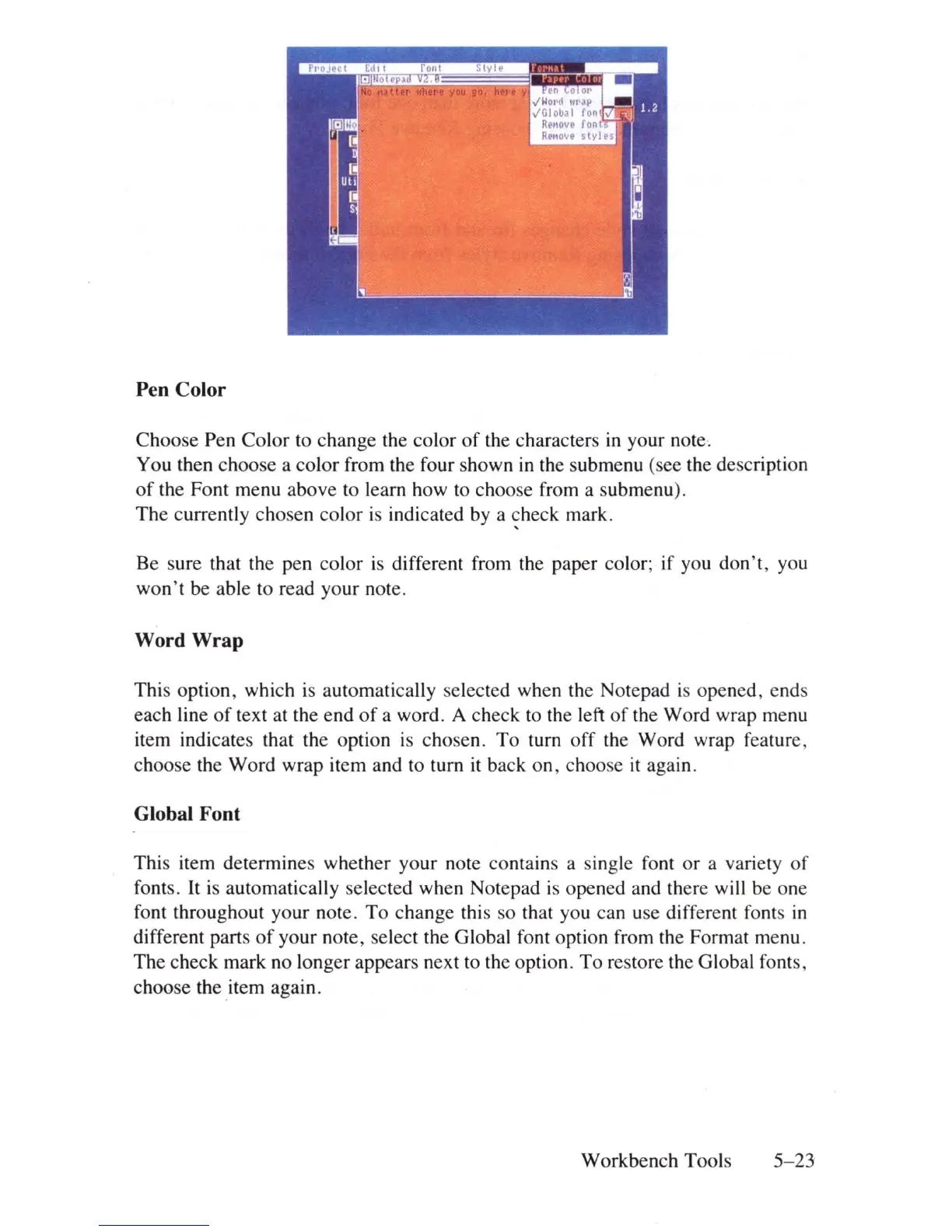
Choose Pen Color to change the color
of
the characters
in
your note.
You then choose a color from the four shown
in
the submenu (see the description
of
the Font menu above to learn how to choose from a submenu).
The
currently chosen color
is
indicated
by
a
~heck
mark.
Be sure that the pen color
is
different from the paper color; if you
don't
, you
won't be able to read your note.
Word Wrap
This option, which
is
automatically selected when the Notepad is opened, ends
each line
of
text at the end
of
a word. A check to the left
of
the Word wrap menu
item indicates that the option
is
chosen.
To
turn
off
the Word wrap feature,
choose the Word wrap item and to turn
it
back on, choose
it
again.
Global Font
This item determines whether your note contains a single font or a variety
of
fonts.
It
is
automatically selected when Notepad
is
opened and there will be one
font throughout your note.
To
change this so that you can use different fonts
in
different parts
of
your note, select the Global font option from the Format menu.
The check mark no longer appears next to the option. To restore the Global fonts,
choose the
item
again.
Workbench Tools 5-
25













 To Next Page