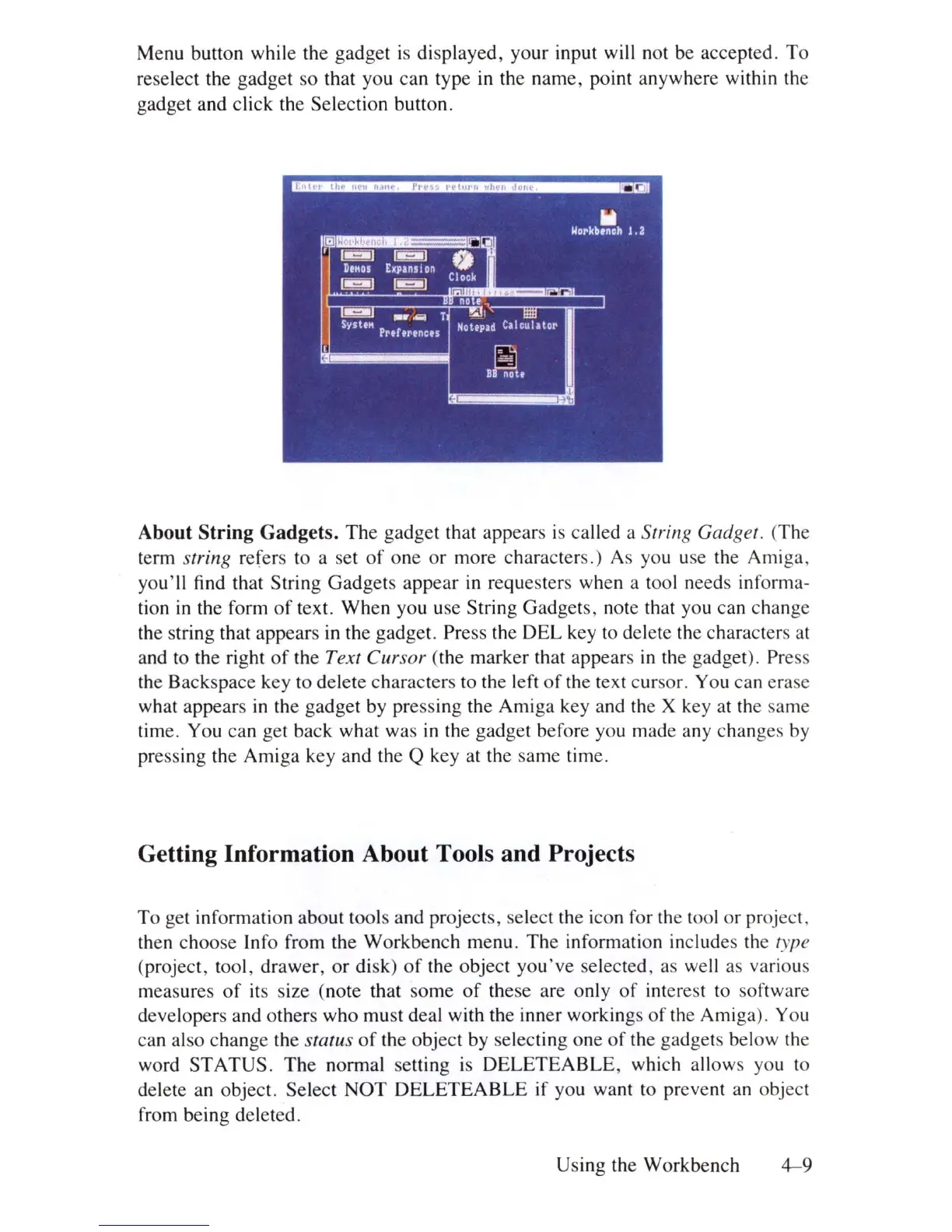
Menu button while the gadget
is
displayed, your input will not be accepted.
To
reselect the gadget so that you
ca
n type in the name, point anywhere within
th
e
gadget and click the Selection button.
About String Gadgets.
The
gadget that appears is called a String Gadget. (The
term
string refers to a set
of
one
or
more characters.) As you use the Amiga,
you
'll find that String Gadgets appear in requesters when a tool needs inf
or
ma-
tion in the form
of
text. When you use String Gadgets, note that you can change
the string that appears in the gadget. Press the DEL key to delete the characters at
and to the right
of
the Text Cursor (the marker that appears
in
the gadget
).
Press
the Backspace k
ey
to delete characters to the l
ef
t
of
the text cursor. You can erase
what appears
in
th
e gadget by pressing the Amiga key and the X key at
th
e same
time. You can get back what was
in
the gadget before you made any changes by
pressing the Amiga key and the Q key at the same time.
Getting Information About Tools and Projects
To
get information about tools and projects, select
th
e icon for
th
e tool or project,
then choose Info from the Workbench menu. The information includes
th
e type
(project, tool , drawer,
or
dis
k)
of
the object you've selected, as well as various
measures
of
it
s size (note that some
of
these are o
nl
y
of
interest to software
developers and others who must deal with
th
e inner workings of
th
e Amiga). You
can also change the
status
of
the object by selecting one
of
the gadgets below
th
e
word STATUS. The normal setting
is
DELETEABLE
, which allows you to
delete an object. Select
NOT
DELETEABLE
if you want to preve
nt
an o
bj
ect
from being deleted.
Using the Workbench
4-9













 To Next Page