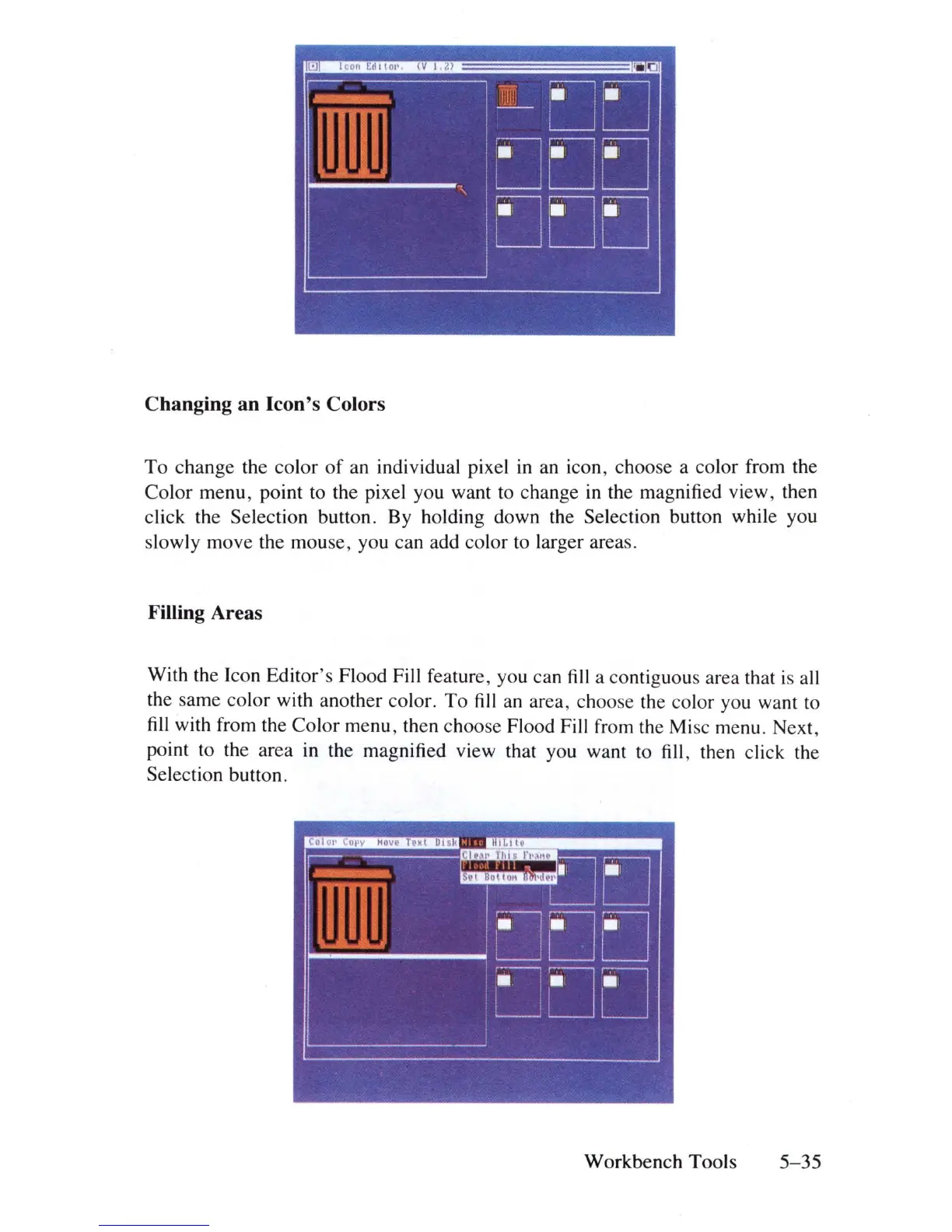
Changing an Icon's Colors
To
change the color
of
an individual pixel in an icon, choose a color from the
Color menu, point to the pixel you want to change in the magnified view, then
click the Selection button. By holding down the Selection button while you
slowly move the mouse, you can add color to larger area
s.
Filling Areas
With the Icon Editor's Flood Fill feature , you can
fill
a contiguous area that is all
the same color with another color.
To
fill
an area, choose the color you want to
fill
with from the Color menu, then choose Flood Fill from the Misc menu. Next,
point to the area in the magnified view that you want to
fill
, then click the
Selection button.
Workbench
Tools
5-35














 To Next Page