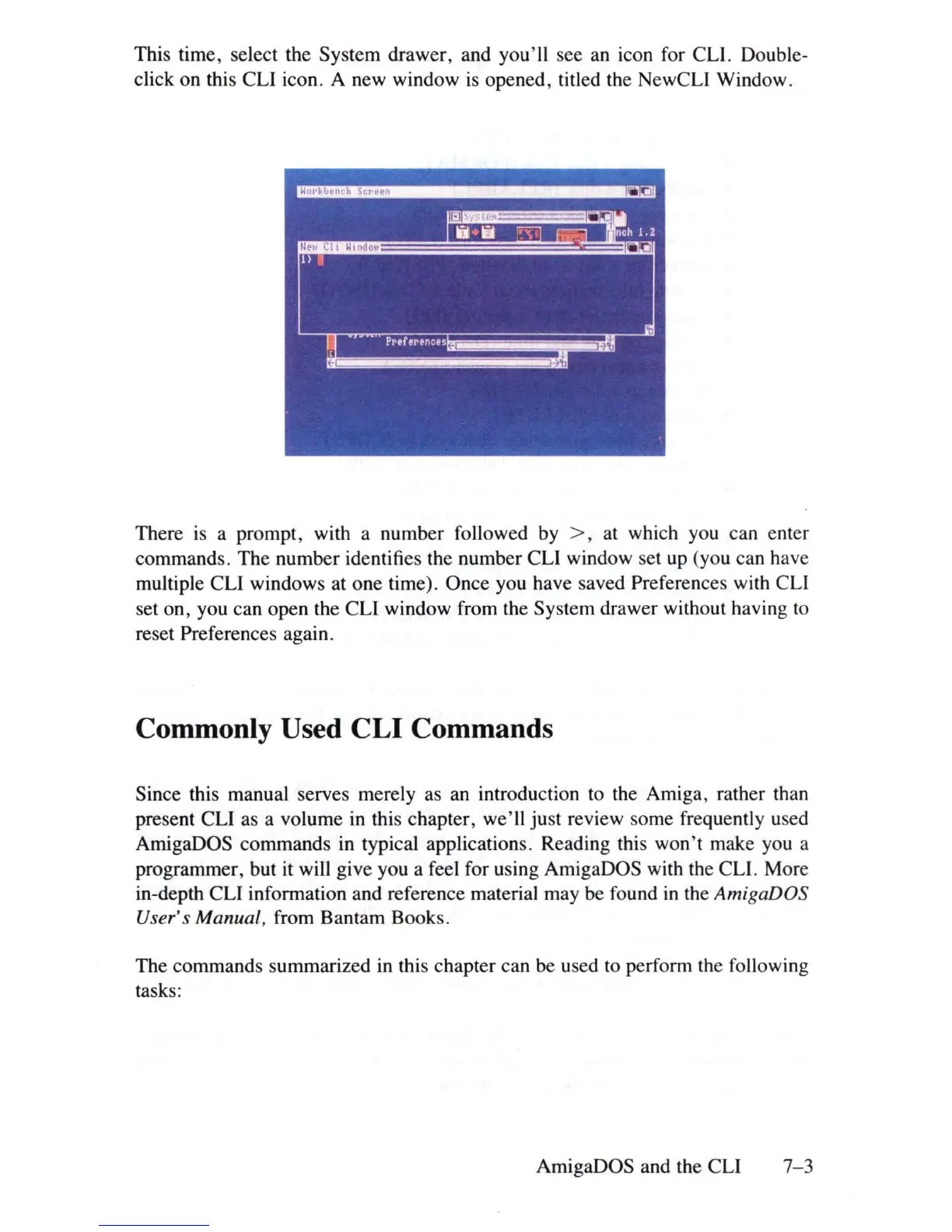
This time, select the System drawer, and you'll see an icon for CLl. Double-
click on this CLl icon. A new window
is
opened, titled the NewCLl Window.
There
is
a prompt, with a number followed by > , at which you can enter
commands. The number identifies the number CLl window set
up
(you can have
multiple CLl windows at one time). Once you have saved Preferences with CLl
set on, you can open the CLl window from the System drawer without having
to
reset Preferences again.
Commonly Used CLI Commands
Since this manual serves merely
as
an introduction to the Amiga, rather than
present CLl as a volume
in
this chapter, we'll just review some frequently used
AmigaDOS commands in typical applications. Reading this won't make you a
programmer, but it will give you a feel for using AmigaDOS with the CLl. More
in-depth CLl information and reference material may be found
in
the AmigaDOS
User's Manual,
from Bantam Books.
The commands summarized
in
this chapter can be used
to
perform the following
tasks:
AmigaDOS and the CLl
7-3













 To Next Page