There may already be text
in
the gadget when you select it. You
can delete characters at and to the right
of
the cursor by pressing
the DEL key. Press the Backspace key to delete characters to the
left
of
the cursor.
There are shortcuts you can use to change what appears
in
the
gadget and to move the Text Cursor:
• Press the Amiga key and Q key at the same time to get back
what was in the gadget before you selected it.
• Press the Amiga key and the X key at the same time to erase
what appears
in
the gadget.
• Press the Shift key and the left cursor key at the same time
to move the Text Cursor to the leftmost character
in
the
gadget.
• Press the Shift key and the right cursor key
at
the same time
to move the Text Cursor to the right
of
the rightmost
character
in
the gadget.
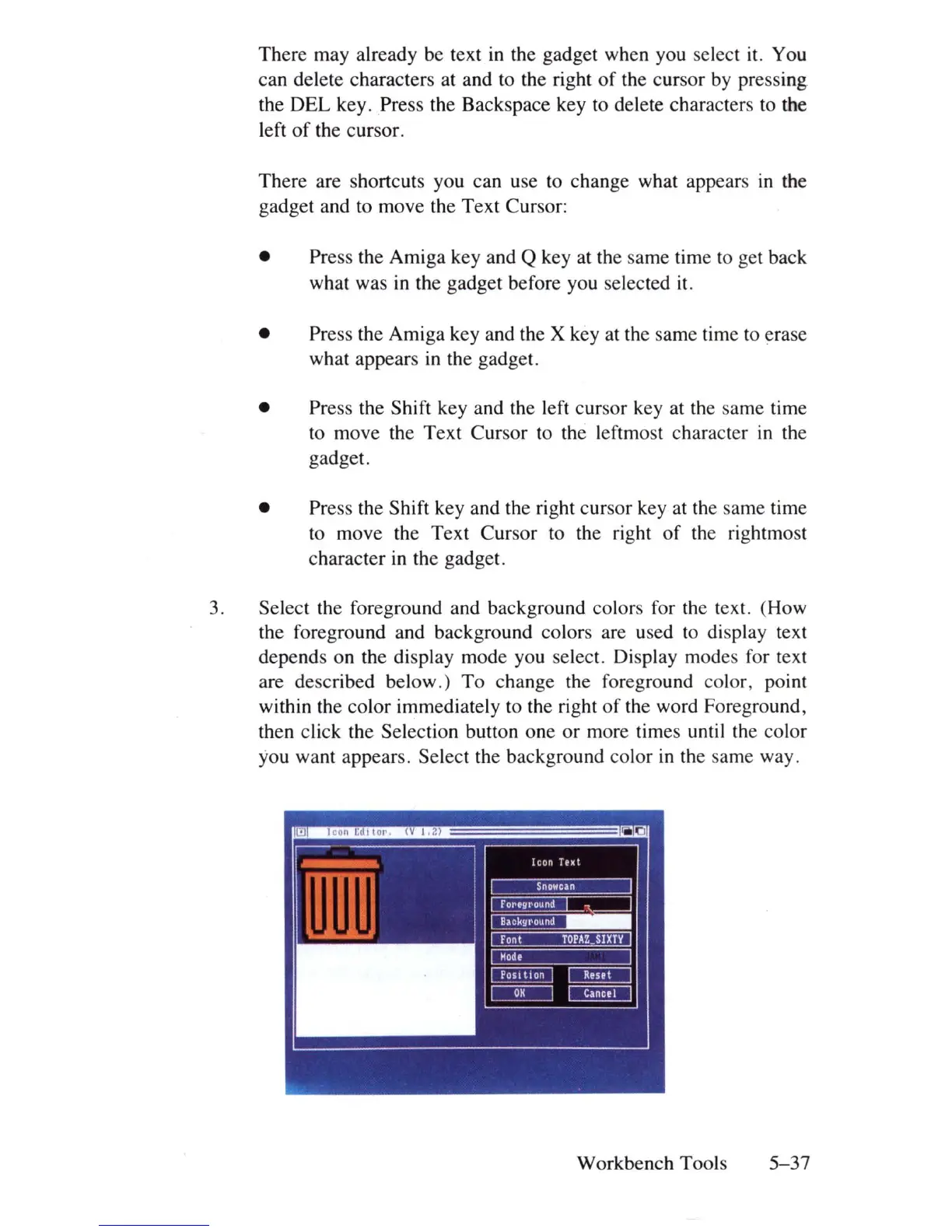
3. Select the foreground and background colors for the text. (How
the foreground and background colors are used to display text
depends on the display mode you select. Display modes for text
are described below.) To change the foreground color, point
within the color immediately to the right
of
the word Foreground,
then click the Selection button one
or
more times until the color
you want appears. Select the background color
in
the same way.
Workbench Tools
5-37













 To Next Page