70 Keysight N9915-90015 User’s Guide
DTF (Distance to Fault) Measurements
DTF Measurement Settings
3. Then:
— Velocity Factor Using the numeric keypad, enter a value between
0.01 and 1. Then press Enter
.
—
Cable Loss Using the numeric keypad, enter a positive Cable Loss
value in dB/m, then press Enter
.
How to Edit a Cable File
The FieldFox includes many predefined cable files with the manufacturer’s
specifications. You can edit these files or create new cable files using the
following procedure or using the FieldFox Data Link Software.
The Cable correction data survives a Mode Preset and Preset.
With a DTF measurement present:
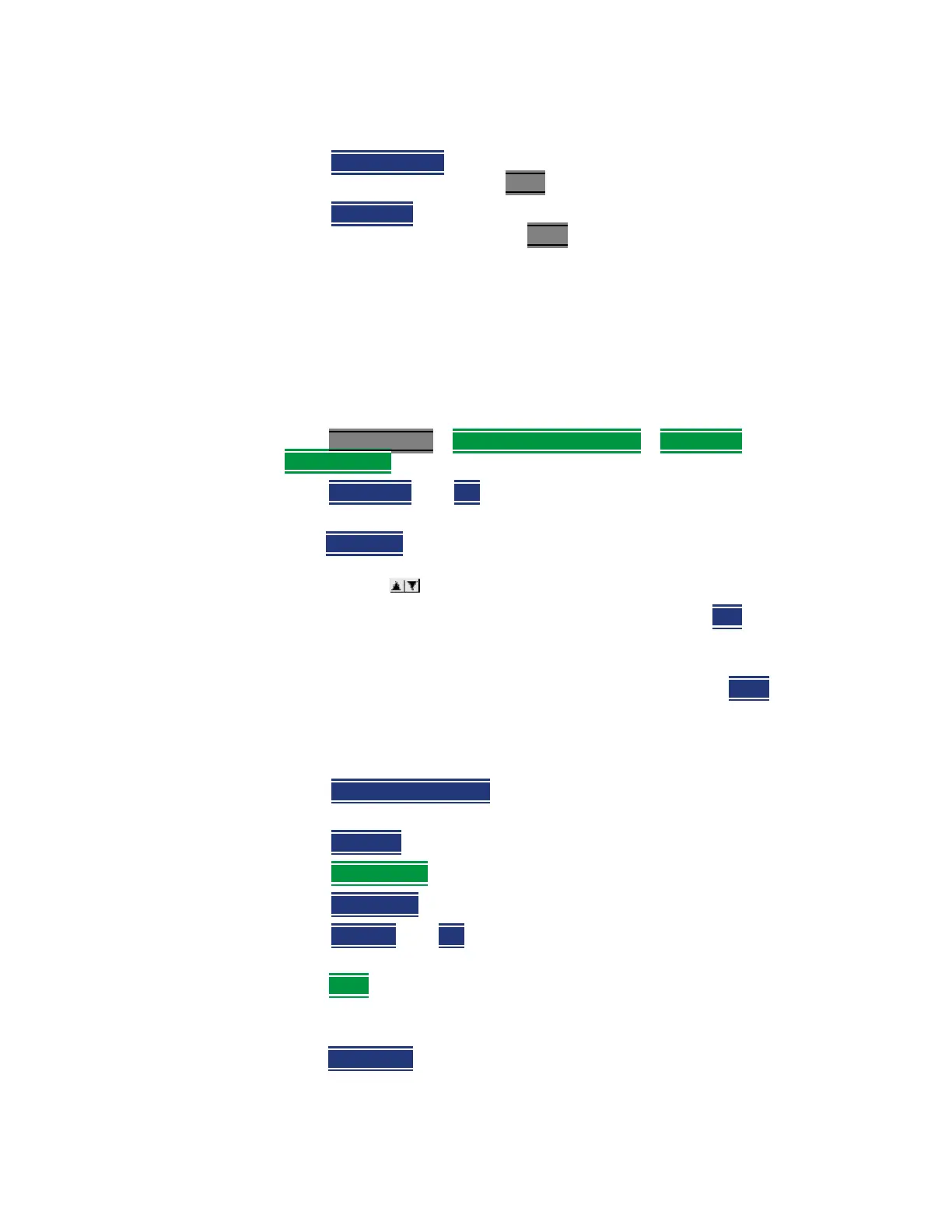
1. Press Meas Setup 4
> DTF Cable Specifications > DTF Cable
Specifications
2. Press New Cable then Yes to clear all data from the existing DTF Cable
table and reset header information to default settings.
3. Then
Edit Cable to open the Cable Editor.
4. Then use the arrows to select a field,
— When editing Cable Description information, press Edit then modify
the selected field using the FieldFox labeler.
— When editing Frequency/Loss pairs, enter numbers using the
numeric keypad, then select a frequency suffix. Then Enter. Learn
more about
“How the Freq/Loss pairs are applied” on page 71
below.
5. Optionally choose from the following:
—
Previous / Next Page
Quickly scrolls through pages of Freq/Loss
data.
— Add Data
Add a blank Freq/Loss pair to the table,
— Delete/Clear then:
—
Delete Row Remove the selected Freq/Loss pair from the table.
—
Clear All then Yes. Remove all Freq/Loss pairs from the table and
resets header information
6. Press Done to close the Cable Editor.
How to Save or Recall a Cable
—Press
Save Cable to saves your changes to the specified Storage Device.
Enter a filename using the FieldFox labeler (learn more on
“How to use the
FieldFox labeler ” on page 820). Learn more about Cable files below.













 To Next Page