Charts ECDIS-E User Guide
4-58 65934012
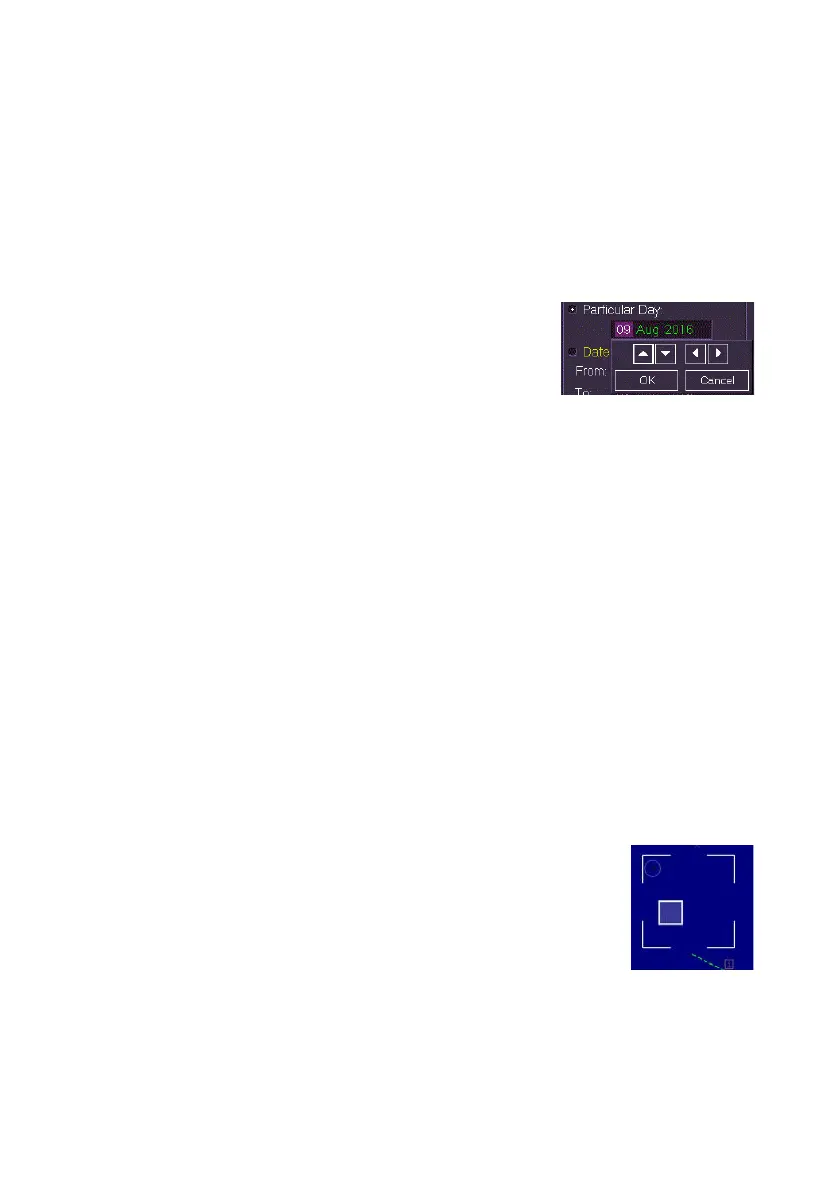
3. The Particular Day field defaults to the current day. To change the
date dependent day:
a. Left click in the field and highlight the area you want to change
(day, month or year) using the Forward and Back arrows on
the drop down keypad.
b. With the required value highlighted use the Up/Down arrows to
adjust the period forward or back.
4. To change the date range:
a. Select the Date Range button and left
click in the From or To fields.
b. Change the date range using the
Up/Down arrows as described
previously.
5. Click the OK button. The drop down keypad is removed from the
screen.
6. Note that date dependencies assigned to the chart object will not
apply until the Done button at the bottom of the window is clicked.
If a future date has been assigned the object is hidden on the
display.
To locate a date dependent object do the following:
When a future date is assigned to a chart object the object symbol is
removed from the display until the assigned date becomes active. The date
dependent object may be located on the display as described below.
1. Either right click in the chart area where the date dependent object
was created and select Query Chart, or;
2. From the Chart Query window click the Query Off button to turn on
chart query and move the cursor into the chart display, a ? is
added to the cursor. Left click in the area where the date
dependent object was created.
3. When a specific area of the chart display is queried a
broken outline box is shown, the size of the box can
be changed from the Query Options window. Any
chart object in the query area, including hidden date
dependent objects, will be listed in the Results field of
Chart Query.
4. Select the date dependant object from the Chart Query Results
field.



 To Next Page