DEQX User Manual
USING MULTIPLE ROOM MEASUREMENTS
While the central position is generally a good indicator of the overall response around
the listening area, multiple measurements can be used to refine your EQ, especially if
the listening area is large.
Method 1: Take multiple measurements first
Take several measurements around the listening area and load them into the Equalizer
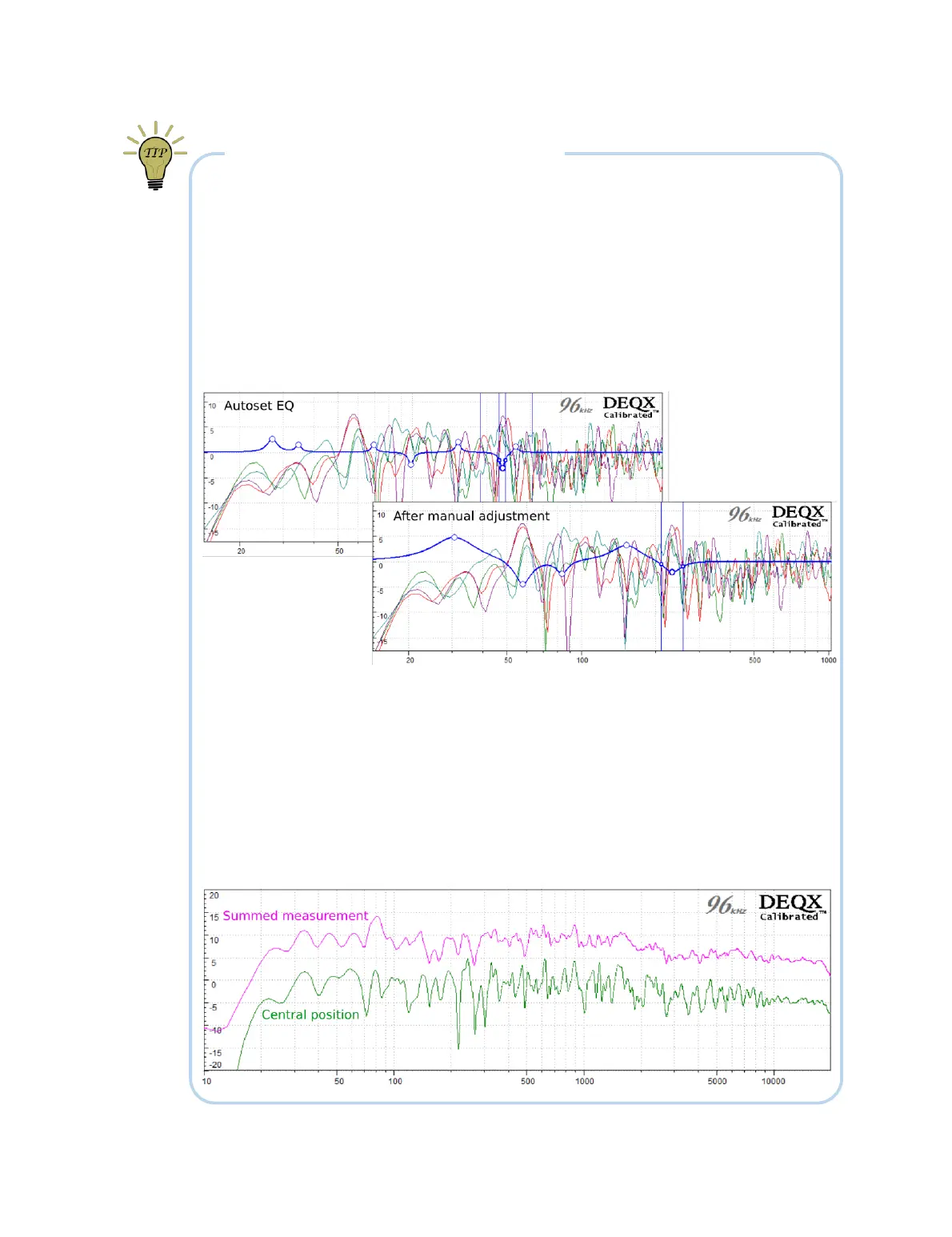
tab of the Control Panel. Click Normalize to 𝟢 dB, and then on Autoset EQ to get a
starting point. Autoset EQ takes a conservative approach when asked to EQ multiple
plots, so manual adjustment may then be needed. This composite illustrates:
Method 2: Take multiple measurements later
Use the central position of the listening area to do your room EQ. Then take several
measurements around the listening area, being sure to enable “Include parametric
filters” on Screen 3 of the room measurement wizard. Load the measurements into a
data viewer and use the Sum button to see how applicable your EQ is across the
listening area. For example, the summed measurement below (in purple) suggests that
a little more cut at 80 Hz may be beneficial. (The green plot is the same speaker
measured at the central position, for comparison.)



 To Next Page