Chapter 7. Speaker Calibration
7.8 CREATING ADDITIONAL CORRECTION SETS
A calibration template can hold any number of correction sets, which differ in the
length of the correction time window, smoothing, correction frequency limits, and
correction parameters. To create another correction set:
1. Click on the Anechoic tab. Adjust the time window if desired.
2. Click on the Smoothed Measurements tab, or on Next. Adjust the smoothing.
3. Click on the Limits tab, or on Next. Adjust the correction filter limits.
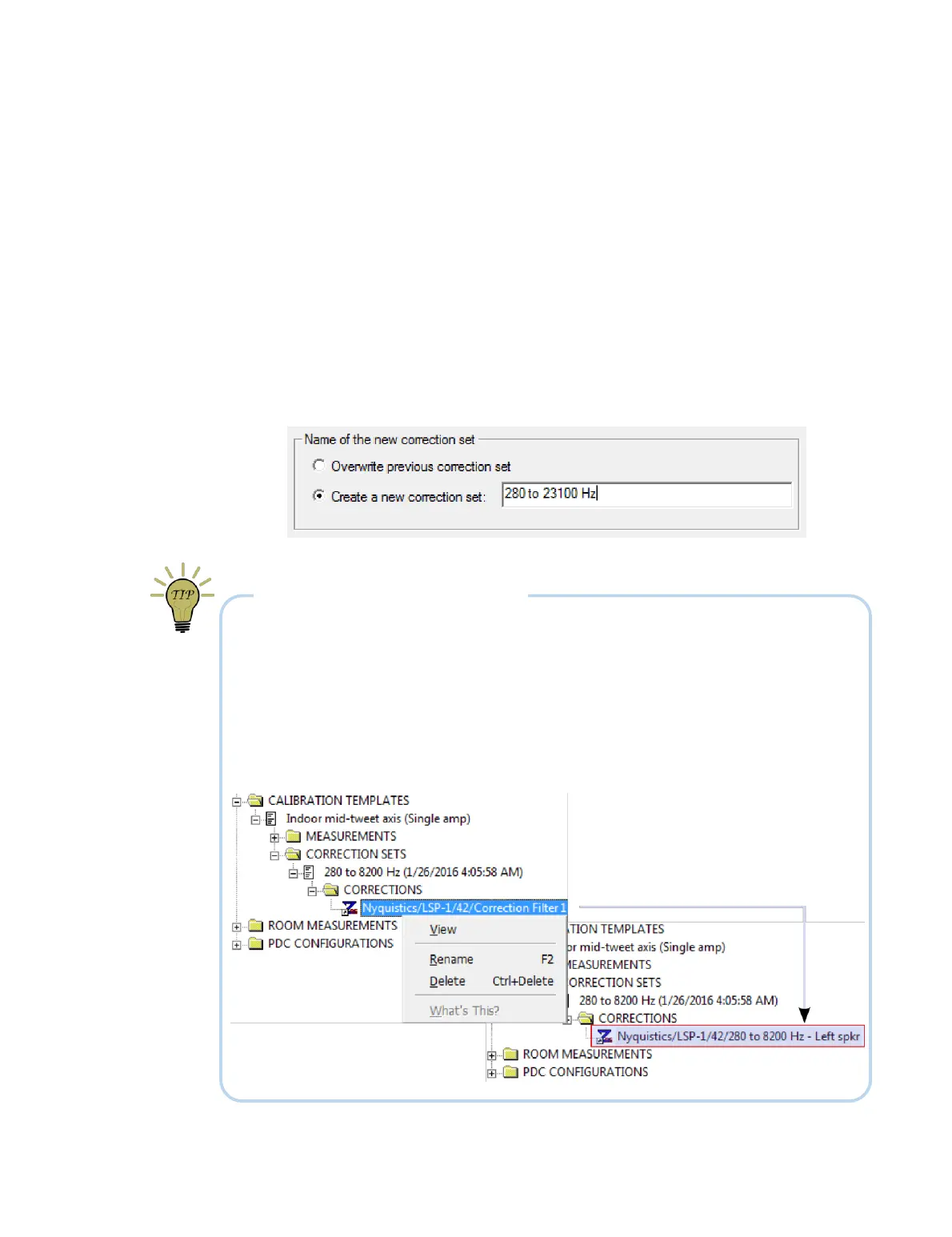
4. Click on Finish. You can either overwrite the most recently generated correction
set, or select the option “Create a new correction set” and enter a name for it. On
this screen, you can also change parameters such as Max Delay.
5. Proceed through the remaining screens to generate the new correction set.
RENAMING CORRECTION FILTERS
While DEQX-Cal allows you to name the correction set when generating filters, the
names of the individual correction filters are still automatically generated (“Correction
Filter 1” and so on). Once you have generated a few different correction filters, this can
make selecting the correct filter for configuration (Chapter 9) more difficult.
Therefore, use the project explorer to navigate to the individual filters, right-click, and
select “Rename.” Use the same name as the template, and indicate which speaker is
which. For example, here we have used “280 to 8200 Hz - Left spkr.”



 To Next Page