DEQX User Manual
3. Press and hold the P1, P2 and P3 buttons. While continuing to hold them down,
turn on the DEQX with the rear panel power switch. All LEDs will flash blue.
4. Release the three buttons.
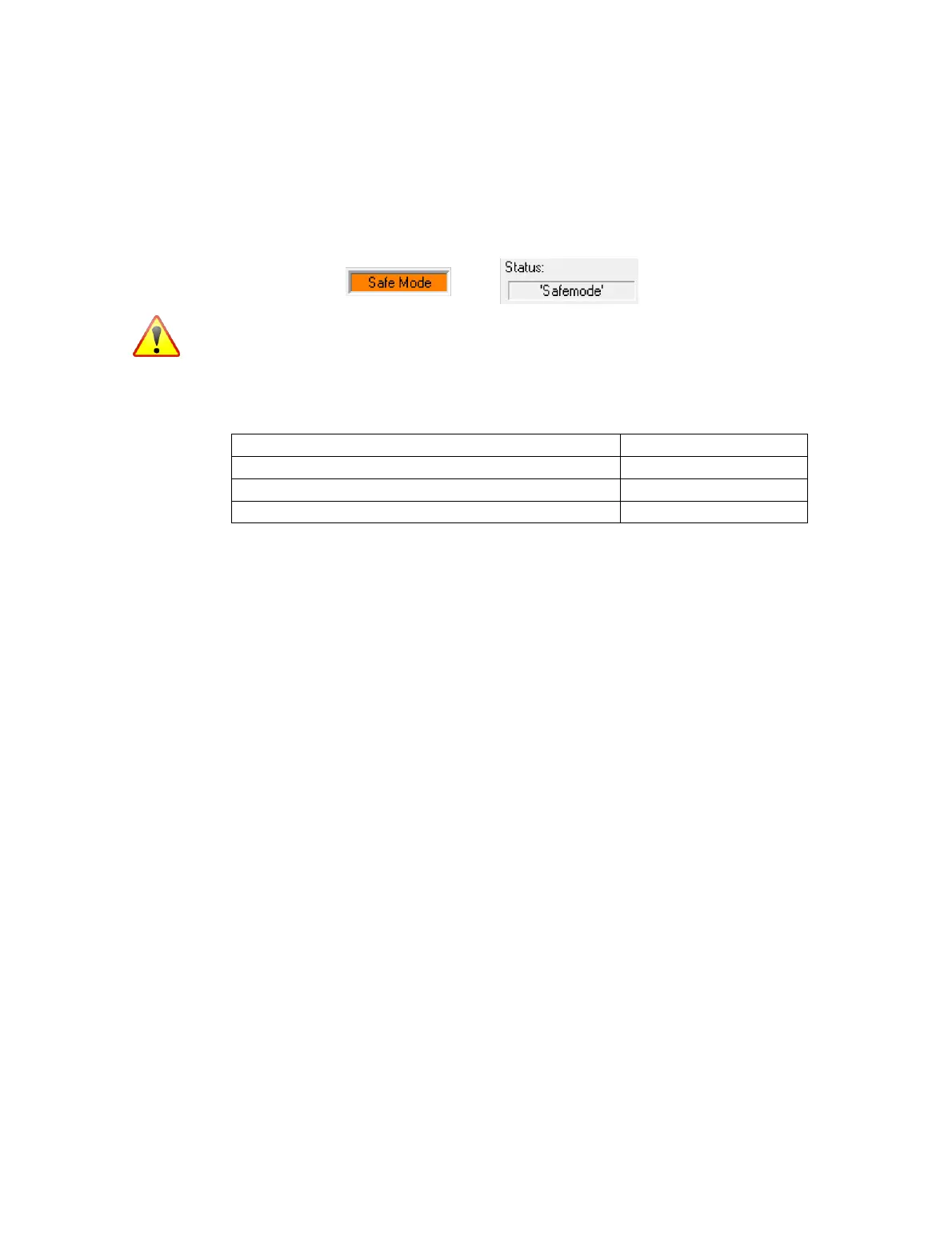
The DEQX-Cal status fields will indicate that it is connected in safe mode:
To upgrade firmware while in Safe Mode, drop down the Tools menu and select
“Upgrade DEQX firmware from file...”. It is IMPERATIVE at this point that you select
the correct firmware file for your DEQX model, as per Table 7 below:
Table 7. Firmware upgrade file by DEQX model
PDC-2.6, PDC-2.6P, HDP-Express (Mk1), HDP-3
DEQX Mate, PreMate, HDP-Express II, HDP-4
To exit safe mode, turn the DEQX off using the rear panel switch, and then turn it on
again (without pressing any front panel buttons).
TO RESET THE EEPROM
In rare cases, it may be necessary to reset the EEPROM in order to restore normal
function of the DEQX. The EEPROM is a non-volatile memory chip that stores the
status of the DEQX (i.e. whether normal or in error), the master volume, parametric EQ
settings, and other parameters accessible from the IO Manager.
To reset the EEPROM, turn the DEQX off using the power switch on the rear panel.
Press and hold the P3 button on the front panel, then turn the DEQX back on while
keeping the P3 button held. This will clear any error messages and set the status of the
DEQX to normal. In addition, it will:
Reset the volume to -120dB;
Set the current profile to Profile 𝟢;
Set the analog input to Analog 1, the digital input to Digital 3, and the input
selection to Auto;
Remove all parametric EQ filters i.e. both room EQ and Preference EQ;
Clear all IO Manager per-channel settings: channel gains, channel muting, soloing,
delay and polarity.
Resetting the EEPROM won't remove the correctionfilters from the DEQX. However,
all room EQ has been cleared, so it is recommended that the configuration now be re-
uploaded to the DEQX.



 To Next Page