Chapter 1o. Room Measurement
10.2 START THE ROOM MEASUREMENT WIZARD
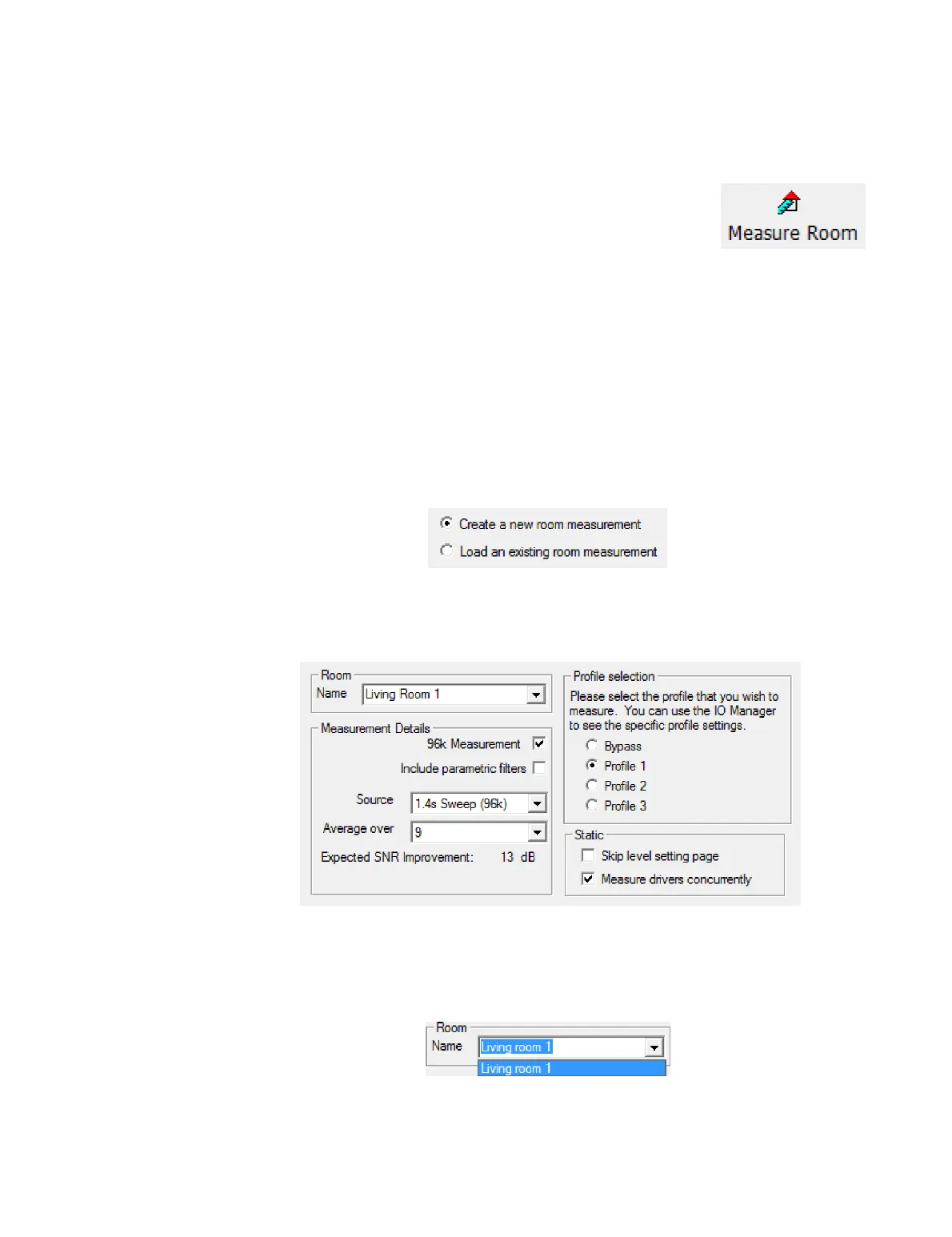
Start the room measurement wizard by clicking on the Measure
Room button in the Wizard toolbar or by selecting it from the
Tools menu.
The wizard will take you through a series of screens. To proceed through them, select
the necessary options on each screen and click the Next button. If you realize you've
made a mistake or need to check what you've done, click the Back button to go back
through the screens.
Screen 1. If you have more than one project open, this screen allows you to select the
project in which the measurement will be stored. Otherwise, this is an informational
screen only.
Screen 2. Create a new room measurement, or select an existing measurement to
open. (The following steps assume that you have selected “Create a new room
measurement.”)
10.3 SET ROOM MEASUREMENT PARAMETERS
Screen 3. This screen sets a number of parameters that control the measurement.
Room Name
Enter the name of the room being measured. If you have previously done room
measurements, you can select from these rooms using the drop-down menu.



 To Next Page