NETWORKED STREAMING AUDIO
The DEQX HDP-5 and PreMATE+ provide, in addition to the multitude of digital audio
inputs, a carefully selected set of networked streaming audio functions. In this mode,
the DEQX acts as a destination for third-party audio playback sources (software).
This Appendix describes supported networked audio sources. Others may work, but will
not be supported by DEQX. (Note also that DEQX support is limited specifically to
issues related to streaming networked audio to a DEQX unit. Core installation and
configuration issues must be directed to the third-party hardware/software provider.)
To enable the DEQX as a networked audio destination, connect an Ethernet cable from
your network router to the Ethernet port on the rear panel. Then select the “Internal”
input on the front panel touchscreen or press the “Auto” button on the DEQX Remote.
JRiver Media Center
JRiver Media Center (https://www.jriver.com/) is a comprehensive audio playback and
library management suite that runs on Windows, Mac, and Linux.
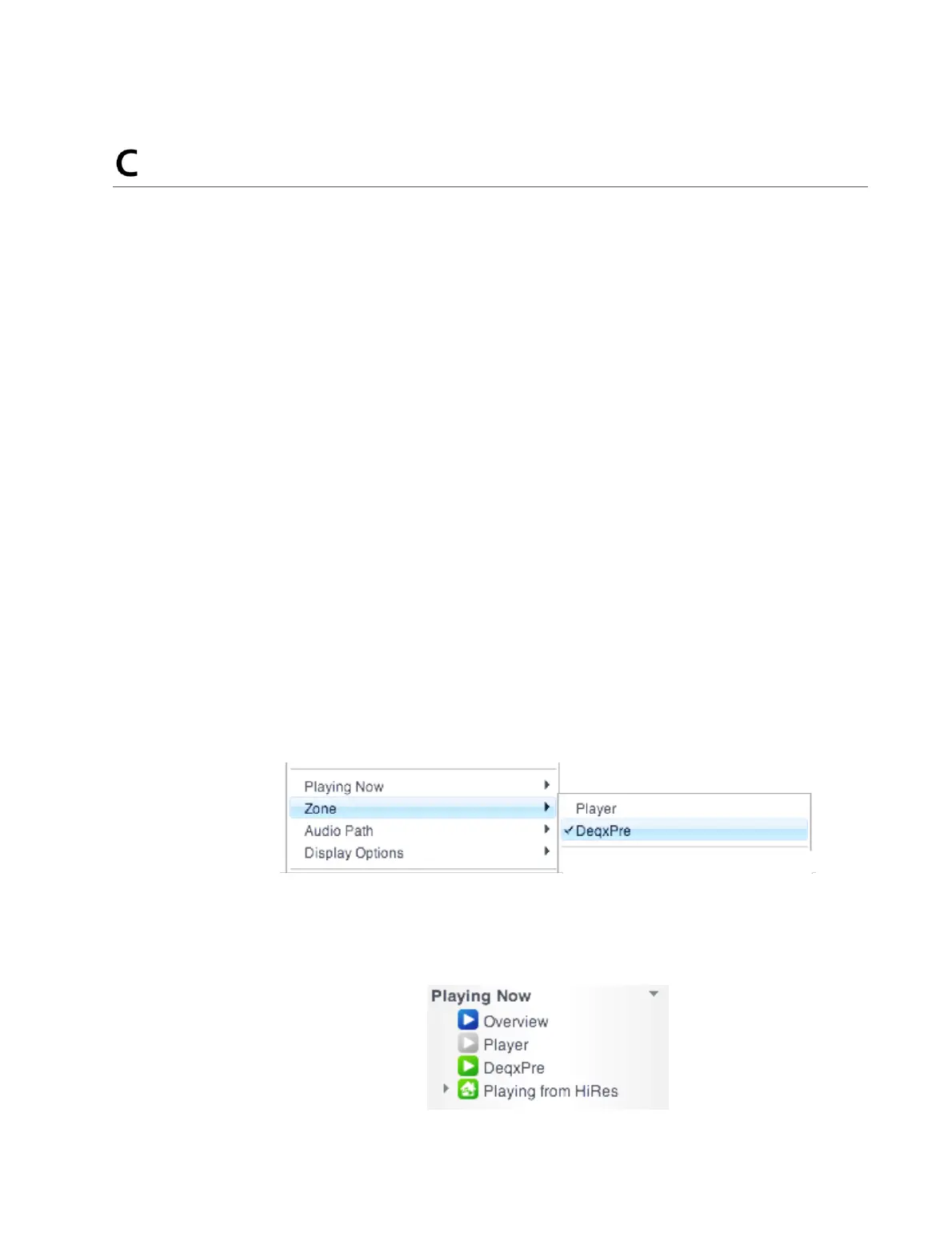
To enable playback to a network-connected DEQX, drop down the Player menu and go
to the Zone sub-menu. Select the zone “DeqxPre,” as shown here:
Proceed to your normal JRiver library view, hover the mouse over an album or playlist,
and click on the “Play” overlay. The “Now Playing” section of the sidebar will show that
“DeqxPre” is the playing destination (example shown below). Control playback volume
from the DEQX touchscreen or with the DEQX Remote.



 To Next Page