DEQX User Manual
9.2 CREATE A CONFIGURATION
Start the configuration wizard by clicking on the Configure button in
the Wizard toolbar or by selecting “Configure DEQX” from the Tools
menu.
The wizard will take you through a series of screens. To proceed through them, select
the necessary options on each screen and click the Next button. If you realize you've
made a mistake or need to check what you've done, click the Back button to go back
through the screens.
Screen 1. If you have more than one project open (page 149), this screen is used to
select the project in which the configuration will be created. Otherwise, this is just an
informational screen.
Screen 2. You can create a new configuration, or select an existing configuration to
view and modify. (The following steps assume that you have selected “Create a new
DEQX configuration.”)
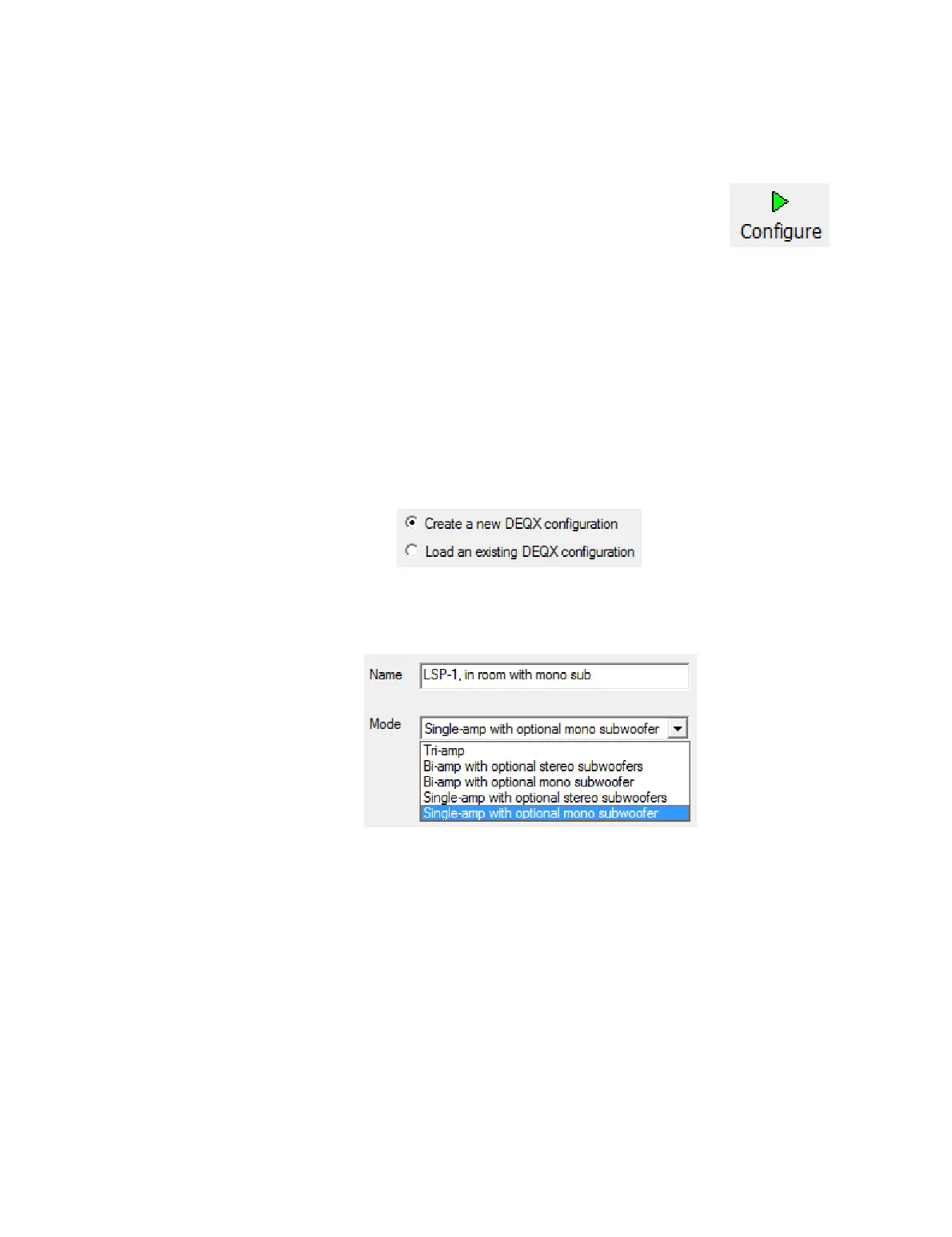
Screen 3. Name the configuration, and select the speaker configuration mode. There
are five modes to choose from, depending on the exact way in which you are deploying
your DEQX.
The rest of this chapter assumes that you have chosen either “Single-amp with optional
mono subwoofer” or “Single-amp with optional stereo subwoofers.” (For bi-amp and
tri-amp modes, see Chapter 13.)
Note that the speaker configuration mode is the same for all four profiles. If you want to
experiment with, for example, using both a mono subwoofer and using stereo
subwoofers, you will need to create separate configurations.
Screen 4. This is a confirmation screen. Click Finish to proceed. The wizard will close
and DEQX-Cal will open a new configuration window.



 To Next Page