15 DEQX CONTROL PANEL REFERENCE
The DEQX Control Panel displays the current status of the
connected DEQX unit. In contrast to the configuration
window, the Control Panel manages “real time” information
about the DEQX, including volume, input selection, room
EQ and per-channel delay and level controls.
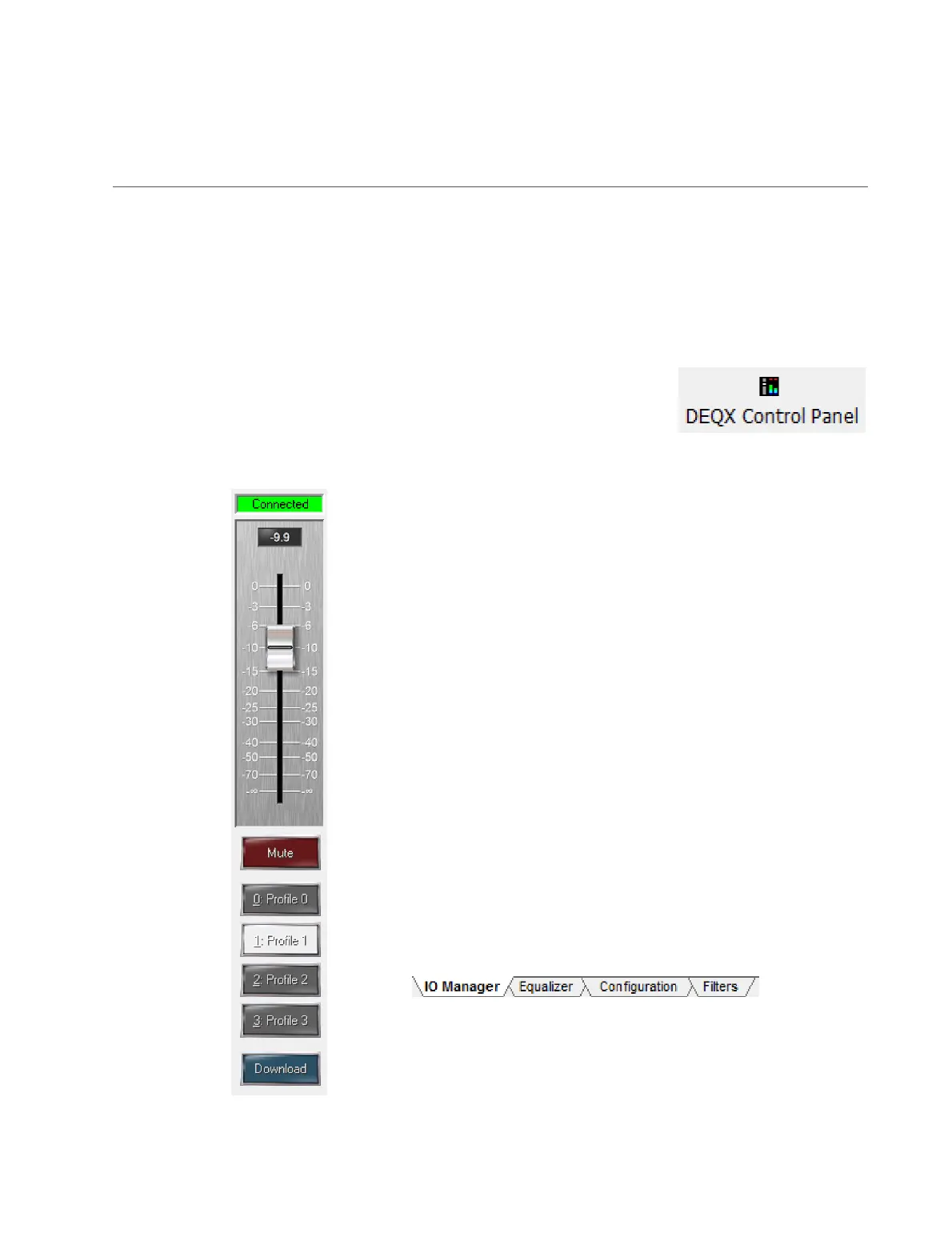
At the left of the Control Panel is a strip that displays the master volume
slider and profile selectors. The status indicator at the top is green if
DEQX-Cal detects connection to the DEQX. It turns red if clipping is
detected (page 135).
Click and drag the slider to adjust master volume. The numeric display
above the slider shows the exact volume setting in dB. Once the slider
has been clicked on, volume can be adjusted in fine (0.1 dB) steps with
the up and down arrows on the keyboard.
The Mute button mutes all output channels. Mute is automatically
engaged by DEQX-Cal in some circumstances, such as when the
microphone input is selected and a measurement is not in progress.
The four Profile buttons select the profile currently being used for
processing by the DEQX. These are equivalent to the profile selection
buttons on the DEQX Remote and the front panel.
The Download button downloads all filters resident in the DEQX to the
Control Panel for display.
To the bottom of the Control Panel is a row of four tabs, which select
different information and control displays. They are described in detail
in the rest of this chapter.
Selecting the Filters tab or the Configuration tab, pressing Download,
and then cycling through the four Profile buttons will provide at-a-
glance confirmation of the data loaded into each profile.



 To Next Page