Chapter 7. Speaker Calibration
7.6 GENERATE THE CORRECTION SET
Screen 5. After completing the correction parameters, a progress window appears that
shows the steps of the correction algorithm and a progress bar. Typically, the algorithm
will take less than a minute to run.
After calculation completes, click Finish.
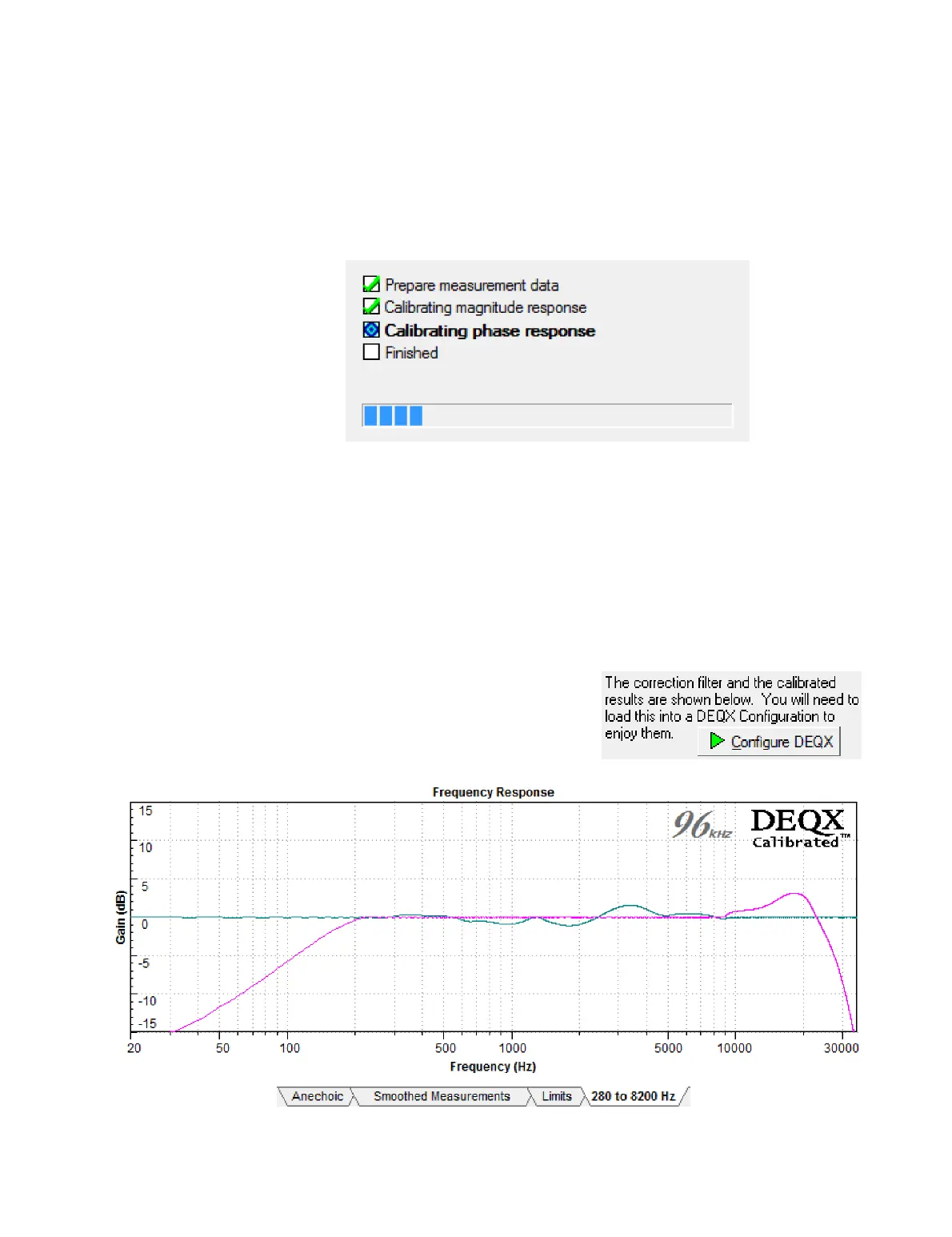
Screen 6 / Correction set tab. The calibration template will create a new tab displaying
the correction filters. In the example below, there is a single filter in the correction set
(the correction filter is in green and the predicted response is in purple).
Note that the predicted response includes the effect of the impulse response time
window (as set on the Anechoic tab). There is therefore a visible fall-off at low
frequencies, below the frequency given by Table 3 on page 58. Once again, this is not
real – the fall-off is an artifact of the short time window.
To proceed directly to configuration (Chapter 9),
click the Configure DEQX button to the top left
of this tab. Or, to create additional correction
sets, read the following pages.



 To Next Page