Chapter 4. The DEQX Remote
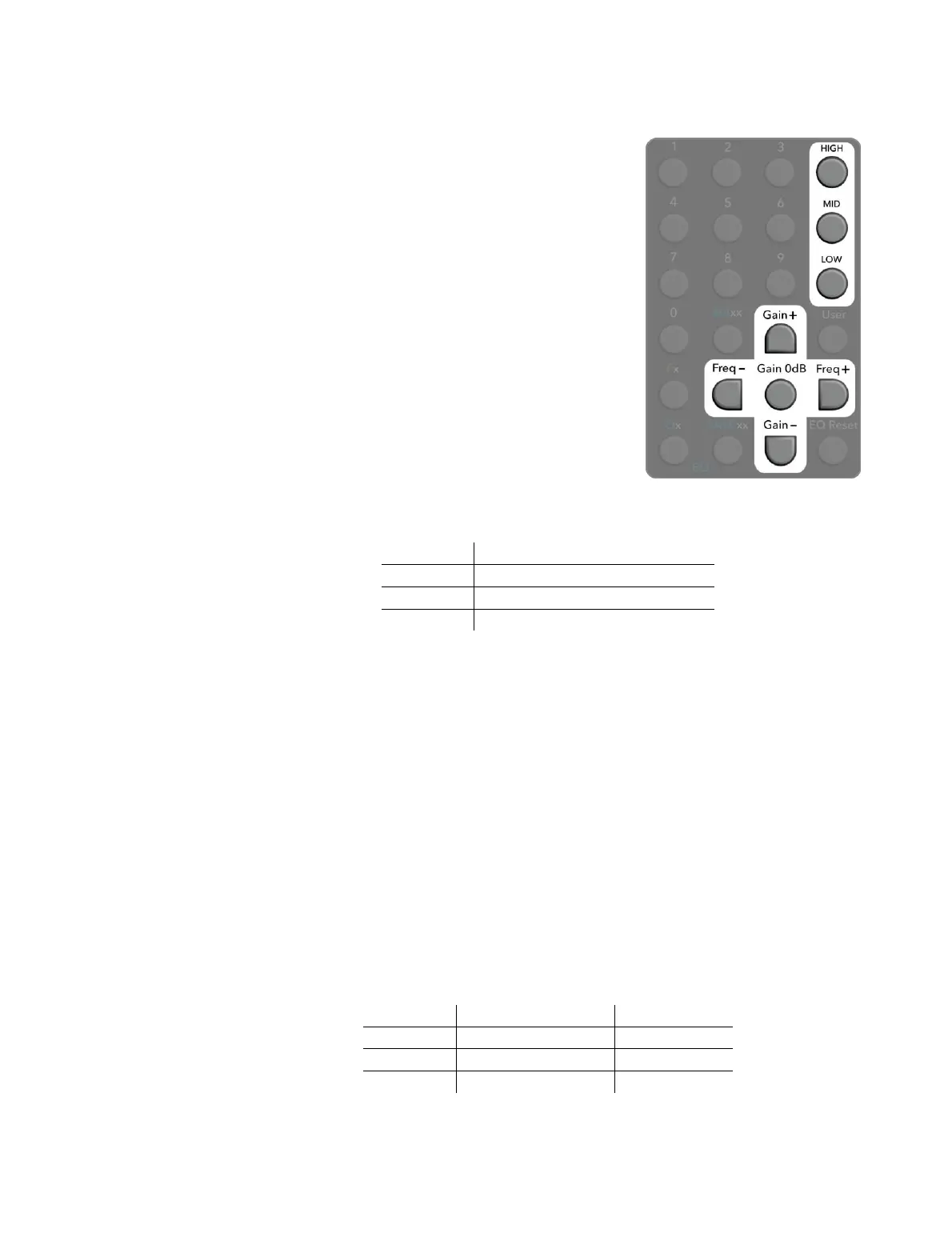
To set the active EQ band:
One of the three EQ bands is designated
“active,” meaning that subsequent changes to
gain, frequency or Q will act on that band.
To set the active band, press HIGH, MID, or LOW.
One of the three profile LEDs, as indicated in
Table 1 below, will briefly light green to confirm
the choice.
(For example, suppose MID is pressed. If the
DEQX currently has Profile 1 selected, the P1
LED will go out while P2 lights green, then P2 will
go out and P1 will turn back on. If, however, the
DEQX currently has Profile 2 selected, the P2
LED will change from white to green, then back
to white.)
Table 1. Mapping of EQ bands to Profile LEDs
Corresponding Profile LED
To change gain:
Press Gain+ or Gain−. The Profile LED corresponding to the active EQ band will
briefly light green. The gain of the EQ band will be changed in 1 dB steps, up to
+9 dB or down to −9 dB.
To reset the gain:
Press Gain 𝟢dB. The Profile LED corresponding to the active EQ band will briefly
light green. The gain of the EQ band will be set back to 𝟢 dB (flat).
To change frequency incrementally:
Press Freq+ or Freq−. The Profile LED corresponding to the active EQ band will
briefly light green. The corner or center frequency of the EQ band will be changed
in semitone steps. (That is, the frequency will double or halve after 12 presses.)
Table 2 shows the default frequencies of each band.
Table 2. Default frequency and Q



 To Next Page