Chapter 9. Configuring the DEQX
COPY FILTER SETTINGS BETWEEN SPEAKERS
To copy filter settings from one speaker to another, you can use drag and drop. For
example, to copy the filter settings from the left speaker to the right speaker:
1. Click on the left speaker icon (but don’t release the mouse button). It will be
highlighted in a grey outline.
2. Drag the mouse over to the right speaker.
3. Release the mouse button.
To copy filter settings between different profiles, use copy-and-paste operations. For
example, to copy settings from Profile 𝟣 to Profile 𝟤:
1. Click on the Profile 𝟣 selector.
2. Right-click on the speaker from which you wish to
copy filter settings and select “Copy” from the popup
menu.
3. Click on the Profile 𝟤 selector.
4. Right-click on the same speaker in this profile and
select “Paste” from the popup menu.
After copying settings, visually check the configuration to
confirm that the data has been copied.
9.5 CREATE A PROFILE WITH NO CORRECTION
This example profile will be set up to play audio to a pair of main speakers, with no
correction filters applied.
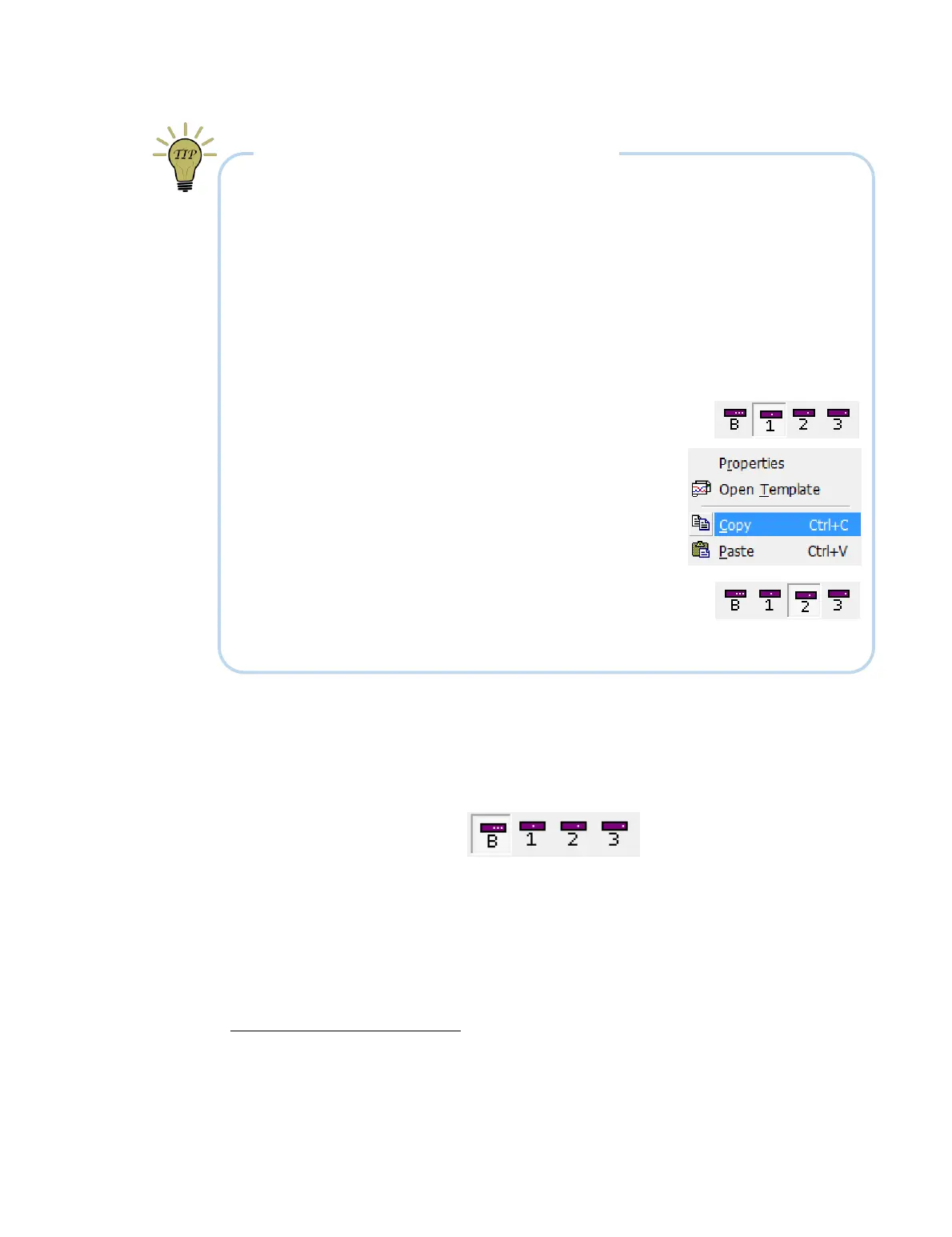
1. Select Profile 𝟢 from the toolbar:
2. Open the Filter Properties dialog of the left speaker.
3. On the Main Filter tab, select “Bypass correction for this loudspeaker, but still use
limit filters.”
4. Repeat steps 2 and 3 for the right speaker. Alternatively, just copy the filter settings
from the left speaker to the right speaker, as described in the tip box above.
For historical reasons, Profile 𝟢 is sometimes referred to as “Bypass.” It is, however, identical to
the other three profiles and can contain correction and limit filters and delay and gain settings. In
the buttons at the top of the configuration window, select Profile 𝟢 by pressing the “B” button.



 To Next Page